Add Background to Photo: How E-Commerce Sellers Create Professional Product Images Without a Studio
Want cleaner listings without another shoot? Add background to photo files you already own and keep the product looking real.
 Michael WalshNovember 14, 2026

Add Background to Photo: How E-Commerce Sellers Create Professional Product Images Without a Studio
A clean product shot used to mean booking a studio, matching lights, and hoping the set looked the same six months later. Most small sellers do not have that budget. They have a phone, a kitchen table, and a catalog that still needs to look consistent on Shopify, Amazon, Etsy, and social feeds. The product is already photographed. What is missing is a background that fits the listing, the ad, and the brand.
That gap is why more teams now add background to photo files they already own, instead of reshooting every SKU. An online editor can remove a cluttered backdrop, generate a clean studio scene or a lifestyle setting, clear stray objects, and sharpen detail before export. Pixflux.AI is built for that kind of product-image work: background removal, background replacement or generation, object cleanup, light enhancement, and batch runs on a set of images. You stay in the browser. No studio rental, no plugin stack, and no new photoshoot for a seasonal refresh.
Small catalogs are moving this way for a practical reason. Repeat shoots are slow. Shoppers still expect matched lighting, believable shadows, and a brand look that holds across a product line. Changing the background on a sharp original is often enough.
Why Sellers Add Background to Photo Files Without a Studio
Marketplace main images and campaign creatives pull in opposite directions. Amazon and similar catalogs often want a simple, distraction-free product view. Ads, email, and social posts usually need a scene: a desk, a kitchen counter, a holiday table. Shooting both versions for every SKU is expensive. Editing the background on one good capture covers both jobs.
Typical starting files are imperfect in predictable ways:
- A white wall that is not actually white, with a color cast from a window.
- A lifestyle snap with cables, a roommate, or packaging scraps in frame.
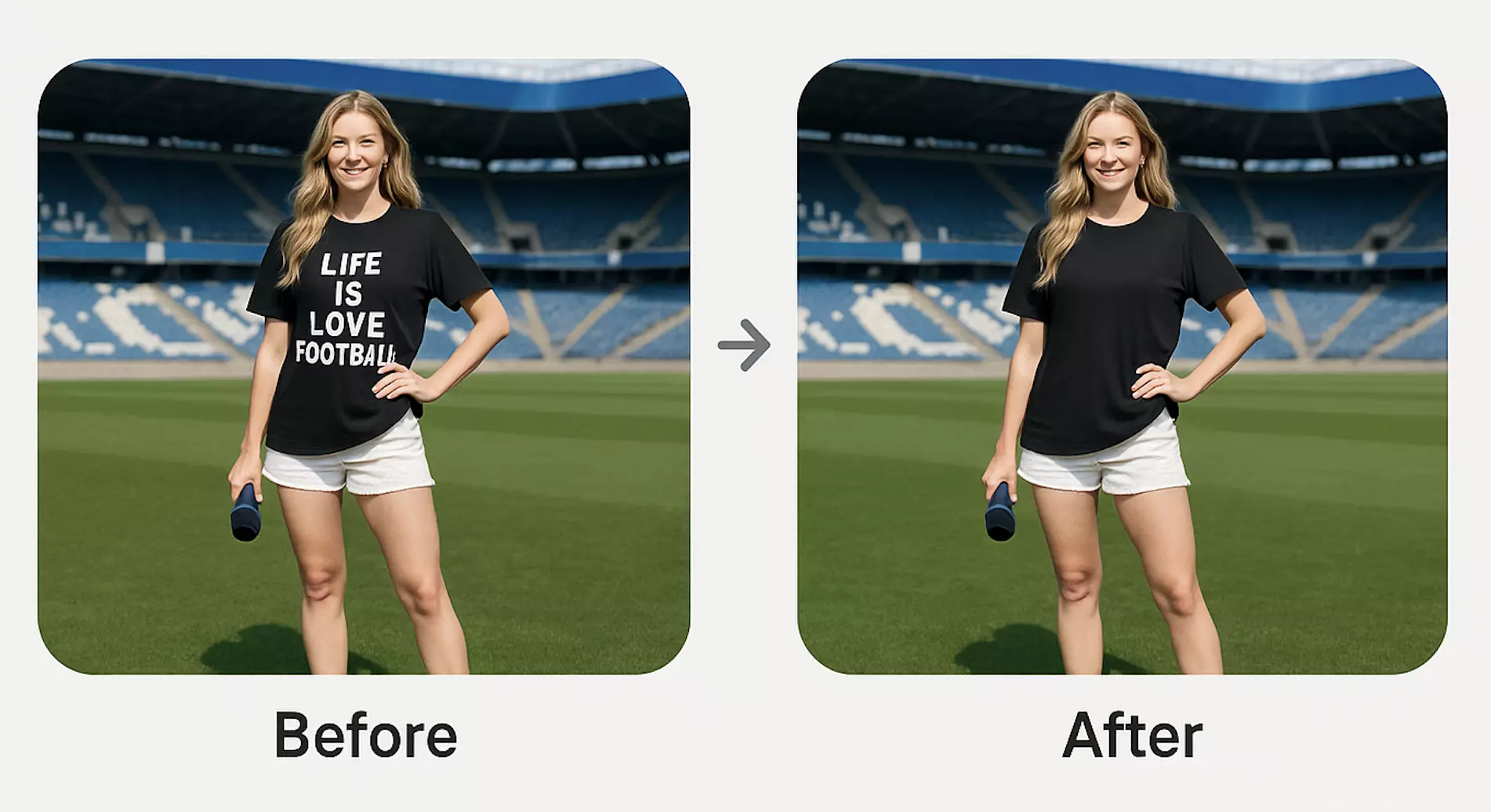
- A supplier photo with a logo stamp you are allowed to remove because you own the asset.
- A phone shot that is sharp enough on the product, but soft and noisy in the corners.
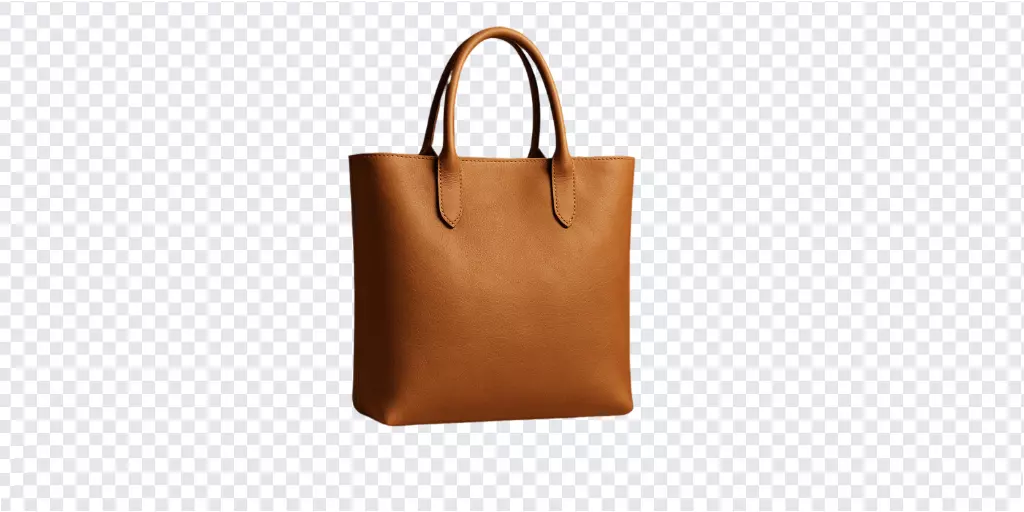
None of those problems require a new set. They require a controlled edit: isolate the product, choose a background that matches the selling goal, then check edges, shadows, and small text before you publish. Teams that refresh backgrounds seasonally can keep a catalog current without blocking a week on studio time.
(See: one product shown on a clean studio background, a lifestyle scene, and a seasonal promotional setting.)
Studio, Lifestyle, and Seasonal Backgrounds Compared by Product Goal
Pick the background from the job, not from a trend board. Three options cover most catalogs.
Clean studio backgrounds suit main listing images. A neutral white, light gray, or soft brand color keeps the product readable at thumbnail size. Beauty, electronics, supplements, and anything with a label usually belong here first. The goal is recognition, not atmosphere.
Lifestyle scenes suit ads, collection pages, and social commerce. A ceramic mug on a morning table, a backpack on a travel bench, a skincare bottle on stone: the scene explains use without hiding the product. Keep the product large in frame. A pretty room that shrinks the item will hurt click-through on mobile.
Seasonal or campaign settings suit limited-time promotions. A winter table, a summer patio, or a gift-wrap surface can align a hero image with a sale without a reshoot. Use them on ads and landing creatives. Do not quietly replace a compliant main image with a busy holiday scene if the marketplace expects a plain backdrop.
A useful split for many stores: simple studio files for the primary listing, lifestyle or seasonal files for ads and social. That keeps platform rules and brand storytelling from fighting each other.
Standards for Lighting, Shadow Match, Color, and Detail Preservation
A new background fails when it looks pasted on. Four checks prevent most of that.
Light direction. If the product is lit from the left, the scene should not imply a hard light from the right. Soft, even product light pairs best with soft studio or diffused lifestyle light.
Contact shadow. Products sit on something. A thin, soft shadow under the base sells weight. A floating item with no contact reads as a cutout, even if the edges are clean.
Color temperature. Warm product light on a cool blue scene looks wrong. Match warmth before you export. If the original has a yellow cast, correct it on the product first, then build the background.
Detail preservation. Labels, stitching, logos you own, and fine edges should survive the edit. Zoom to 100 percent on text and on thin parts such as handles, stems, and jewelry chains. If letters blur or a strap disappears into the new scene, the cutout needs a tighter edge, not a busier background.
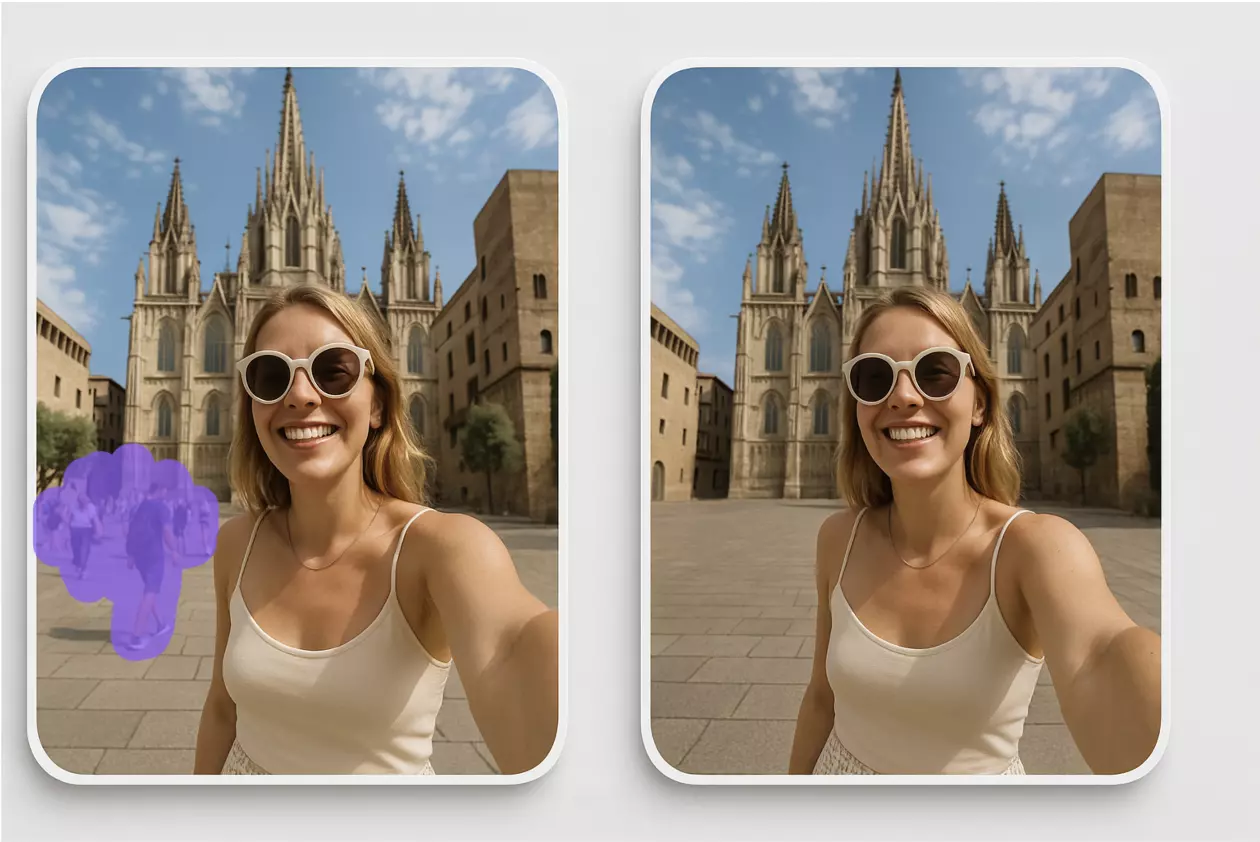
Distractions belong out of the frame before you judge the new scene. Remove people, cords, and clutter so the product is the only subject. A short enhancement pass—clarity and contrast, not heavy sharpening—helps phone files hold up at larger sizes.
(See: a close review frame with matched shadows, preserved product edges, and removed distracting objects.)
How to Add a Professional Background to a Product Photo with Pixflux.AI
This workflow assumes you already have a usable product photo: the item is in focus, not badly motion-blurred, and you have the right to edit it. The steps below use Pixflux.AI as the working example.
(See: the Pixflux.AI screen showing upload, AI processing, and download as a three-step flow.)
- Upload the original image. Open the tool and add the product file from your phone or desktop. Prefer the largest clean export you have. Crop loosely so the full product and a little space around it remain. Do not upscale a tiny thumbnail and expect label text to return.
- Let the AI process the image. Choose the background task that matches the goal. Remove a messy backdrop when you only need isolation. Replace or generate a studio, lifestyle, or seasonal background when the listing or ad needs a new setting. If cords, passersby, or scraps compete with the product, remove those objects in the same pass. If a watermark or logo stamp is on a file you own or are authorized to clean, remove it here—not on someone else’s protected image. A light enhancement step can lift contrast and fine detail after the background is set.
- Preview, then download. Check edges, shadow contact, color temperature, and any small text. Adjust if the product looks floated or if a label softens. When the frame holds up at thumbnail size and at full size, download the finished file. For a catalog, run the same background system on the set, review a sample, then download the batch so listings stay consistent.
If you want a slightly tighter pass on a hero image, use the longer sequence: open the Pixflux.AI tool page, upload the original, select the background and cleanup tools and let the AI process the file, preview and fine-tune edges and shadow, then download. Either path stays inside the editor. You are not configuring connections to a store backend. Export the file and upload it yourself in Shopify, Amazon, Etsy, or your ad manager.
To add a professional background to a photo that will become a main image, start with a simple studio result and only then build a lifestyle variant from the same source.
Before-and-After: Clarity, Consistency, and Presentation
Judge the edit by what a shopper sees in two seconds, not by how clever the scene is.
Clarity. On a white or light gray ground, the product silhouette should read at the size of a search thumbnail. Busy textures behind a small item usually lose. If the before image hides the shape in a cluttered room, the after image should make the shape obvious.
Consistency. A ten-SKU line should look like one brand. Same shadow softness, same background family, same crop logic. One lifestyle scene and nine plain whites is fine if that split is intentional. Ten unrelated rooms is not.
Presentation quality. A matched shadow and preserved label often outperform a dramatic generated room. For supplements, cosmetics, and packaged food, readable text is part of trust. For apparel and home goods, a restrained lifestyle surface can explain scale. Keep the product dominant in both cases.
Batch updates help lean teams. Set one background approach, process the group, and reject outliers before anything goes live. That is faster than outsourcing each file with a different brief, and it avoids the slow drift that happens when every image is edited by hand in a different session.
Export Checks for Shopify, Amazon, Etsy, and Social Commerce
Platform rules differ. Treat export as a checklist, not a single “save for web.”
- Amazon and similar marketplaces. Main images are often expected to be simple, with the product filling most of the frame and no extra props that confuse the item. Keep promotional scenes for secondary images only if the category allows them. Confirm current image rules for your category before you replace a live main photo.
- Shopify. You control the template, but thumbnails still need a clear product. Export a clean studio version for the grid and a lifestyle version for the product story or a campaign banner.
- Etsy. Handmade and vintage listings can use warmer scenes, but the item must stay identifiable. Avoid backgrounds that imply materials or inclusions the buyer will not receive.
- Social commerce. Square or vertical crops matter. Leave safe space so captions and interface buttons do not cover the product. A seasonal background can carry a campaign here without changing the marketplace main image.
Export at the size you will actually upload. Do not rely on a marketplace to invent detail that was never in the file. Name files consistently so your team can tell studio, lifestyle, and seasonal variants apart.
AI Online Tools vs Traditional Methods
Desktop software, freelance retouching, and a full reshoot all still have a place. They are rarely the fastest path for a small catalog that only needs a new background.
Time. A studio day covers a limited number of SKUs and then the files still need retouching. An online pass on an existing sharp photo is minutes per image, and a batch run covers a line in one sitting. You upload, process, review, and download.
Learning curve. Photoshop can match light and shadow precisely, but it asks for masks, blend modes, and practice. An AI background tool asks for a clear source file and a defined goal: studio, lifestyle, or seasonal. That is enough for most listing and ad work. Keep manual software for the rare hero that needs custom compositing.
Batch efficiency. Outsourcing gives you hands, not a system, unless you write a strict brief and review every file. In-house desktop edits drift as people change. A shared online workflow—one background family, one review standard, then download—keeps a lean team aligned without a handoff into another production queue.
Working across roles. A founder, a marketplace manager, and a social freelancer can use the same steps without installing the same desktop license. They still exchange normal image files. Nothing here depends on connecting the editor to your store, inventory system, or product database. The handoff is the downloaded file.
Traditional methods win when the source photo is unusable: severe blur, wrong product, or missing angles. No background tool replaces a photograph of the item you actually sell.
Copyright, Disclosure, and Marketplace Image Policy Limits
Only edit images you own or are licensed to change. Background replacement and watermark removal are for your assets and for files you are explicitly allowed to clean. They are not a way to strip another brand’s mark, reuse a competitor’s photo, or bypass a platform rule.
If a generated scene could mislead a buyer—implying a room, a material, or a bundle you do not ship—use it in ads with care, and keep the listing facts accurate. Some marketplaces restrict props, text overlays, and lifestyle elements on the main image. Read the current policy for each channel before you publish. A compliant studio main image plus a separate campaign creative is safer than one file forced to do every job.
Disclosure matters when a scene is illustrative rather than a photo of your actual environment. Do not present a generated setting as a picture of your workshop or store if it is not.
FAQ: Adding Backgrounds to Product Photos
Can I add background to photo files from a phone?
Yes, if the product is sharp and evenly lit.
Phone files work well when the item is in focus, exposure is balanced, and the product is not tiny in the frame. Shoot near a window or with soft indoor light, keep the camera steady, and avoid heavy filters before upload. A later enhancement pass can help contrast, but it cannot recover a blurred label.
How do I add background to product photo files without losing labels?
Preserve edges and small text by reviewing the cutout at full zoom before you download.
Choose a background with enough contrast that lettering stays readable, and avoid busy patterns directly behind fine print. If text softens, tighten the product edge or return to a simpler studio ground. Do not enlarge a low-resolution source and expect ingredients, sizes, or care labels to become legible.
Should listing images stay simple while ads use lifestyle scenes?
Often yes, because platform rules and shopper expectations differ.
Main listing images usually need fast recognition and a clean ground. Ads and social posts can carry lifestyle or seasonal scenes that explain use. Build both from the same sharp original so color and product shape stay consistent, then upload each file to the channel it fits.
How do I avoid a pasted-on look?
Match light direction, contact shadow, and color temperature.
The product and the new scene should feel lit by the same kind of light. Add a soft shadow where the item meets the surface, and keep color warmth aligned. Zoom in on thin edges. A clean cutout with a believable shadow beats a dramatic background that ignores the original light.
Can batch processing keep backgrounds consistent?
Yes, when one background system is reviewed before you download the set.
Process a small sample first. Confirm shadow, crop, and color, then run the rest of the catalog with the same approach. Check outliers—odd angles, reflective packaging, very dark products—before anything goes live. Consistency comes from the review standard, not from skipping it.
What if the original background is busy but the product is fine?
Remove the clutter and the old background, then generate or replace only what the listing needs.
Stray objects, cables, and extra people can be cleared so the product stands alone. After that, a studio ground is usually the safest main image. Save lifestyle generation for ads. If the product itself is soft or poorly exposed, reshoot that SKU instead of editing around a bad capture.
Do I need a new photoshoot for a seasonal campaign?
Not if you already have a sharp product photo and the right to edit it.
A seasonal background refresh can align ads and social creatives with a campaign without studio time. Keep marketplace main images within policy, and do not imply props or inclusions the buyer will not receive. Download the campaign file separately from your evergreen listing image.
Conclusion and Next Steps
Professional product images no longer start with a rented studio. They start with a sharp photo you already have, a background chosen for the channel, and a short review of light, shadow, edges, and policy. Studio grounds protect listings. Lifestyle and seasonal scenes support ads. Batch review keeps a small team visually consistent.
If your catalog is waiting on a reshoot, start with the files that are already in focus. Add background to product photo assets in Pixflux.AI: upload the original, let the AI handle the background and cleanup, then download and place the file where it belongs. One clean pass is often enough to make the product look ready to sell.