Pixflux.AI Create: A Unified AI Image Workspace for E-Commerce Visuals
Meet Pixflux.AI Create—the faster way to standardize product images: remove backgrounds, fix flaws, enhance quality, and batch entire catalogs.
 Michael WalshJune 24, 2026
Pixflux.AI Create: A Unified AI Image Workspace for E-Commerce Visuals
Product pages live or die by their images. If your background hues drift from listing to listing, if shadows look inconsistent, or if seasonal refreshes turn into a month-long retouching slog, shoppers notice—and so do marketplace algorithms. Many teams still juggle a patchwork of tools and handoffs to fix backgrounds, clean objects, and standardize sizes. That slows launch dates and inflates costs.
Retail teams everywhere are moving to AI-driven workflows to standardize imagery at scale. Marketplaces increasingly require uniform white or brand-consistent backgrounds, and studios are blending human styling with AI to cut turnaround from days to hours. If you’re feeling the pressure to do more, faster, with a leaner team, a unified workspace is the shortest path to ready-to-publish visuals. That’s exactly what tools like pixflux.ai create are designed to deliver—background cleanup, enhancements, and batch processing in one place.
Why e-commerce visuals need a unified AI image workspace
A single platform for editing keeps your team aligned on standards and speed:
- One intake, one set of rules: No more hunting through folders and plugins. Intake once, apply shared presets, and lock your output specs.
- Consistent brand look: Apply the same lighting, shadow, and background rules across categories—even when products are shot by different vendors.
- Batch-first mindset: Move entire collections through consistent processes rather than editing one hero image at a time.
- Less rework: E-commerce image guidelines are strict. A unified workspace helps you meet “white background only” or aspect-ratio rules from Amazon, Walmart, or your own DTC storefront on the first pass.
Meet the unified workspace: who it’s for and how it fits your team
- Marketplace sellers and DTC brands that need fast listings without sacrificing consistency.
- Agencies and studios that style and shoot but want AI to handle repetitive cleanup and background changes.
- Social commerce teams that publish across Amazon, Shopify, TikTok Shop, and Instagram Shops with different crops and background expectations.
The workflow slots into your existing shoot-to-publish pipeline: receive images, apply standards, run background remover and object cleanup, enhance for clarity, and export to platform-ready sizes. No extra handoffs or context switching required.
Capabilities that matter for product readiness
A unified workspace should cover your end-to-end image cleanup and standardization:
- Background remover for instant cutouts: Cleanly isolate products, even on complex scenes.
- Change backgrounds to fit each channel: Switch to pure white, neutral studio gray, or brand-color panels for campaigns.
- Generate new on-brand backdrops: Create contextual yet subtle backgrounds that keep the product front and center.
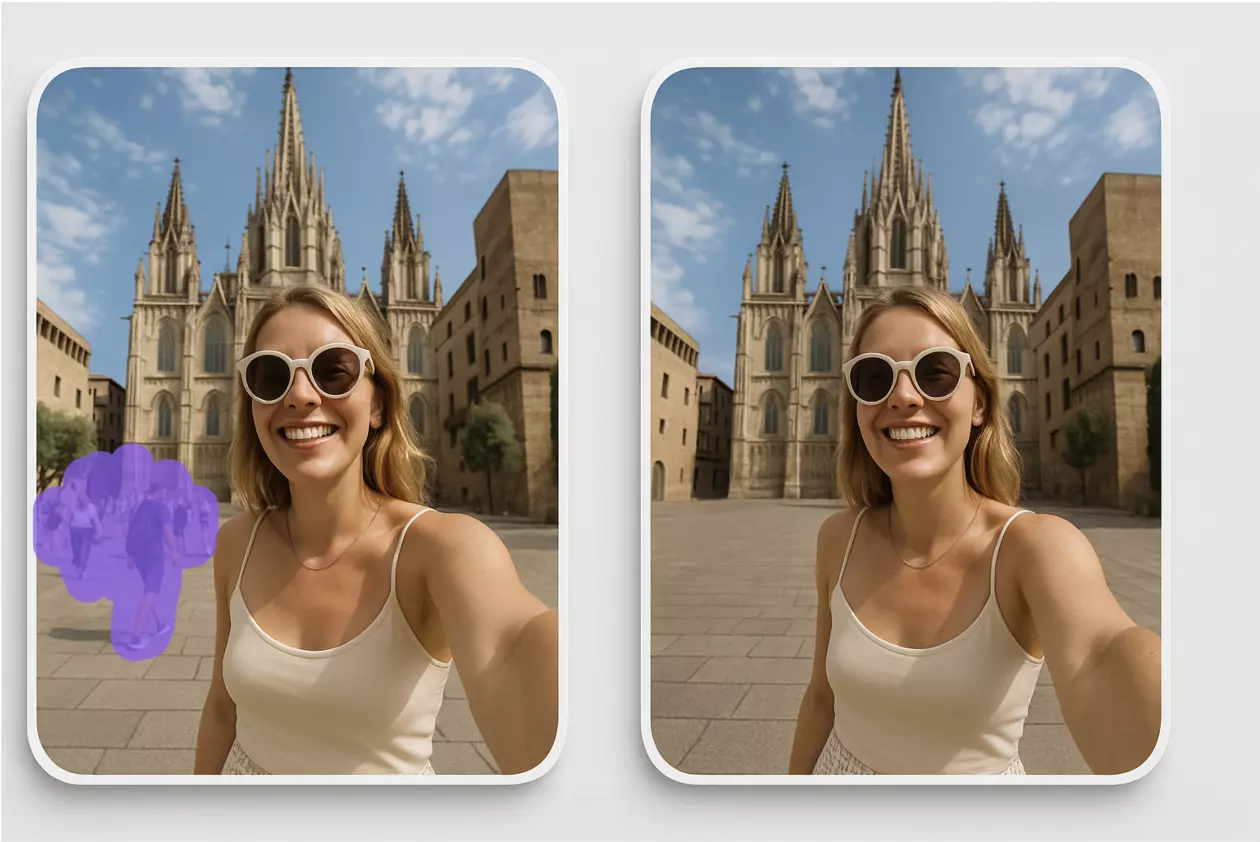
- Object remover for distractions: Clear stray props, floor scuffs, loose threads, or background reflections.
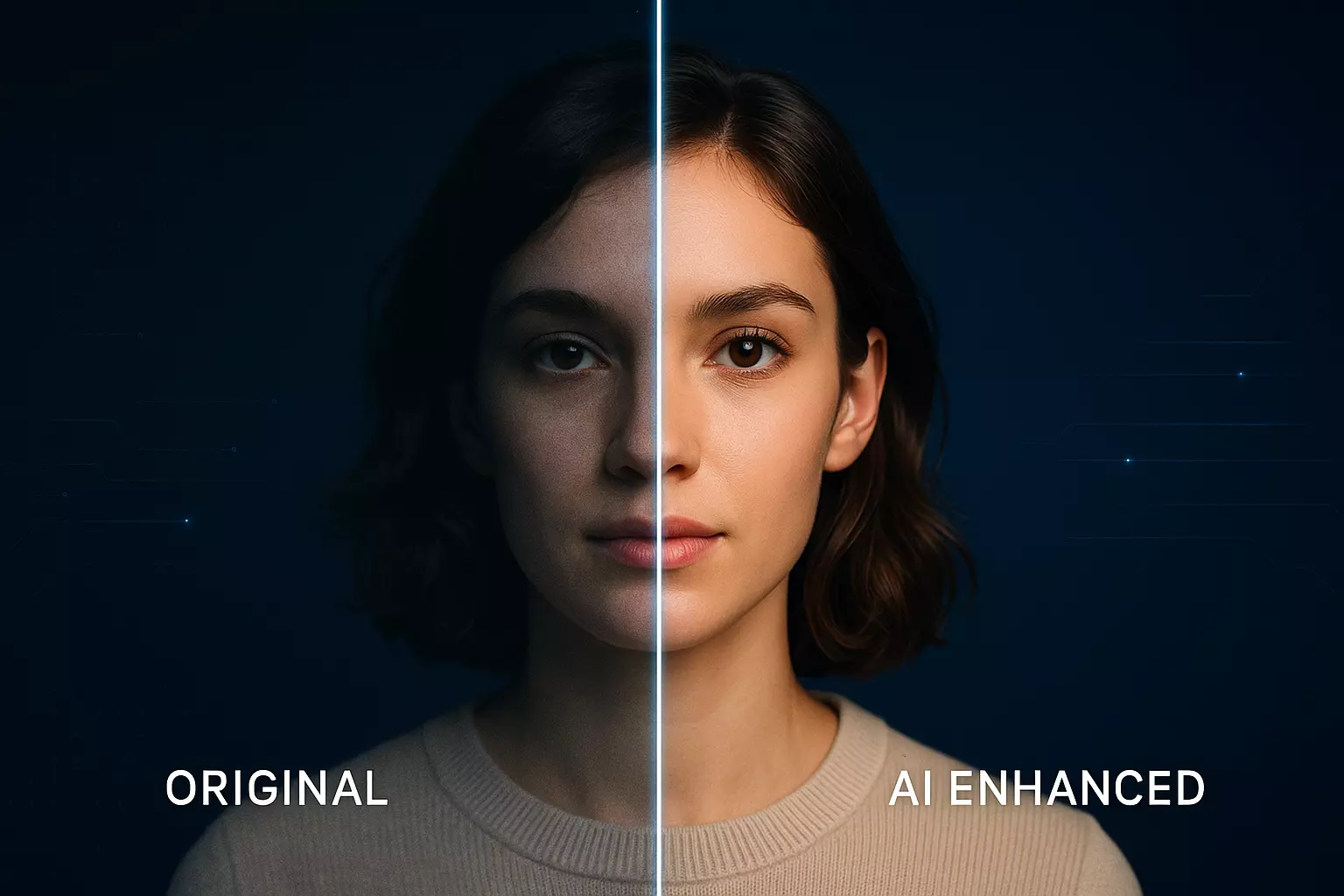
- Photo enhancer for clarity and contrast: Sharpen edges, balance exposure, and add a natural product shadow for depth.
- Batch processing for catalogs: Upload a folder and apply one set of rules to hundreds of SKUs in one run.
These tools help you ship consistent listings faster—and, just as important, keep your studio and post-production team focused on value-add creative work.
Your e-commerce image blueprint: intake → standards → consistency → output
Before you edit, set the rules once:
- Intake: Collect RAWs or high-resolution JPEGs/PNGs from shooters or suppliers. Tag by category (footwear, beauty, small electronics) so you can apply tailored presets.
- Standards: Define background color (pure white or branded), padding, aspect ratio (1:1, 4:5, 16:9), and resolution targets for each channel.
- Lighting consistency: Decide on global exposure/contrast targets and shadow style. Subtle, realistic drop shadows tend to convert better than heavy cast shadows.
- Output specs: Predefine crops, margins, and file sizes for marketplaces and your DTC site to avoid rework later.
Document these once and save as presets so every batch follows the same playbook.
How to remove or change backgrounds in three steps
When you need a clean product cutout or a fast background change, the core flow is simple:
- Upload your source image
- Let the AI process the background removal or background change
- Download the ready-to-publish result
In practice, you’ll often do a quick visual check and minor tweak (e.g., nudge the mask or choose white vs. light gray) before downloading. For a hands-on run, open the Pixflux AI Create workspace and follow the prompts.
(See image: the three-step interface flow—Upload → AI process → Download—so you can preview results before saving.)
Generate clean white and on-brand backgrounds for product pages
White backgrounds remain the safest default for most marketplaces and for search feeds. Use the background changer to:
- Produce pure white for marketplace compliance
- Create subtle gradient grays for editorial sections
- Build branded color panels or minimal studio scenes for your DTC PDPs and banners
Tip: Keep your background subtle. Overly busy backdrops can reduce conversion and may fail marketplace checks. Add a gentle shadow under the product to avoid the “floating” look.
(See image: before-and-after comparison showing a cluttered studio floor transformed into a clean white background, with minor reflection cleanup.)
Batch processing for entire catalogs
Batch processing is where the unified workspace shines. Upload a folder of SKUs, choose a preset (e.g., “Footwear PDP: 3000px, 1:1, white background, soft shadow”), and run them in one pass. This is how teams ship seasonal refreshes quickly:
- One-click consistency: Identical padding, crop, and shadows across all items
- Faster revisions: Tweak the preset once, re-run the batch, and you’re done
- Scalable throughput: Turnaround in hours, not weeks, for new colorways or restocks
(See image: a grid preview of batch-processed catalog images demonstrating uniform white backgrounds and consistent margins.)
Case study: before-and-after results and quality metrics
A mid-market footwear brand struggled with supplier images shot on mixed backgrounds—some glossy, some wrinkled paper, some with floor tape visible. After moving to a unified AI workspace:
- Time to PDP-ready assets for 150 SKUs dropped from 6 days to under 36 hours
- Approval rate on first review increased from 82% to 97%
- Returns caused by “product didn’t look like the photo” decreased across two seasonal drops
Your exact results will vary, but the pattern holds: standardize the background and lighting, and you remove friction across merchandising, performance marketing, and marketplace operations.
Pro tips for tricky materials and reflections
- Glossy plastics and glass: Use a softer edge refinement and reduce contrast in the reflection area to avoid harsh cut lines.
- Transparent packaging: Keep a slight halo or add a subtle surface reflection to preserve realism.
- Fine details (laces, hair, fur): Increase mask sensitivity and zoom in to refine only where needed to prevent over-smoothing.
- Shadow realism: Add a soft, low-opacity shadow directly under the product to ground it without drawing attention.
- Color cast cleanup: If your studio lights skew warm or cool, run a white balance correction before background work for easier batch consistency.
Advanced five-step flow for complex items:
- Open the workspace
- Upload the source image
- Choose background removal or change background, then run AI
- Preview and refine the mask, shadow, and exposure
- Download the final image in your required size
Compliance and rights: watermark removal, trademarks, and disclosure
Watermark and logo removal tools can help you clean old supplier assets or legacy images you own. Only remove watermarks or branding from images you have rights to edit, and comply with marketplace rules. Do not use watermark removal to infringe on copyrights, obscure required disclosures, or bypass trademark guidelines.
When in doubt, seek permission from the rights holder and keep an audit trail of your source files and approvals.
AI online tools vs traditional methods
- Time cost: Manual cutouts in desktop software can take 5–15 minutes per image, longer for complex edges. An AI workspace handles dozens or hundreds in parallel.
- Learning curve: Pro software demands training and muscle memory. A guided online flow makes background remover, object remover, and photo enhancer accessible to anyone on the team.
- Batch efficiency: Traditional workflows favor one-off hero images. AI-first workspaces are optimized for batch processing of entire catalogs with consistent presets.
- Cross-team fit: Merchandisers, content ops, and designers can use the same presets and review links, reducing back-and-forth and minimizing subjective edits.
FAQ: Pixflux.AI Create for e-commerce product images
Can I meet marketplace requirements like pure white backgrounds and specific aspect ratios?
Yes, you can produce marketplace-ready images with standardized backgrounds and crops. Define presets for white backgrounds, margins, and aspect ratios (e.g., 1:1 or 4:5) and apply them consistently. This reduces rejections and speeds up listing approvals on marketplaces and your DTC site.
How accurate is the background removal on complex edges like hair, fur, or transparent packaging?
It’s highly accurate for most products, with quick refinement when needed. For fine details, zoom into edge areas and make minimal mask adjustments. Add a soft shadow for realism, and use exposure or contrast tweaks to avoid halos around glossy edges.
Can I run batch processing for a full seasonal catalog?
Yes, batch processing is a core use case. Upload your set, apply a preset (background color, crop, padding, shadow), and process in one run. If standards change, update the preset and reprocess the set to keep everything consistent.
Is my content private and safe to use in an online editor?
Yes, as long as you follow your organization’s content policies and vendor guidelines. Only upload assets you’re authorized to edit, and avoid sensitive or confidential imagery. Review the tool’s privacy practices and download your results promptly to maintain control over your files.
Can I remove watermarks or brand logos from images?
Yes, but only when you own the rights or have explicit permission. Many marketplaces restrict editing that obscures required marks or disclosures. Use watermark removal for legitimate cleanup of your own assets, and always comply with copyright and trademark rules.
How do I keep lighting and shadows consistent across suppliers and shoots?
Save presets that standardize exposure, contrast, and shadow style, then apply them batch-wide. Start with a neutral baseline, add a subtle drop shadow, and test across categories. Consistent shadows and exposures help images sit naturally side by side on archive and collection pages.
Do I need advanced photo-editing skills to get good results?
No, a guided three-step flow makes high-quality edits accessible to non-designers. Power users can still fine-tune masks and relighting, but most teams get publish-ready results by uploading, processing, and downloading with minimal adjustments.
Conclusion and next steps
A unified AI image workspace turns product image prep from a fragmented chore into a repeatable, brand-safe process. With background cleanup, object removal, enhancements, and batch processing under one roof, your team can ship consistent visuals in hours—ready for marketplaces, ads, and PDPs.
If you’re ready to standardize your catalog and accelerate launches, try the Pixflux.AI image background tools today. Upload a few test SKUs, run the three-step flow, and see how fast consistent product visuals can be.