From Scattered Image Tools to One Workflow: How Pixflux.AI Create Simplifies Product Visual Production
Tired of switching apps? Pixflux.AI Create takes you from cleanup to on-brand backgrounds and batch export—fast, consistent, and ready to publish.
 Michael WalshJune 24, 2026
From Scattered Image Tools to One Workflow: How Pixflux.AI Create Simplifies Product Visual Production
If you sell on Amazon or TikTok Shop, run a DTC store, or produce content for socials, you’ve probably felt the drag of fragmented image work. One app to remove a messy background, another to erase a stray logo, a third to sharpen, and a spreadsheet to track versions. Context-switching burns time, breaks consistency, and slows your time-to-publish—especially when you’re managing dozens or hundreds of SKUs.
That’s why teams in 2026 are consolidating into browser-based, connected workspaces that move from cleanup to enhancement to background styling in one place. Instead of juggling plug-ins and exports, you can get from raw to on-brand in minutes. A practical example of this approach is pixflux.ai create, which brings cleanup, enhancement, conversion, and batch output into a single, connected image workspace.
(See image: Pixflux.AI interface showing the three-step flow: upload → AI processing → download.)
The problem with scattered image tools for product visuals
- Fragmented steps: Background removal here, watermark remover there, enhancement somewhere else. Every export/import adds friction and risk.
- Inconsistent results: Different tools treat edges, color, and shadows differently. Consistency drops as your catalog grows.
- Slow batch runs: Scaling a workflow across 200 SKUs turns a clever trick into an overnight chore.
- Review bottlenecks: When team members use different apps and settings, it’s hard to review and approve quickly.
In 2026, ecommerce teams expect measurable gains in time-to-publish and brand consistency across large catalogs. A connected workflow is how you get there.
What Pixflux.AI Create is: a connected image workspace
Pixflux.AI Create is a browser-based, connected image workspace—built for sellers, creators, and marketing teams—that keeps your core tasks in one flow. Instead of switching tools, you can:
- Clean up images with Pixflux.AI background removal, object remover, and watermark remover
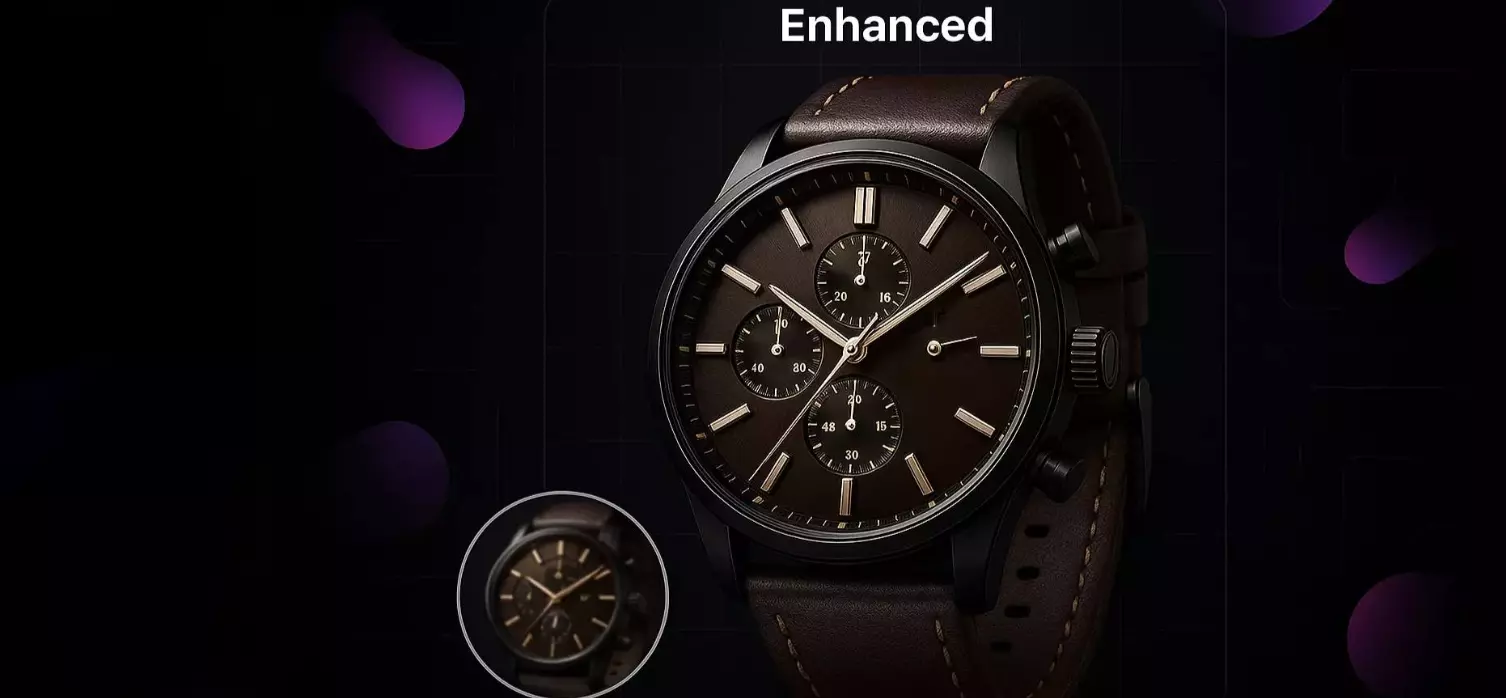
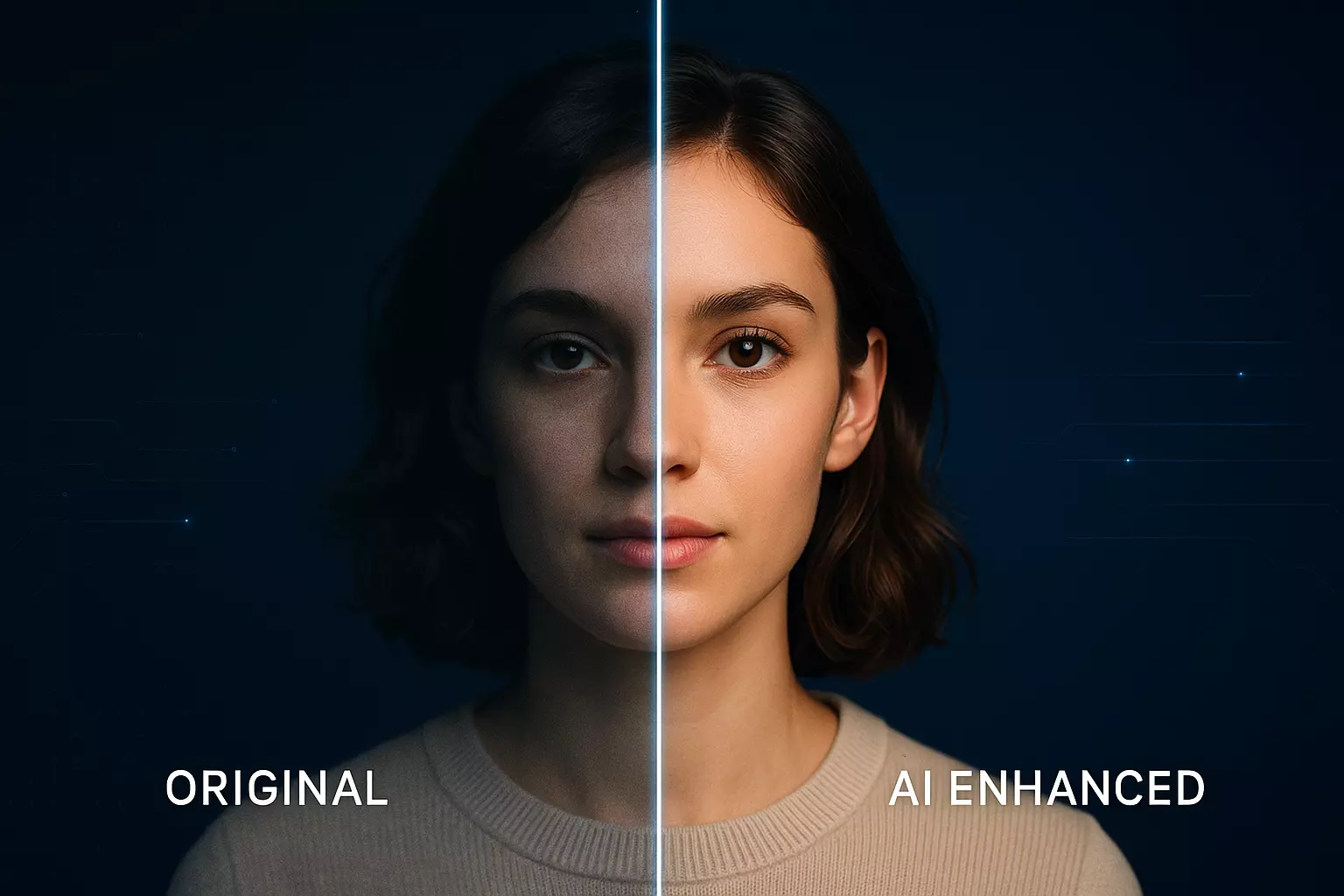
- Enhance clarity, contrast, and detail with an AI photo enhancer
- Change or generate on-brand backgrounds that look realistic
- Run batch processing to bring entire SKU sets to the same finish line
The result is practical: fewer handoffs, fewer exports, a faster path from raw capture to product image optimization.
Workflow overview: cleanup, enhancement, background changes, and batch output
A typical flow in Pixflux.AI Create looks like this:
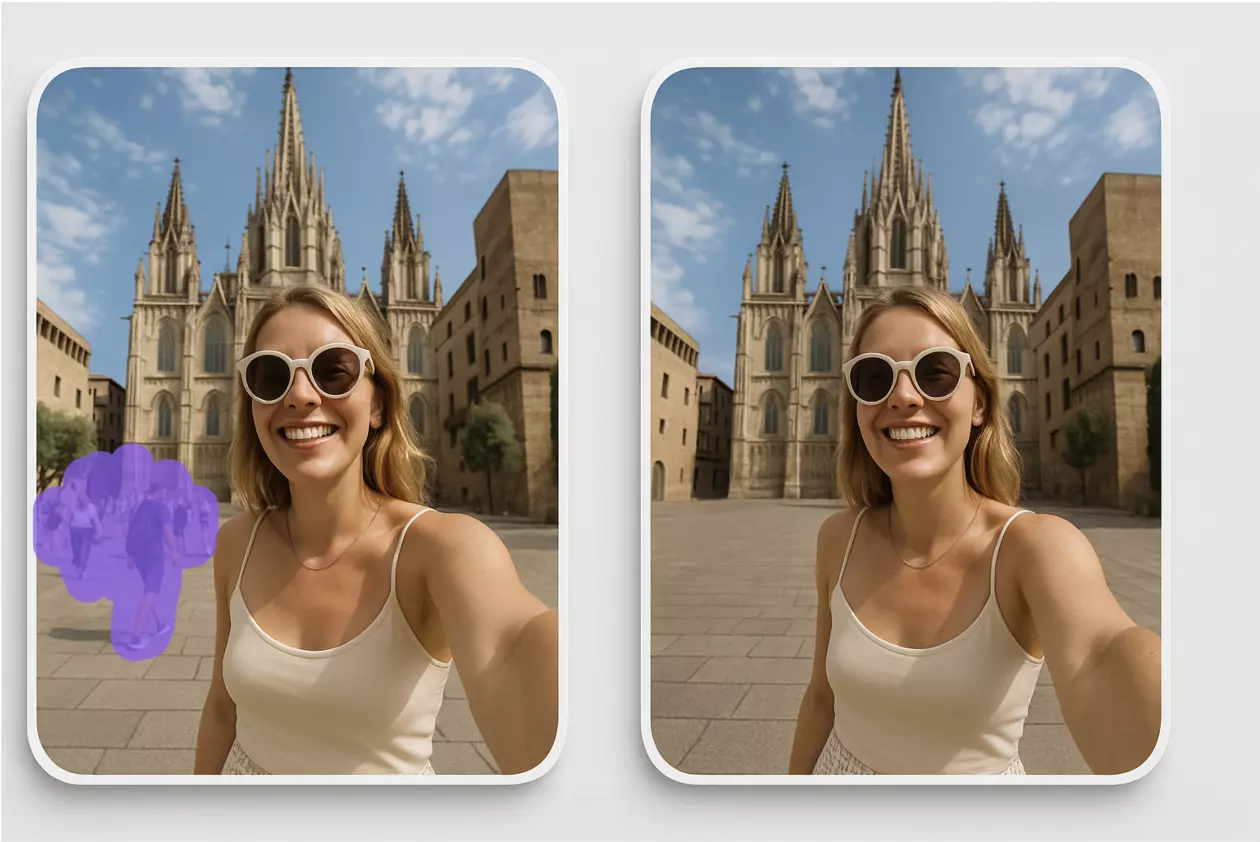
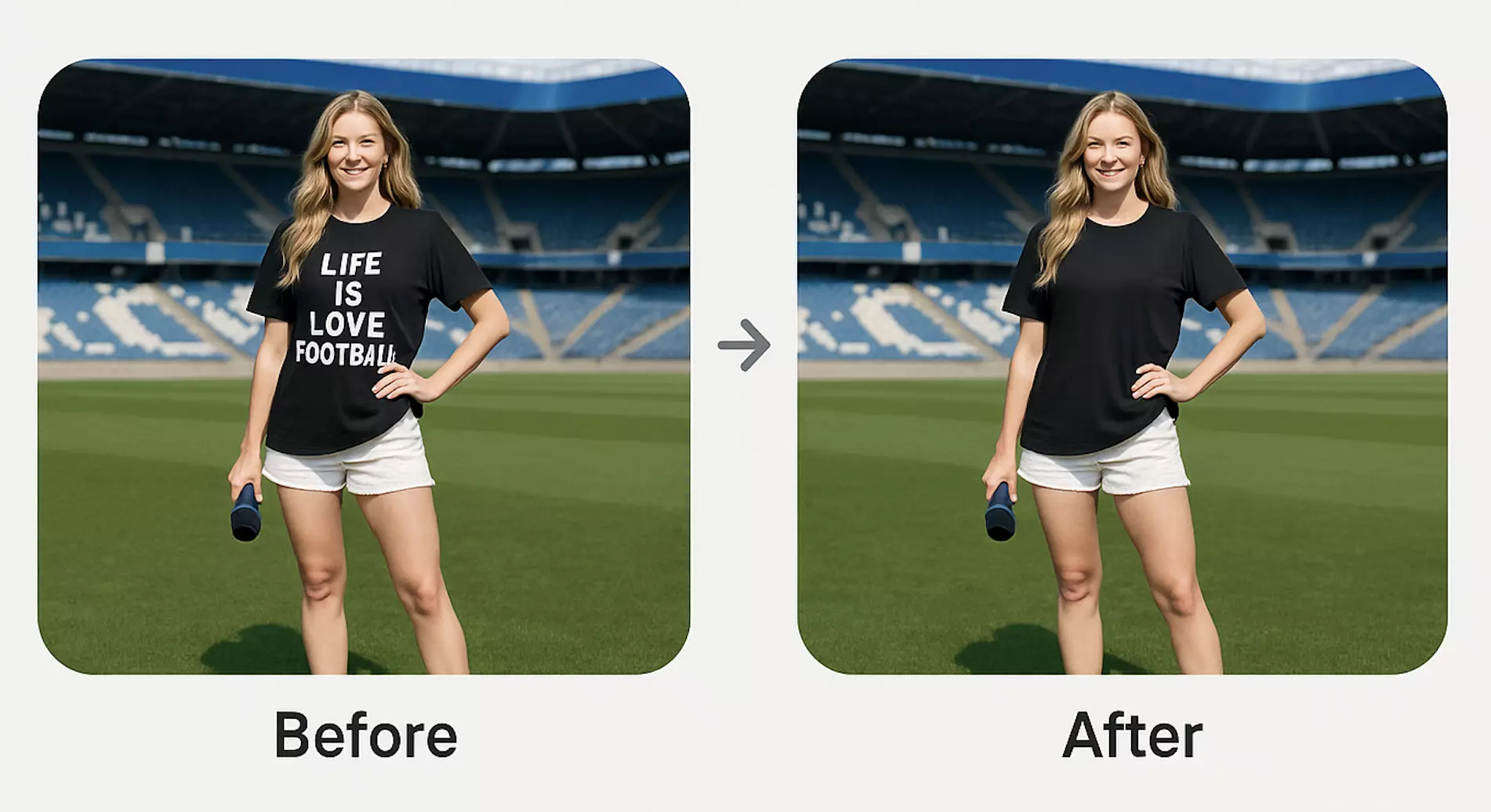
1) Cleanup: Remove busy backgrounds to isolate the subject; erase unwanted objects (stray stands, cables, passerby); clear watermarks or text overlays when you have rights to do so.
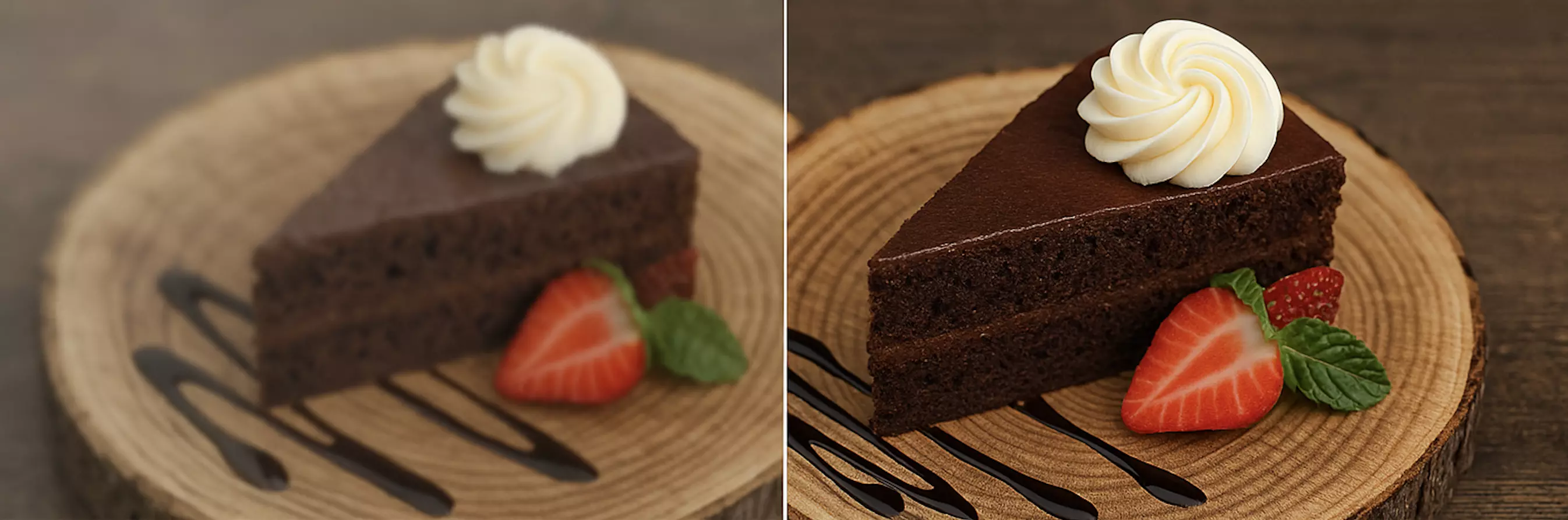
2) Enhancement: Improve sharpness, fix exposure, and balance color so details pop on mobile and desktop.
3) Backgrounds: Replace with a clean studio white, add soft shadows, or generate lifestyle scenes that stay on-brand as diffusion models continue to improve realism.
4) Output: Export singles or launch a batch to produce consistent, spec-ready images for marketplaces and ads.
(See image: Before-and-after comparison of a product photo with background removal and watermark removal in Pixflux.AI.)
Choosing the right tool: background remover vs object remover vs watermark remover
- Background remover: Use this when the subject should be isolated from a busy or mismatched background. Ideal for ecommerce hero images.
- Object remover: Target specific distractions—like a price tag, a power cable, or an unintended reflection—without affecting the entire scene.
- Watermark remover: Clean logos, watermarks, or text marks when you have permission; never use it to infringe rights or bypass platform policies.
Compliance reminder: Only process images you own or are licensed to use. Watermark removal must not be used to violate copyrights or mislead consumers.
How to process a product photo in Pixflux.AI Create: Upload → AI process → Download
The fastest way to experience the end-to-end flow is to try it on a single product image inside the Pixflux AI image workspace.
1) Upload your original photo
- Drag-and-drop a JPEG/PNG or select from your files. Start with the highest-resolution version you have.
2) Let the AI process the image
- Choose the right tool (background removal, object remover, or watermark remover) and apply.
- Use enhancement to improve clarity and balance. Preview changes in real time.
3) Download your ready-to-use image
- Export to your preferred format and size. Save a version for marketplace listings and another for your store/ads if needed.
(See image: Pixflux.AI interface showing the three-step flow: upload → AI processing → download.)
Advanced 5-step workflow with quick checks
1) Open Pixflux.AI Create 2) Upload your image 3) Select the needed tool (background remover, object remover, watermark remover), then enhance 4) Preview and fine-tune edges, shadows, and color 5) Download your final and name it for easy cataloging (e.g., SKU-color-angle-usecase)
Tip: Run a quick before/after zoom check on edges and text to ensure crispness.
Advanced branding: change or generate on-brand backgrounds at scale
On marketplaces, a clean white background performs. In ads and social, context sells. With background changes and AI background generation:
- Replace backgrounds with compliant white for hero shots
- Select subtle gradients or soft shadows to add depth
- Generate lifestyle scenes that match your brand palette and tone
- Keep props minimal and realistic to focus on the product
As diffusion-based models mature, realism (lighting, shadow, perspective) becomes more consistent. Use this to create cohesive lifestyle sets across your catalog without sourcing a physical location for every SKU.
Image quality: enhancement settings and before/after checks
- Sharpening: Use moderate sharpening to enhance texture without creating halos
- Exposure and contrast: Aim for clean whites without clipping detail; watch out for crushed blacks
- Color balance: Maintain product-true color (especially for apparel and cosmetics)
- Detail check: Zoom 100–200% on labels, zippers, stitching, or reflective surfaces to ensure clarity
When in doubt, keep a reference image of “approved look” and compare. Consistency beats perfection, especially at scale.
Batch processing playbook for large SKU catalogs
Batch processing is where a connected workspace shines:
- Preflight: Decide on background style, crop ratio, output sizes, and naming rules
- Group by similarity: Process similar product families together for tighter consistency
- Apply defaults: Use the same background and enhancement settings across the set
- Inspect a sample: Check 10–20 images before running a large batch to avoid scaling a mistake
- Output variants: Produce marketplace-compliant hero images and lifestyle variants in one run
(See image: Grid of 12 SKU images after batch processing with consistent, on-brand backgrounds and enhanced sharpness.)
Team use cases: sellers, creators, and marketing coordination
- Sellers: Speed up listing photos from studio shots or supplier images; keep hero images compliant and consistent
- Creators: Produce clean social assets, Shorts/Reels thumbnails, and ad variants quickly
- Marketing teams: Maintain on-brand backgrounds and enhancement settings for seasonal campaigns
Because your cleanup → enhancement → background → export steps live together, it’s easier for team members to align on quality and style, even without specialized design training.
Compliance and ethics: watermark handling, rights, and disclosure
- Only edit images you own or are licensed to use
- Use the watermark remover strictly for lawful cleanup—e.g., removing placeholder marks from your own pre-release shots
- Follow marketplace rules on background color, image cropping, and disclosures
- When generating lifestyle backgrounds, avoid misleading composites that suggest features the product does not have
Responsible handling earns trust with platforms and customers alike.
AI workspaces vs traditional methods
Time cost:
- Online workspace: 2–5 minutes per image, faster in batch
- Desktop stack: 10–20 minutes per image when jumping between multiple apps and manual steps
- Outsourcing: Variable turnaround; communication loops can add days
Learning curve:
- Online workspace: Tool-specific, low barrier to entry
- Desktop stack: Requires professional-level proficiency for comparable results
- Outsourcing: Low learning curve but high management overhead
Batch efficiency:
- Online workspace: Batch processing with consistent settings
- Desktop stack: Actions/presets help, but setup, masking, and exports take time
- Outsourcing: Scales with cost; consistency varies by vendor
Cross-team fit:
- Online workspace: Easier to align on a single style and approve quickly
- Desktop stack: Strong for art-directed shoots but slower for high-volume SKU updates
- Outsourcing: Useful for overflow; best with strict briefs and QA
Benchmark and costs: online AI workspace vs desktop stacks
For most ecommerce and social workflows, a connected browser-based flow reduces:
- Tool switching and export/import overhead
- Rework caused by inconsistent edges and color
- Time to publish, especially when you need both hero and lifestyle variants
Desktop suites still shine for complex compositing and extensive retouching. But for day-to-day product image optimization, moving to an integrated AI workspace is usually faster and more predictable in cost.
FAQ: Pixflux.AI Create workflow, features, and troubleshooting
What is pixflux.ai create and who is it for?
It’s a connected image workspace for sellers, creators, and marketing teams. Instead of jumping between separate apps, you handle background removal, object and watermark cleanup, enhancement, background changes or generation, and batch output in one place. It fits Amazon/ecommerce heroes, social assets, and ad creative where speed and consistency matter.
Does background removal work on complex products like glass, hair, or shiny metals?
Yes, but preview and micro-tune edges for best results. Translucent and reflective materials are challenging for any tool. After the initial cutout, zoom in to check edges, soften halos with feather/refine, and add a subtle shadow to ground the subject. For highly reflective products, consider a neutral or gradient background that reduces harsh edge contrast.
Can I legally remove watermarks or logos from images?
Only if you own the rights or have explicit permission. The watermark remover is for lawful cleanup scenarios (e.g., placeholder marks on your own images). Never use it to infringe copyrights, evade platform rules, or mislead viewers. When in doubt, seek permission or use licensed assets.
How do I run batch processing on large SKU catalogs without losing consistency?
Define your style and run a representative test set first. Group similar SKUs, apply the same background and enhancement settings, inspect a 10–20 image sample, then run the full batch. Use standardized filenames and sizes to keep marketplace and ad variants clearly separated.
Will my images meet marketplace specs (size, background, margins)?
Yes, if you set targets before export and follow platform guidelines. Choose compliant backgrounds (often white for hero images), maintain safe margins, and export to the required pixel dimensions and formats. Create separate exports for marketplace and ad/social use to avoid rework.
How can I improve image clarity for small screens and thumbnails?
Use the AI photo enhancer with moderate sharpening and balanced contrast. Check details at 100–200% zoom and ensure text, stitching, or gloss highlights remain natural. Avoid oversharpening, which can create halos and noisy edges in thumbnails.
Edges look haloed after background removal—how can I fix this?
Slightly refine and feather the cutout, then add a soft shadow. Harsh transitions cause halos. Reduce edge contrast with minimal feathering, verify hair/fur strands, and ground the product with a subtle, realistic shadow. If the issue persists, try a background with a gentle gradient instead of pure white.
Conclusion and next steps
Product visuals no longer need a patchwork of apps to get from raw shot to ready-to-publish asset. In 2026, connected browser-based workspaces are the fastest way to clean, enhance, style, and ship images—at scale and with brand-level consistency. Whether you’re preparing marketplace heroes, social-ready lifestyle shots, or ad variations, a unified flow reduces time-to-publish and makes batch work predictable.
Try the end-to-end Pixflux.AI Create workflow on your next product image: upload, process with AI, and download a ready-to-use result in minutes. Then scale that same flow across your entire catalog for faster listings, cleaner visuals, and a more consistent brand experience.