Remove Text from Image Without Damaging the Background: A Clean AI Workflow
A repeatable AI workflow to erase text without wrecking textures—plus tool picks, a QC checklist for halos/smudges, and tips for tough cases.
 Sierra CappelenDecember 18, 2025
Remove Text from Image Without Damaging the Background: A Clean AI Workflow
If you’ve ever tried to remove text from an image and ended up with blurry patches, repeating tiles, or obvious smudges, you know the pain. Product shots, social posts, and portfolio pieces can be ruined by a single sloppy retouch—especially on textured surfaces like wood, fabric, concrete, or gradients where the background must remain consistent.
The good news: modern AI inpainting makes it practical to erase text while preserving texture, edges, and lighting continuity. Instead of hours with a clone stamp, you can use an online tool to remove text from image in minutes, then apply a quick quality check before export. Below, we’ll cover the “why” behind AI inpainting, a repeatable workflow you can trust, and a checklist to catch halos, repeated patterns, and seams before your image ships.
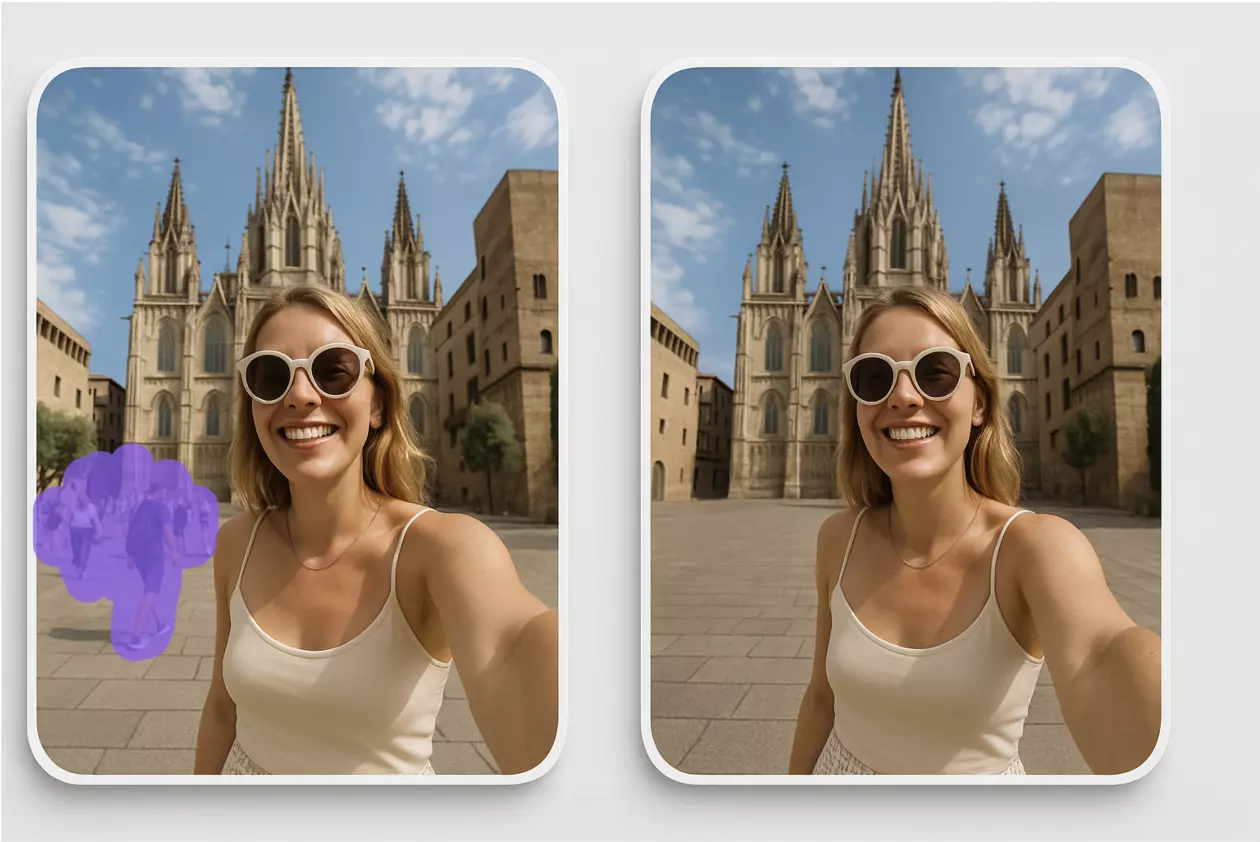
(See image: Side-by-side—original photo with text overlay vs clean inpainted result preserving texture and edges.)
Why it’s hard to remove text without harming the background
Removing text is not just “covering pixels.” The background behind the text likely has:
- Micro-texture (grain, fibers, pores)
- Directional edges or lines (table edges, seams, horizon lines)
- Lighting gradients and shadows (vignettes, soft falloff, wraparound light)
- Compression noise or artifacts (especially in JPEGs)
Clone-stamping or brush-based healing can flatten texture, bend edges, or create repeating tiles that catch the eye. Content-aware tools help, but on complex textures they can introduce visible seams or pattern repetition. The challenge is reconstructing plausible detail that matches both local texture and global lighting—not just hiding text.
(See image: Close-up crop comparing clone-stamp artifacts to AI inpainting that maintains grain and lighting.)
How AI inpainting reconstructs texture, edges, and lighting
AI inpainting models look at the surrounding pixels to infer what “should” be under the text. They consider:
- Texture continuity: Extend grain, fibers, or noise patterns naturally.
- Edge awareness: Preserve lines, borders, and geometric continuity.
- Lighting consistency: Maintain gradients, highlights, and soft shadows.
Compared to traditional fill algorithms, modern models better track fine detail and avoid obvious repetition. As these models improve, they excel at difficult surfaces (woven fabric, brushed metal, wood grain) and non-uniform lighting.
Choosing your toolset: desktop editors vs online AI text removers
- Desktop editors (Photoshop, Affinity, GIMP)
- Pros: Full control; layered workflows; precise masking.
- Cons: Steeper learning curve; slower for batch tasks; manual cloning often required.
- Online AI text removers (e.g., Pixflux.AI)
- Pros: Fast, low learning curve; designed for text/object cleanup; strong results on tricky textures; easy for non-designers; supports batch workflows.
- Cons: Fewer deep compositing features than pro desktop suites.
If you’re producing ecommerce imagery or social assets at scale, online AI is often the fastest way to erase text cleanly and consistently, then hand off only edge cases to a specialist.
Prep your image: selections, masks, and feathering for texture safety
A little prep prevents most artifacts:
- Keep selections tight. Select only the text area plus a small margin. The smaller the region, the easier the model can “guess” correctly.
- Feather 1–3 px on high-resolution images. Feathery transitions help blend the inpainted area into surrounding texture.
- Protect edges. Avoid crossing distinct edges (table lines, borders) with your selection. If necessary, split into multiple smaller selections on each side of an edge.
- Work in passes. For dense text or overlapping labels, remove in 2–3 passes instead of one large selection.
How to remove text from an image with Pixflux.AI (clean results in 5 steps)
Pixflux.AI is a practical example of an online tool that focuses on object and text cleanup while preserving texture. Here’s a reliable, repeatable workflow:
1) Open the Pixflux.AI tool
- Go to the Pixflux.AI image text remover.
- Tip: Prepare a high-resolution source if available. Higher-res files give the model more genuine texture to work with.
2) Upload your original image
- Drag and drop your file. For complex cases (fabric, gradients), avoid pre-compressing. Start with PNG or high-quality JPEG.
3) Choose the remover and paint the area to erase
- Select the text/object remover. Brush over the text with a tight selection; include a small margin.
- If your text touches a key edge, do two smaller selections rather than one big one.
4) Preview and refine
- Run AI processing and preview the result. Check texture flow, edge continuity, and gradient smoothness.
- If you spot repeats or halos, Undo and try a tighter selection, a different brush size, or remove in two passes.
5) Download the clean image
- Export as PNG (for product pages or further edits) or high-quality JPEG for web.
- If needed, run Pixflux.AI’s photo enhancement to gently restore micro-texture or clarity after removal.
(See image: Pixflux.AI interface showing the three-step workflow: upload → AI processing → download.)
Quality check before export: a quick inspection list
Before you publish or hand off the file, scan at 100–200% zoom:
- Halos: Look for glow-like fringes around the former text edges. Re-run with a slightly larger selection or tiny feather.
- Repeated patterns: Watch for telltale tiles or mirrored textures. Try a second pass with a different selection boundary.
- Smudges: Flat mushy areas indicate not enough nearby texture. Tighten the selection and re-run; consider a gentle enhance pass.
- Seams on edges: Check lines, borders, or seams for bends or breaks. Split the selection and fix each side separately.
- Gradient banding: Smooth gradients can band after heavy edits. Consider a light noise layer or re-run with a smaller selection area.
- Color shifts: Make sure color temperature and saturation match the surrounding pixels; adjust with a subtle color balance.
If two passes don’t fix it, treat the case as “complex texture” and see the troubleshooting section below.
Troubleshooting tricky backgrounds: noise, gradients, compression
- Noisy textures (e.g., high-ISO photos, grainy fabric) Keep the selection tight and run multiple short passes. If small specks look off, use a very soft brush to remove only the most obvious artifacts, then enhance lightly to reintroduce realistic grain.
- Soft gradients (e.g., studio backdrops, sky) Gradients exaggerate seams. Use minimal feathering and small selections. If banding appears, add subtle dithering or re-run with a slightly different selection to blend the transition.
- Compression artifacts (e.g., low-quality JPEGs) Artifacts near text edges can confuse the model. Upscale or denoise slightly first, remove the text, then export at higher quality. Pixflux.AI’s image enhancement can help regain clean micro-contrast.
- Dense overlays or overlapping elements Remove text in logical segments, preserving any intersecting edges. If text overlays complex objects, consider removing the text first, then run a second pass to reinstate clean edge flow.
Tip: If a background is too damaged or inconsistent, consider a different approach for that asset—such as removing and replacing the background for a consistent studio look. Pixflux.AI supports clean background removal, generation, or modification when a full reset is faster than repair.
Ethics and rights: when not to use a text remover
Use text removal responsibly. Only edit images you own or have permission to modify. Do not remove watermarks, logos, or ownership marks to bypass licensing or platform rules. The “remove text” workflow is intended for legitimate cleanup—e.g., your own product labels, temporary overlays, or internal drafts—not for infringing use.
Batch workflow for consistent product photos and social assets
For ecommerce and social teams, speed is only useful if the results are consistent across dozens or hundreds of images:
- Process similar images in batches: same background, lighting, and text placement. This increases the model’s consistency run to run.
- Keep selections consistent: establish simple selection guidelines (brush size, margin, feather amount) and share them with your team.
- Pair with enhancement: after removal, apply gentle enhancement to maintain uniform clarity and micro-texture across a set.
- Plan your pipeline: remove text first, then background tweaks, then color and export. This reduces rework if you spot an issue later.
- Versioning and file naming: use clear suffixes (e.g., productA_front_text-removed_v2.png) to track iterations and approvals.
Pixflux.AI also helps when you need to remove other distracting elements—like stray cables, reflections, or packaging stickers—so you can publish cohesive catalog pages and social carousels faster.
Post-cleanup finishing: photo enhancer, color balance, and export
Once the text is gone and texture looks natural:
- Gentle clarity/texture: Use a subtle enhancer to restore micro-contrast without over-sharpening.
- Color balance: Match warmth/coolness across the batch; keep whites neutral for product accuracy.
- Edge polish: If the text sat near a high-contrast edge, zoom in to ensure the line remains straight and crisp.
- Export: Use sRGB for web; PNG for transparency or archival edits; high-quality JPEG for listings. Standardize pixel dimensions for marketplaces (e.g., Amazon square images with defined minimum sizes).
AI online tools vs traditional methods
- Time cost
- Online AI (Pixflux.AI): seconds to minutes per image—even on complex textures.
- Traditional: manual cloning, multiple passes, and masking can take significantly longer, especially for non-experts.
- Learning curve
- Online AI: minimal; brush over text and preview.
- Traditional: requires knowledge of selection tools, healing modes, content-aware fill tuning, and texture synthesis tricks.
- Batch efficiency
- Online AI: well-suited to multi-image cleanup in a single session, reducing context switching.
- Traditional: repetitive manual steps don’t scale neatly.
- Team fit
- Online AI: easier for cross-functional teams (marketers, sellers, assistants) to run quick fixes without heavy software.
- Traditional: great for complex composites but overkill for routine text removal.
Pixflux.AI strikes a sweet spot for most ecommerce and creator workflows—fast for routine cleanup, with enough control to protect texture and edges. For complex composites, you can still combine AI cleanup with a deeper desktop edit when needed.
Quick reference: when to escalate or pivot
- Escalate to a specialist if the image must survive extreme zoom scrutiny (hero banners, print), or if removal intersects delicate, unique textures (e.g., lace close-ups).
- Pivot to background removal or replacement when repair looks slower than a clean rebuild. Visual consistency often matters more than perfect authenticity for catalog shots, and Pixflux.AI supports background editing and generation to match brand guidelines.
Visual cues to include in your doc or post
- Side-by-side before/after showing texture-preserving removal on wood or fabric.
- Close-up comparison of clone stamp vs AI inpainting on a patterned surface.
- Screenshot of the Pixflux.AI three-step flow: upload → AI processing → download.
Bonus: a compact 3-step version (for quick tasks)
If you don’t need the full five-step method, the fastest path is: 1) Upload the original image to Pixflux.AI. 2) Brush over the text and run AI processing. 3) Download the clean result and run a quick halo/repeat check.
Trend watch: why this matters now
- AI inpainting is rapidly improving at edge-aware texture synthesis, reducing the risk of visible artifacts.
- Ecommerce standards continue to rise—marketplaces reward clean, artifact-free images.
- Creators and marketers expect fast, online workflows that preserve detail. Batch processing is becoming non-negotiable for social and catalog pipelines.
Conclusion and next steps
Removing text cleanly is no longer a specialist-only task. With a careful selection, a quick AI inpaint, and a short quality check, you can preserve texture, edges, and lighting—ready for product pages, campaign assets, or client deliverables. Try Pixflux.AI’s focused workflow to erase text from image with fewer artifacts and faster turnaround.
Looking for a hands-on starting point? Open the Pixflux.AI image text remover, run the five-step flow above, and quality-check halos, repeats, and seams before export. When routine cleanup is this predictable, your team can spend more time on images that move the needle.