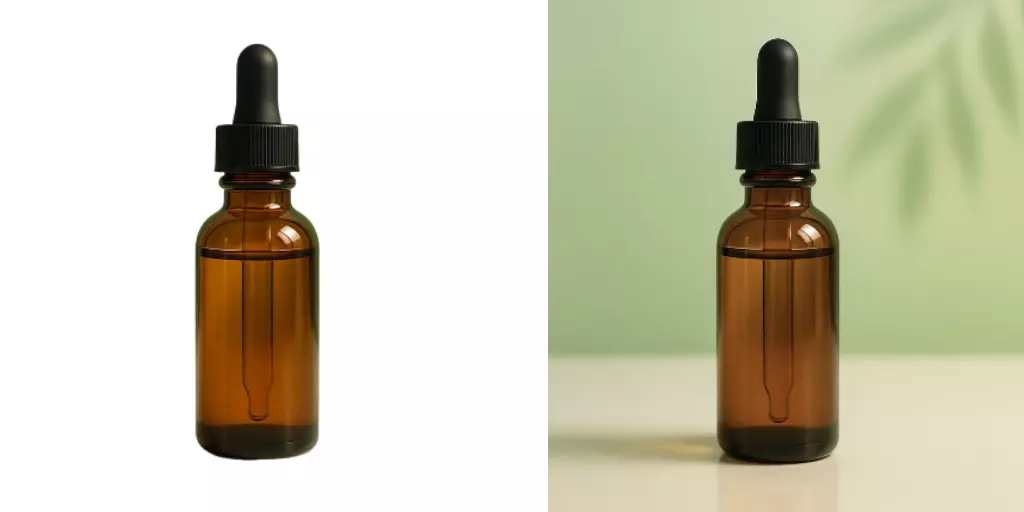
Watermark Remover for Teams Clean Up Approved Visuals Without Rebuilding Assets
Clean approved visuals fast—no rebuilds. Learn lawful watermark removal, batch workflows, and QA tips your brand team can trust.
 Emily CremerApril 9, 2026
Watermark Remover for Teams: Clean Up Approved Visuals Without Rebuilding Assets
Draft stamps, “CONFIDENTIAL” slates, and internal review notes often survive longer than they should. Your ad is approved, the product shot is locked, but an outdated watermark still sits across the hero. In fast-moving teams, recreating the visual from scratch isn’t practical—and rebriefing a designer for a five-minute cleanup can delay a launch by days.
Here’s the good news: for owned or licensed assets that made it through approvals, removing internal marks is lawful and efficient when done under clear governance. Modern AI tools make the cleanup both fast and visually accurate. For example, an AI watermark remover can clear “DRAFT” slates from approved layouts, fix leftover review labels on product photos, and prepare reusable brand kits—without rebuilding assets.
Across US and global teams, two trends are converging: stricter brand governance and growing reuse of owned assets to speed up go-to-market. That’s exactly where a disciplined, policy-aligned approach to watermark cleanup shines.
The role of a watermark remover in team-based creative workflows
Think of watermark cleanup as part of your internal finishing workflow—similar to color checks or final copyproofs. Typical, legitimate scenarios include:
- Removing “DRAFT,” “REVIEW,” or “INTERNAL” overlays from assets that already have final approval
- Cleaning outdated localization marks (e.g., “EN-US DRAFT v2”) before repurposing for other markets
- Reusing owned product visuals for a new campaign where prior review slates were kept for audit purposes
- Converting template or brand kit placeholders (e.g., “SAMPLE,” “PLACEHOLDER”) into production-ready versions
- Clearing time-bound embargo notes after the embargo lifts
Important: this workflow is only for assets you own or are licensed to use. Do not remove third-party watermarks intended to enforce copyright or licensing. Keep compliance at the center.
Lawful vs. unlawful watermark removal: know the line
- Lawful uses: Removing internal review labels, outdated slates, or placeholders from assets you own or are authorized to publish; cleaning agency-supplied comps you have since approved and paid for; preparing approved visuals for localization.
- Unlawful (or risky) uses: Stripping watermarks from unlicensed images, stock previews, or creator content you haven’t paid for; removing attributions that certain licenses require; altering images to violate platform policies.
Always document:
- Ownership or licensing (POs, license docs, or emails)
- Approval milestones (final sign-off screenshots or PDFs)
- The reason for removal (e.g., “clear DRAFT slate post-approval”)
This straightforward paper trail de-risks your team and accelerates audit readiness.
Governance foundations: approvals, documentation, and version control
Before anyone clicks “Remove,” get your governance right:
- Version naming: Use a suffix like -final-APPROVED and -final-CLEAN to separate “approved with slate” from “cleaned for release.”
- Source-of-truth storage: Keep the approved-with-slate file alongside the cleaned version so reviewers can trace history quickly.
- Approval capture: Export or screenshot the approval (email, Slack thread, or PM comment) and store it with the asset.
- Notes and owner: Add a short note (what was removed, by whom, when). This is tiny but powerful for audits.
- Review checklist: Include watermark removal in your pre-publish checklist (“slate cleared,” “no residual artifacts,” “metadata checked”).
How watermark removal works: inpainting, texture synthesis, and AI fill
Under the hood, AI removal typically uses:
- Inpainting: The model predicts missing pixels where the watermark sits, reconstructing context from the surrounding area.
- Texture synthesis: For patterned surfaces (fabric, woodgrain), the model learns repeating structures to rebuild clean textures.
- AI fill: Similar to “content-aware fill,” but enhanced by trained models that better understand edges, gradients, and typography.
This means clean continuity across gradients, shadows, and fine details—without halos or smudges when done properly.
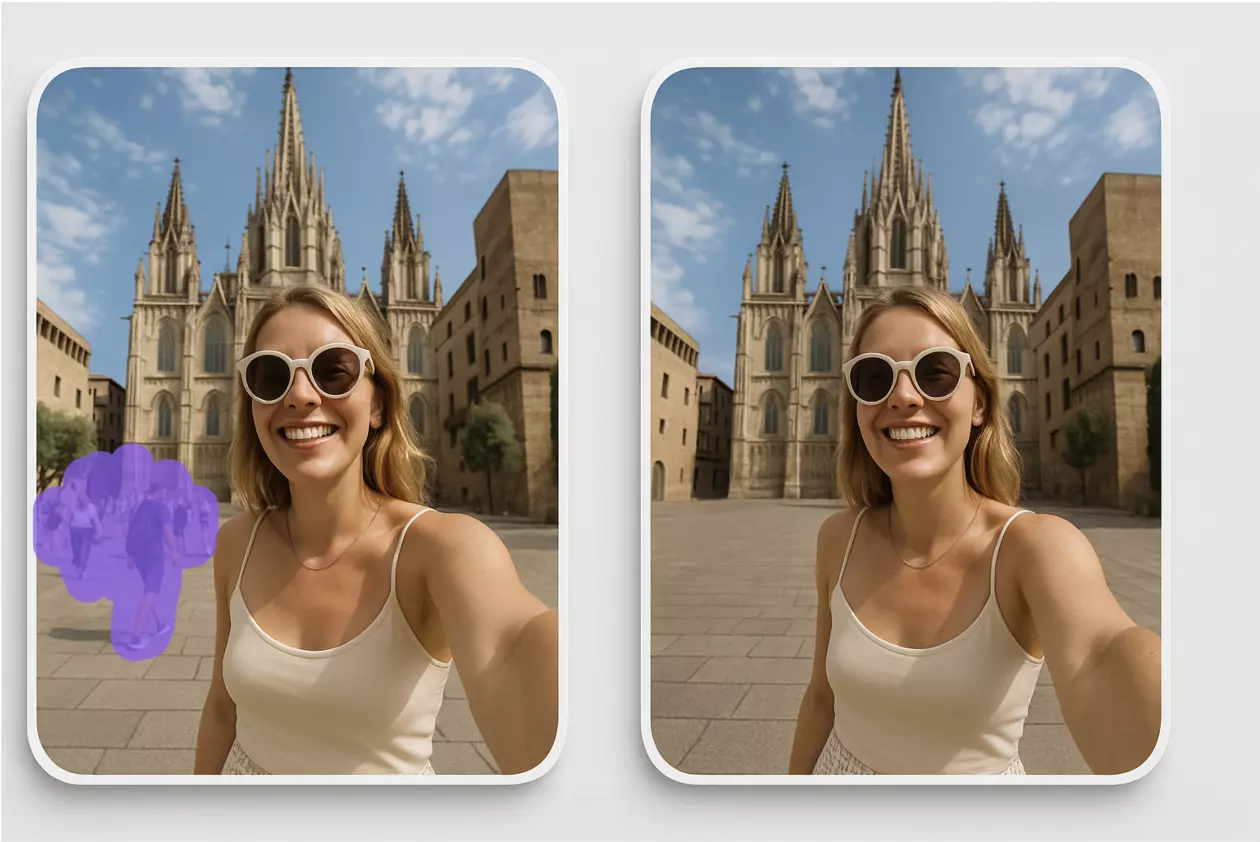
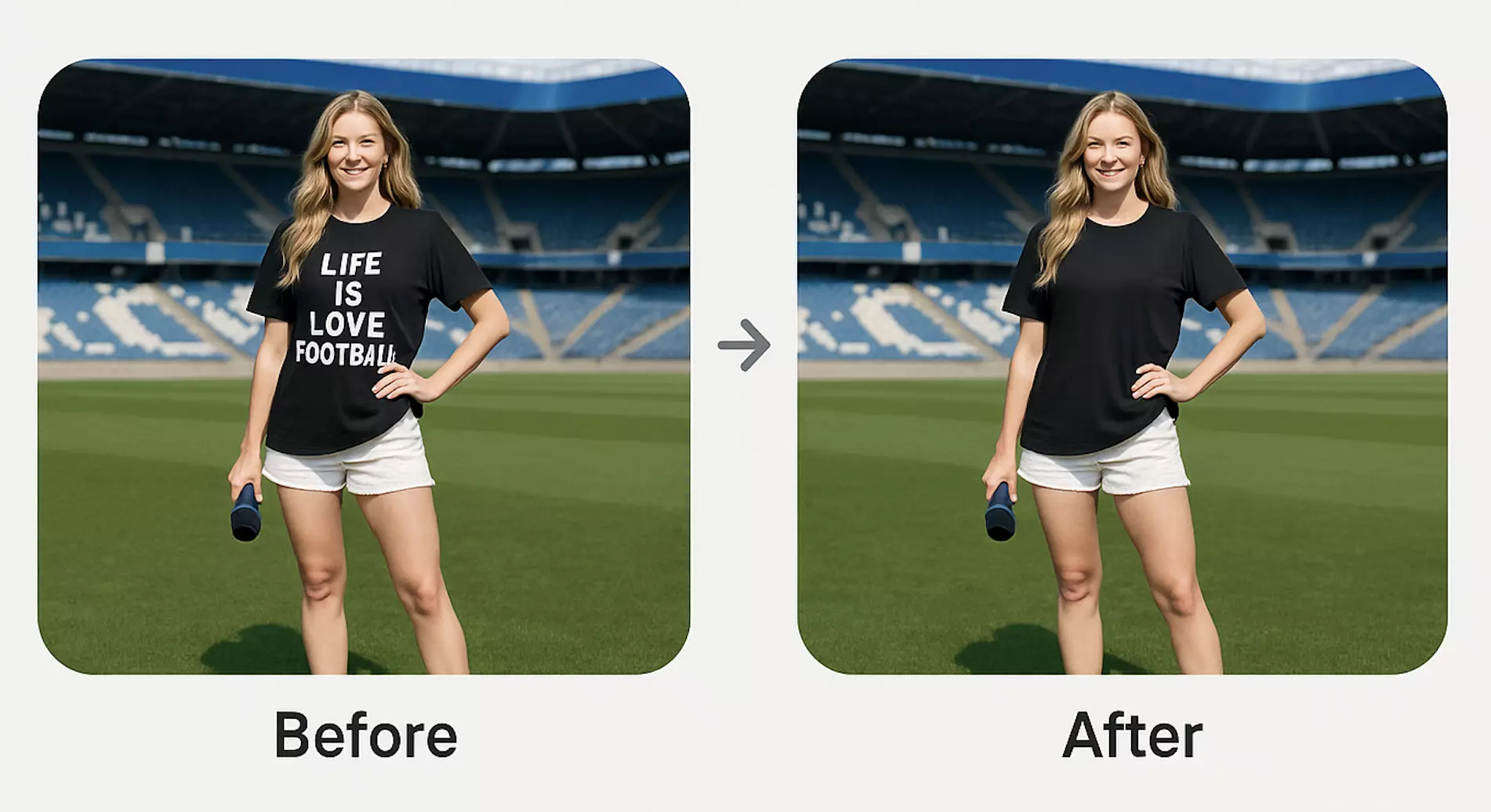
(See figure: side-by-side of an approved campaign visual with an outdated DRAFT watermark before and after; note the seamless texture continuity and brand-safe finish.)
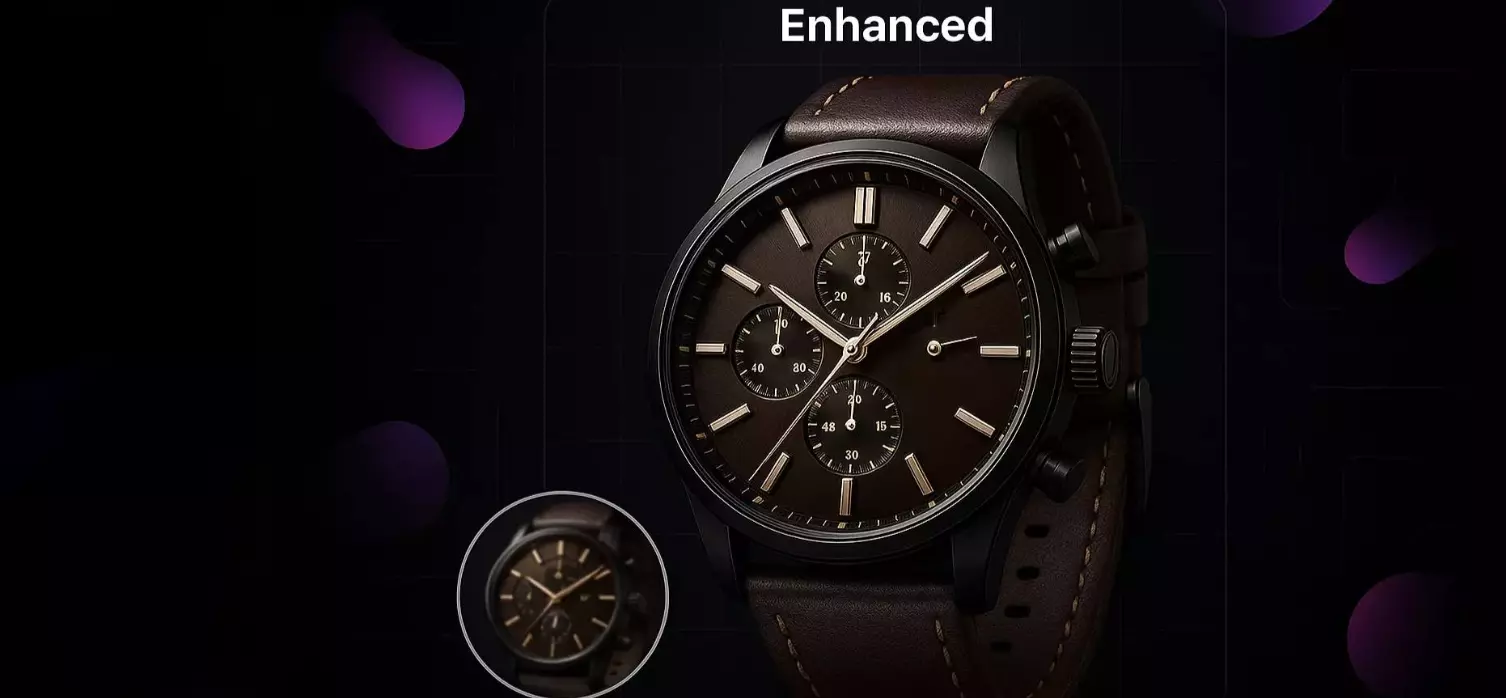
(See figure: close-up crops showing how semi-transparent diagonal watermarks are reconstructed over soft gradients and fine patterns without halo artifacts.)
Choosing your tool: desktop editors vs. online tools vs. Pixflux.AI
- Desktop editors (e.g., manual clone/heal/content-aware workflows)
- Pros: Full control, pixel-level masking, layered editing
- Cons: Requires expertise; time-consuming for batches; easy to leave artifacts under tight deadlines
- Generic online tools
- Pros: Quick access; simple UI; decent results for plain backgrounds
- Cons: Varying quality on gradients/patterns; limited batch capabilities
- Pixflux.AI
- Pros: Purpose-built AI cleanup that handles semi-transparent and diagonal marks well; fast results; supports batch processing for campaign-scale sets
- Bonus: When needed, you can also enhance clarity or remove stray elements in the same pass to finalize production-quality files
For most teams, Pixflux.AI offers a pragmatic balance: fast, consistent cleanups with minimal learning curve. When you need speed plus quality at scale, it’s a strong fit.
Step-by-step: clean outdated review marks on approved assets
Use this short, policy-aligned flow to protect quality and governance.
1) Confirm ownership and approvals
- Verify you own or are licensed to use the asset.
- Capture the final approval in your task or storage system.
2) Duplicate and label
- Duplicate the approved-with-slate file.
- Rename with -final-CLEAN to separate versions.
3) Prepare your checklist
- Confirm what will be removed (e.g., “DRAFT overlay bottom-right”).
- List any areas to double-check post-removal (logos, fine pattern continuity).
4) Run the removal
- Use an AI solution to clear the overlay and reconstruct the background.
5) QA pass
- Zoom to 200–400% and scan edges, gradients, and high-detail areas.
- Compare against color references or prior approved versions.
6) Metadata and notes
- Update metadata notes (“cleared review slate, no content changes”).
- Save and route for final quick check if your policy requires it.
Compliance reminder: Only apply removal to assets you own or have the right to modify. Do not use removal to bypass licensing, attribution, or platform rules.
Using Pixflux.AI to remove outdated watermarks: a safe three‑step workflow
You can complete a clean removal in a few clicks using Pixflux.AI.
1) Upload your image
- Open the tool and upload the approved asset with the outdated slate. For hands-on practice, use the link to remove watermarks from images.
2) Let the AI process
- Start the AI-based removal. Pixflux.AI reconstructs the underlying texture, preserving gradients, shadows, and brand details.
3) Download the cleaned file
- Preview, confirm the continuity looks natural, then download. Save as -final-CLEAN and update your approval notes.
(See figure: the Pixflux.AI interface sequence—upload, AI processing, and download—on a repurposed owned asset.)
Pro tip (advanced, 5 steps)
- Open Pixflux.AI
- Upload the approved-with-slate file
- Choose the watermark remover, run the AI
- Inspect result at 200–400% and fine-tune if needed (re-run on specific regions)
- Download the cleaned image and document the change
Batch cleanup for reusable brand kits, templates, and localization
Campaigns rarely ship one image at a time. When your team needs to clear outdated review labels across a set:
- Group images by template or usage (e.g., PDP images, social variants, marketplace banners).
- Batch-upload and process together to keep visual consistency and speed up release.
- Maintain a simple manifest (file name, removed mark, date, owner) so future audits are painless.
- If needed, follow with AI image enhancement to standardize clarity and contrast across the set before publishing.
Pixflux.AI’s batch-friendly approach lets you process multi-image runs for brand kits and localization variants efficiently—without compromising quality checks.
Quality assurance: visual consistency checks and metadata hygiene
Before you publish:
- Continuity scan: Inspect areas where the watermark overlapped gradients, brand type, or product edges.
- Color fidelity: Compare against brand palettes; look for grazing shifts in highlights/shadows.
- Compression settings: Export with consistent compression to avoid mismatch in marketplaces (Amazon PDP, Instagram feed, etc.).
- Metadata hygiene: Add a short note of what changed and clear any temporary “REVIEWED BY” fields. Your goal is clarity, not opacity—document the cleanup so future teams trust the file.
Troubleshooting tricky cases: patterns and semi‑transparent slates
- Dense patterns (fabric, tiles, herringbone): If subtle ghosts remain after the first pass, re-run removal focusing on that region. Compare a small crop against adjacent repeat units to ensure perfect tiling.
- Diagonal, semi-transparent watermarks: These overlay tone and texture. If you see faint halos, run a second pass with a slightly larger context area so the AI reads more surrounding pixels.
- Overlapping logos or UI elements: Clean the overlay first, then, if needed, use object removal to tidy stray fragments and restore straight edges.
- Fine gradients and vignettes: Check at multiple zoom levels; a gradient that looks perfect at 300% should also look seamless at 100%.
AI online tools vs traditional methods
- Time cost
- Traditional: Manual clone/heal can take 10–30 minutes per image (longer on patterns).
- AI tools: Seconds to a minute, even for semi-transparent overlays.
- Learning curve
- Traditional: Requires advanced retouch skills to avoid artifacts.
- AI tools: Minimal training; teams can standardize a simple SOP.
- Batch efficiency
- Traditional: Tedious, error-prone across sets.
- AI tools: Batch-friendly workflows reduce drift and improve consistency.
- Cross-team fit
- Traditional: Bottlenecks at specialist roles.
- AI tools: Non-designers can complete simple, approved cleanups while designers focus on higher-value work.
Pixflux.AI anchors the “fast, consistent, audit-ready” side of this comparison—especially when campaigns demand scale and speed.
FAQ: Watermark remover for teams, policy, and image quality
Is it legal to remove watermarks from our internal approved assets?
Yes, if you own or are licensed to use the images and are only removing internal review marks. Watermark removal becomes unlawful when it bypasses copyright, licensing, or attribution requirements. Keep approvals, licenses, and brief notes on why a watermark was removed so your audit trail is clear.
Will AI watermark removal degrade image quality?
No, good AI inpainting maintains quality when used correctly. Inspect gradients, edges, and textures at 200–400% to confirm there are no halos or smudges. If you spot issues, re-run a targeted pass. You can also apply light AI image enhancement afterward to match your brand’s clarity and contrast.
Can I process a whole campaign set at once?
Yes, batch processing is ideal for templates and localization variants. Group similar assets, run them together, and maintain a simple manifest (file name, removal note, date). This reduces drift across variants and keeps documentation tidy.
How do I handle semi-transparent diagonal watermarks?
Run an AI removal with a wider context so the model reads more surrounding pixels. Semi-transparent overlays affect tone and texture underneath; if halos remain after the first pass, re-run focused on the affected region. Compare a crop to adjacent areas to ensure perfect continuity.
What governance steps should we follow before and after removal?
Document ownership, capture final approvals, and version clearly. Use distinct naming (-final-APPROVED, -final-CLEAN), store the approved-with-slate asset alongside the cleaned version, and note what was removed, by whom, and when. These steps keep you audit-ready and confident.
Does this workflow work for marketplace and social platform specs?
Yes, as long as you maintain required dimensions, aspect ratios, and compression. Perform the watermark cleanup first, then export to platform specs (e.g., PDP images, feed posts, or story ratios). A quick visual QA ensures brand colors and edges remain consistent after resizing.
Is watermark removal allowed on stock or creator images we didn’t license?
No, you should not remove watermarks from unlicensed content. Those watermarks enforce rights and attribution. Only remove marks on owned or properly licensed images, or where the license explicitly allows derivative cleanup.
Conclusion and next steps
Internal watermark cleanup shouldn’t derail sprints or consume specialist time. With clear governance, a lightweight checklist, and an AI-first approach, teams can finish approved visuals quickly—without sacrificing quality or audit readiness. As brands push for tighter governance and faster reuse of owned assets, this capability becomes a core part of your production toolkit.
Try a focused, team-friendly workflow today: open an image watermark removal tool, follow the three-step process, and publish with confidence. Pixflux.AI makes lawful cleanup fast, consistent, and ready for scale—so you ship more, rebuild less.