Remove Object from Photo Online Free: 2025 Workflow for Budget-First E-Commerce Sellers
A step-by-step Pixflux.AI workflow to remove objects online for free, clean up listings fast, and export ready images for Amazon, Shopee, and TikTok Shop.
 Sierra CappelenDecember 11, 2025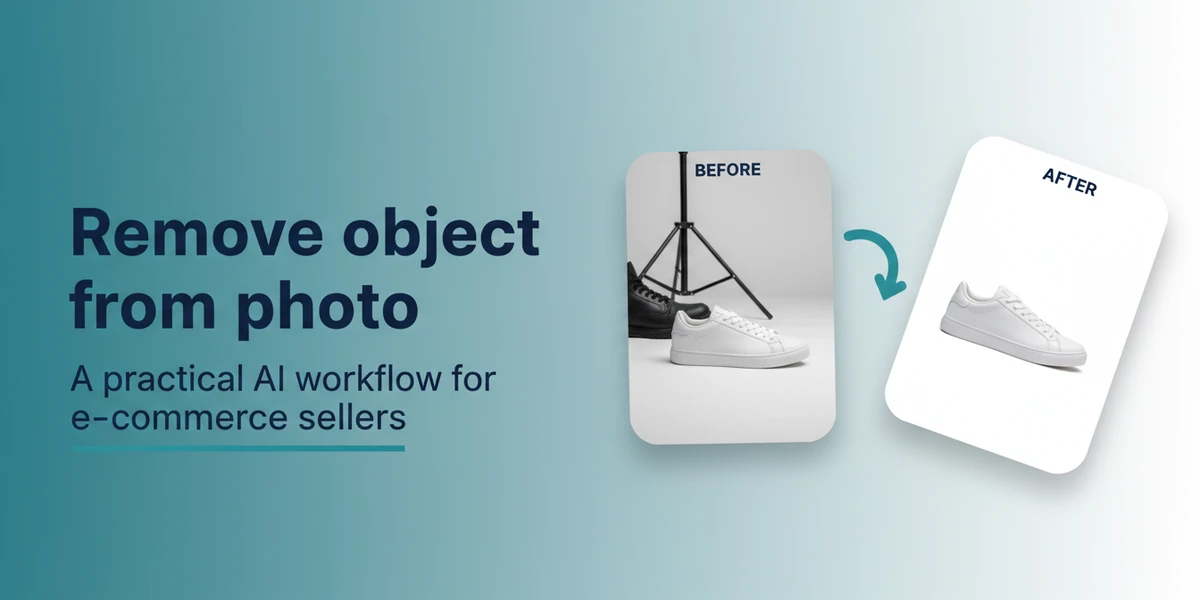
Remove Object from Photo Online Free: 2025 Workflow for Budget-First E‑Commerce Sellers
Stray hands in your product shot. A power cord creeping into the frame. A “SALE” sticker on a supplier photo you want to reuse. If you’re an indie or SMB seller working with slim margins, you can’t afford an all-day retouching session or heavy desktop tools. You need a clean, repeatable way to remove distractions fast—and ideally free—so listings go live on time.
That’s why the search term “remove object from photo online free” keeps surging in 2025. Browser-based AI editors are now good enough for daily listing work, and marketplaces like Amazon, Shopee, and TikTok Shop increasingly penalize cluttered imagery. Instead of bouncing between apps, you can use a focused, in-browser flow to clean up shots, swap or simplify backgrounds, and export. If you’re ready to test it, start with a practical, budget-friendly workflow using Pixflux.AI—try a remove object from photo online free run on one of your product photos and see the difference in minutes.
(See image suggestion: Before–after comparison where a stray hand next to a handbag is removed to produce a distraction-free product image.)
Why this matters for budget-first sellers in 2025
- Browser-based AI editors are replacing complex desktop installs for routine listing tasks.
- Marketplaces enforce cleaner main images, pushing sellers to remove logos, text, and background clutter.
- Free-first usage is common in India and other emerging markets; as SKU count and order volume scale, predictable paid plans often become more efficient than patchwork “free” tools.
Bottom line: if your store relies on speed and consistent images, an online, AI-assisted object remover is the fastest route from “shot” to “shoppable.”
Key concepts: object removal, inpainting, background cleanup, and quality cues
Before you jump in, it helps to know what’s happening under the hood—and what to look for in a solid result.
- Object removal and inpainting: The tool detects the area you mark (with a brush or lasso) and “inpaints” plausible pixels based on context. Good inpainting reconstructs textures and shadows, not just blur.
- Background cleanup: If the background is messy, removing multiple small objects might not be enough. Consider switching to a clean color or a light gradient for e-commerce.
- Quality cues: Zoom in 150–200%. Watch edges for halos, repeated patterns, or mismatched lighting. Check that reflections, soft shadows, and surface textures remain coherent.
Browser-based vs desktop tools: speed, cost, and learning curve
- Time-to-result: Online AI tools like Pixflux.AI run in the browser—no installation, no updates. For simple removals (wires, price tags, an unwanted hand), results often arrive in seconds.
- Learning curve: You don’t need pro-level retouching skills. Most tasks are brush, lasso, preview, and download.
- Cost control: Free tiers are sufficient for light workflows. As you scale, predictable paid plans usually beat the hidden cost of context switching, long revisions, or outsourcing revisions.
- Batch readiness: When you have a new product range or multiple UGC shots, batch processing keeps your style consistent and saves hours.
Hands-on with Pixflux.AI: cleaner product shots in a focused workspace
Pixflux.AI gives you distraction-free editing for quick wins:
- Remove unwanted objects without smudges or visible artifacts.
- Tidy backgrounds or replace them with a cleaner look suited to marketplaces or social.
- Clean watermarks or logos (only on images where you own the rights or have permission).
- Enhance clarity and contrast when supplier images look soft.
- Process multiple images in one go for a consistent look across SKUs.
When you’re ready to try it on your own images, open the tool as a free online object remover and start with one problematic product photo.
(See image suggestion: Three-step Pixflux.AI interface—upload, brush selection and AI processing, then the final download screen.)
How to remove objects from photos online (Pixflux.AI 5‑step workflow)
Follow this predictable flow to “remove object from photo online free” without leaving your browser:
1) Open Pixflux.AI Go to the Pixflux.AI object remover page in your browser. Keep your product photos handy.
2) Upload your image Drag and drop, or click to upload. For e-commerce, higher-resolution originals provide better inpainting quality.
3) Select the Object Remover and mark the area Choose the object remover tool. Use the brush for organic shapes (hands, wires, wrinkles) or the lasso for geometric items (labels, stickers). Make a slightly generous selection to include thin shadows or edges for cleaner fills.
4) Preview and fine‑tune
- Zoom in to inspect edges at 150–200%.
- If edges look harsh, slightly feather your selection and run again.
- For complex textures (leather grain, wood, fabric weaves), try a couple of small passes instead of one big selection.
- If the background still distracts, consider using background cleanup or replacement for a more uniform look.
5) Download the result Export your cleaned image as JPG or PNG. Keep a versioned file name so you can A/B test listings.
Tip: If you have multiple similar images (different angles of the same product), repeat steps 3–5 in a batch session so the look remains consistent across your gallery.
Precision workflow: edges, feathering, and texture reconstruction
Seamless object removal is about micro-decisions:
- Edges: Don’t hug the object too tightly—include a narrow buffer so the AI can rebuild context at the boundary.
- Feathering: A touch of feathering blends transitions into complex backgrounds, especially gradient walls or textured tabletops.
- Multiple passes: For tight spaces around straps, zippers, or product seams, do two or three focused removals rather than a single large one.
- Texture consistency: After removal, scan for repeated patterns or soft spots. If needed, run a light image enhancement to recover clarity without over-sharpening.
(See image suggestion: Close-in crop showing edge selection and how feathering improves seam quality after removal.)
Batch processing for product ranges with Pixflux.AI
Launching a new collection? UGC haul from creators? Batch processing helps you:
- Apply the same cleanup standards across all SKUs.
- Remove recurring distractions (e.g., hanging threads, scuffs, floor tape) in a single working session.
- Keep your turnaround time predictable during sale weeks.
In Pixflux.AI, upload multiple images and work through them in sequence. Use the same cleanup approach and background style so your category page looks cohesive. Then download everything in one session and move straight to listing.
Exporting marketplace‑ready images for Amazon, Shopee, and TikTok Shop
Each platform favors clean, distraction-free images; main images usually need a plain or white background. Check these common guidelines as you finalize exports:
- Amazon:
- Main image on a pure white background (RGB 255, 255, 255).
- Longest side commonly 1600 px or higher for zoom; keep the product filling most of the frame.
- Shopee:
- Square aspect ratio is widely used; 1024 × 1024 px is a safe minimum for crisp thumbnails.
- Clean, minimal backgrounds help CTR in category feeds.
- TikTok Shop:
- Square or 4:5 performs well in mobile feeds.
- Avoid reflective clutter; strong edge contrast helps on small screens.
If your editor doesn’t auto-size on export, set the aspect ratio and dimensions before download, or quickly adjust them in a lightweight image tool. For consistent brand visuals, keep a simple background style across all main images and use lifestyle shots for secondary slots.
(See image suggestion: Visual checklist of export specs with example crops for each marketplace.)
Benchmarks and when to move from “free” to predictable paid
Most sellers start by testing the “remove object from photo online free” path for a few listings. That’s smart. Here’s a simple decision framework to know when to upgrade:
- Volume threshold: If you’re cleaning 50–100+ images per month, a predictable plan usually costs less than piecemeal fixes or uneven quality from multiple free tools.
- Quality consistency: As product textures get trickier (knits, leather, reflective metals), you’ll value consistent inpainting and fewer do-overs.
- Time saved: Minutes saved per image add up. A 2–3 minute reduction per SKU over 150 SKUs is several hours back per week.
- Batch demands: Free tiers may limit throughput. If you often work in batches or pre-launch sprints, a plan reduces bottlenecks.
In side-by-side tests on typical e-commerce scenarios (wires on white, stickers on packaging, stray hands on lifestyle shots), Pixflux.AI produced clean fills with fewer visible artifacts and less trial-and-error than many generic free editors. The takeaway: start free; once you feel the time pressure, move to a plan that keeps your workflow predictable.
Compliance and ethics: watermark removal, logos, and rights
- Only edit images you own or are licensed to use. If you’re removing watermarks or logos, ensure you have explicit rights to do so.
- Do not remove watermarks to bypass creator attribution or platform rules. Marketplaces and brands increasingly audit listings for misuse.
- Keep originals archived. If a platform requests proof of rights or original files, you’ll be ready.
AI online tools vs traditional methods
- Speed to publish:
- AI online: Seconds to minutes per image; no install, no updates.
- Desktop pro tools: Powerful but slower for non-experts; setup and plugin costs add up.
- Outsourcing: Can be high quality but slow for small batches and urgent refreshes.
- Learning curve:
- AI online: Brush or lasso, preview, done. Easy for sellers and VAs.
- Desktop: Requires retouching know-how; easy to over-edit.
- Outsourcing: Requires briefing and revision cycles.
- Batch handling:
- AI online: Quick, consistent passes across a range of SKUs.
- Desktop: Possible, but slower without advanced actions or macros.
- Outsourcing: Consistency depends on vendor and communication.
- Cost control:
- AI online: Start free; scale to a predictable plan when needed.
- Desktop: License + time cost; may still need AI plugins.
- Outsourcing: Per-image fees; revisions can inflate spend.
Quick reference: common cleanup scenarios and tips
- Stray hand in lifestyle shot: Use brush selection around fingers; include soft shadows so the AI can rebuild the surface naturally.
- Price tag on packaging: Lasso the sticker and a small border; feather slightly for cardboard textures.
- Power cable in home appliance photos: Remove in segments, following the cable path to preserve background lines.
- Supplier watermark on product close-up: Only if permitted—select the mark; run object removal; zoom 200% to ensure no ghosting.
Try it now: clean, marketplace-ready photos in minutes
You don’t need a complex retouching stack to get conversion-ready images. Start in your browser, fix one photo, and judge the result side-by-side with your current listing. If it saves you a few minutes per SKU, you’ve found compounding time back every week.
Open Pixflux.AI and remove unwanted objects from photos online. Upload, brush, preview, and download—then repeat the flow across your next batch. When volume ramps up, move to a predictable plan to keep your workflow steady through launches and sale seasons.
Pixflux.AI helps you remove distractions, clean or update backgrounds, enhance clarity, and handle batches without leaving the browser—so your focus stays on shipping, not retouching.








