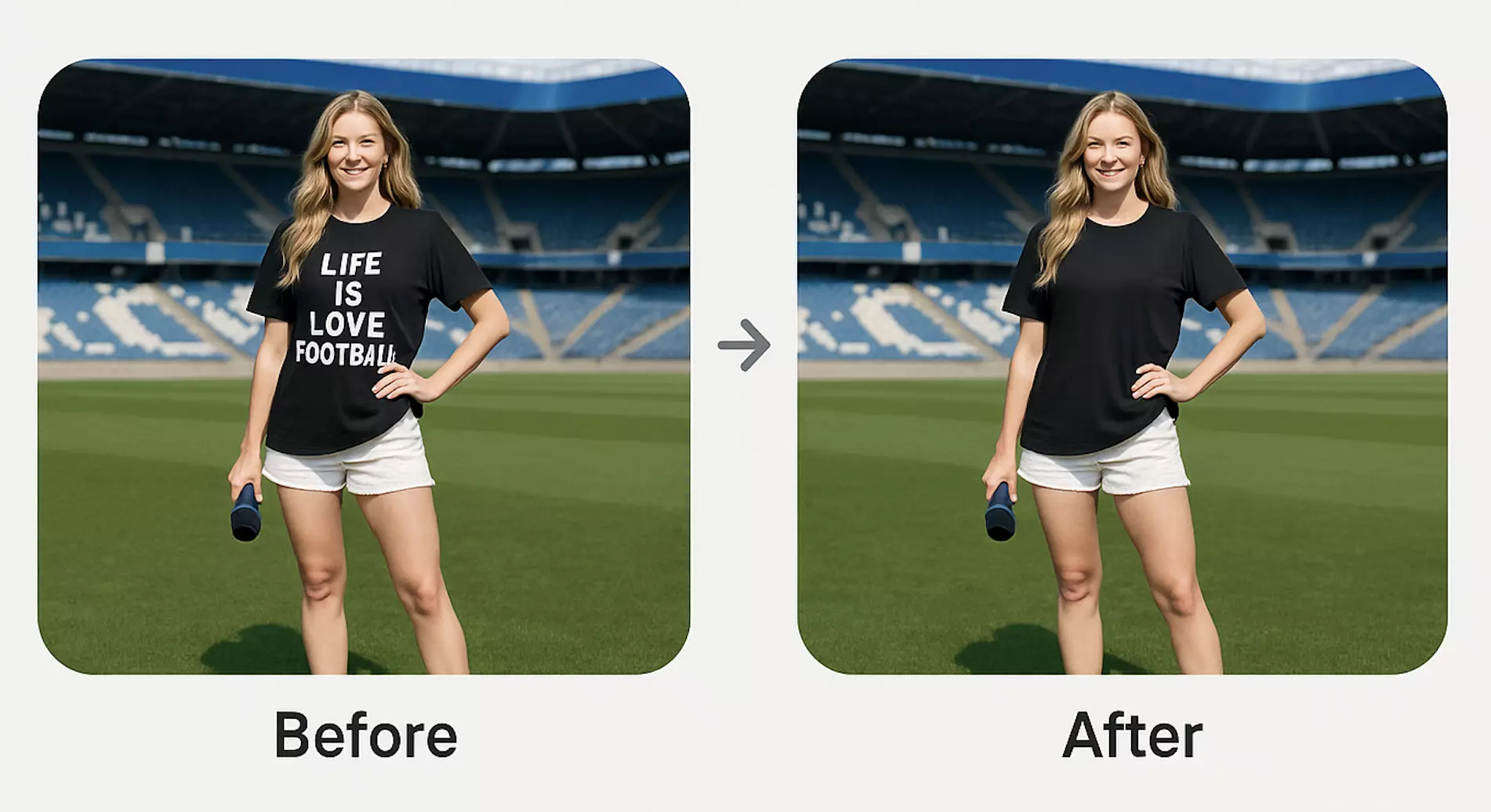
Remove object from photo online free: A Practical AI Workflow for E-commerce Sellers
A step-by-step AI workflow to scrub distractions from product, travel, and lifestyle shots—free, in your browser—so your listings look clean and credible.
 Sierra CappelenDecember 2, 2025
Remove Object from Photo Online Free: A Practical AI Workflow for E‑commerce Sellers
You just shot a great product photo—sharp lighting, clean composition—but there’s a stray price sticker on the packaging or a reflection of your tripod in the chrome. Re-shooting means booking time, resetting lights, and delaying your listing. Outsourcing can take days. Meanwhile, marketplaces like Amazon, eBay, and Etsy increasingly require distraction‑free images to convert and rank.
This is where a browser‑based, AI‑assisted workflow helps you remove small distractions quickly without learning heavy desktop software. If you’re looking to remove object from photo online free, this guide walks you through a simple, reliable process you can apply to product, travel, or lifestyle photos.
AI object removal has matured: it recognizes edges, fills gaps with realistic textures, and keeps your subject intact. Below is a step‑by‑step playbook and a fast way to execute it using Pixflux.AI.
Why removing unwanted objects matters
- E‑commerce: Stray labels, scuffs, or prop stands dilute perceived quality. Clean imagery is statistically tied to higher CTR and conversion.
- Travel and lifestyle: Photobombers, wires, or trash cans pull attention away from your subject and make posts look less professional.
- Brand consistency: A tight cleanup workflow keeps your catalog uniform, reducing returns and boosting seller trust.
AI object removal is becoming standard in e‑commerce photo workflows because it reduces editing time and elevates quality across catalogs—no advanced software required.
How AI object removal works (in plain English)
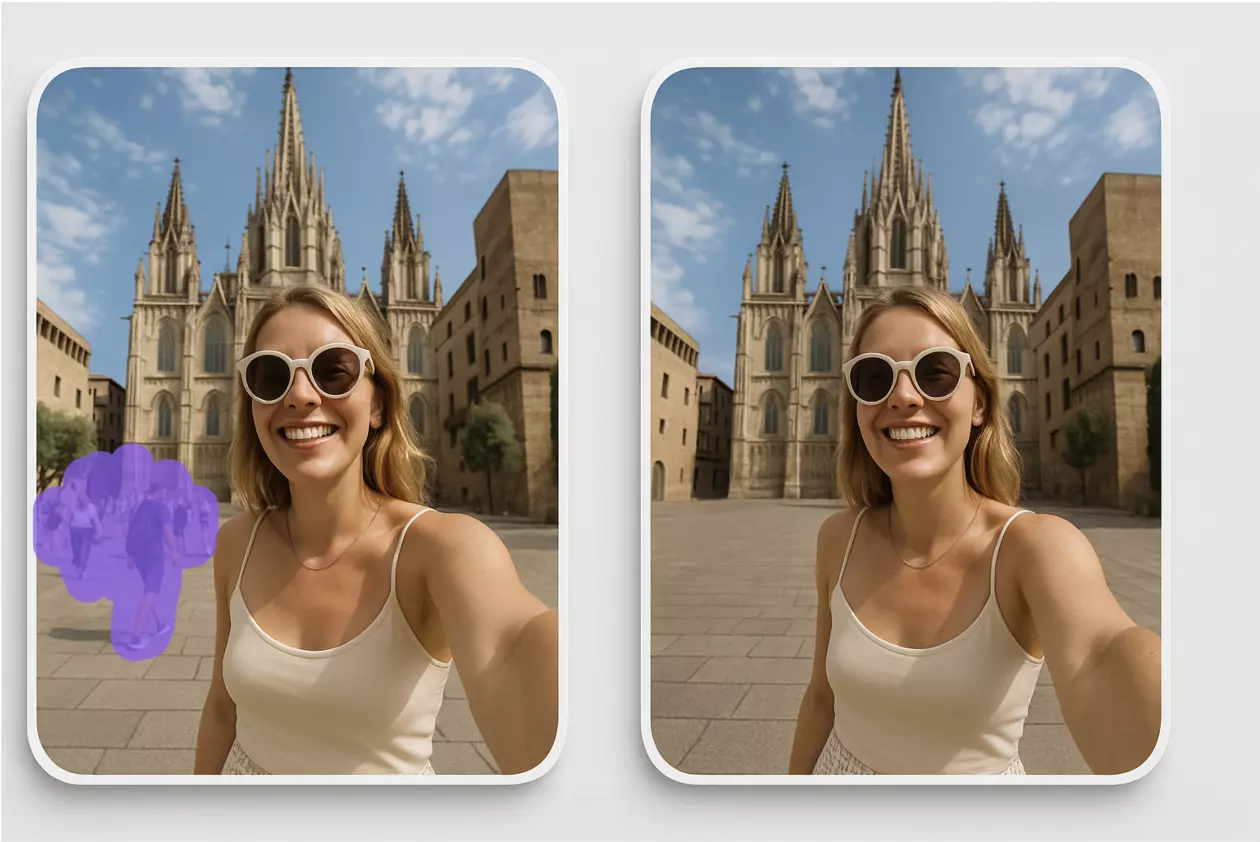
- Selection and mask: You mark the area to remove with a brush or lasso. This creates a mask the AI uses as a “do not keep” region.
- Edge‑aware fill: The model looks at pixels around the mask to infer what should be behind the object—wood grain, marble veins, gradients, or skin texture.
- Inpainting and blending: It synthesizes new pixels and blends edges so the patch feels natural. Good tools respect lighting, shadows, and noise patterns.
- Practical limits: Extremely complex reflections or overlapping hair/fur can still require a second pass or manual refinement. Always zoom to 100% and check edges.
(See image: selection overlay comparison showing brush vs lasso on a lifestyle photo.)
Free online tools vs desktop editors
- Speed: Browser tools remove setup overhead. No installs, no plugins—open a tab, upload, and edit in minutes.
- Learning curve: One or two selection tools (brush/lasso) is easier than mastering dozens of Photoshop tools.
- Batch efficiency: Modern AI tools can process multiple images consistently, helpful for large catalogs.
- Privacy and file limits: Free tiers often have size limits and session caps. For sensitive work, choose tools that process securely and let you download locally. Avoid uploading client‑confidential images without permission.
How to remove object from photo online free (general workflow)
- Upload your image
- Work from the highest‑resolution file you have. JPEGs are fine; PNGs preserve more detail and transparency if needed.
- Choose selection mode: brush or lasso
- Brush is forgiving and fast. Lasso is precise for straight edges and geometric shapes.
- Paint or outline the unwanted object
- Slightly overlap the edges to capture halos or soft glow. Use a soft edge for organic shapes; hard edge for crisp objects.
- Run AI removal
- Let the tool inpaint and preview the patch. Most tools generate results in seconds.
- Refine the mask if needed
- Missed spots? Add to the selection. Over‑removed? Subtract from the selection and rerun.
- Quality check at 100%
- Look for repeating patterns, stretched textures, or broken lines. Repaint smaller areas if artifacts appear.
- Export
- Choose the format your marketplace requires (JPEG for listings, PNG if you need transparency). Name files consistently for your catalog.
Use Pixflux.AI to remove objects in minutes
Pixflux.AI is a browser‑based editor built for product, travel, and social photos. It keeps the flow simple so you can move fast.
Three‑step workflow:
- Upload: Drop your photo into Pixflux.AI.
- AI cleanup: Select the object with a brush or lasso and let the AI remove it.
- Download: Review the preview and export your cleaned image.
If you want to try a free online object remover, this is a straightforward place to start.
Advanced five‑step version:
- Open Pixflux.AI in your browser.
- Upload your original image (prefer high‑res).
- Pick Object Removal, paint the area, and run AI.
- Preview at 100%, refine edges or shadows if needed.
- Download the edited file in your preferred format.
(See image: Pixflux.AI interface illustrating the three‑step flow: Upload → AI processing → Download.)
Real‑world examples
- Product sticker removal: A candle jar has a small barcode sticker on the base. Paint over the sticker; the AI restores glass texture and wood tabletop grain beneath. (See image: before‑and‑after with a stray price sticker removed cleanly.)
- Travel scene cleanup: Remove a passerby on a beach shot. Use lasso for the person and brush for footprints; the AI fills in sand and water lines.
- Lifestyle on white: Eliminate a clamp stand visible behind a bag. Brush selection, feather 2–3 px, rerun until the seam disappears.
Brush vs lasso: how to choose and refine
- Brush for organic shapes: People, cables, wrinkles, stickers, or scuffs. Use soft edges and vary brush size for corners.
- Lasso for geometric objects: Boxes, signs, edge‑to‑edge labels. Straight selections keep fills aligned.
- Feathering: 1–3 px feather often produces natural blends. High‑frequency backgrounds (fabric weave or wood grain) may need minimal feathering to avoid blur.
- Edge refinement: If you see halos, subtract a sliver from the selection and rerun, or do two smaller passes instead of one large mask.
Quality checks before export
- Shadows and reflections: Make sure shadows still align with the light direction. If a removed object had a visible shadow, paint the shadow area too.
- Texture continuity: Look for repeated tiles in wood, fabric, or stone. Repaint a narrower region to nudge the AI into a better fill.
- Color consistency: Check gradients and skin tones. If a patch looks cooler/warmer, a gentle temperature or tint adjustment can help.
- Noise and sharpness: Ensure the inpainted area matches the image’s noise level and sharpness. A subtle sharpen/enhance pass can unify the look.
Export settings for marketplaces and social
- Format: JPEG for marketplace listings; PNG if you need transparency or further composite work.
- Size: Follow platform guidelines (e.g., Amazon’s longest side ≥ 1600 px). Export at native resolution when possible to preserve detail.
- Background: For product listings that require white, keep it #FFFFFF. For social, use on‑brand backdrops to stand out in feeds.
- Naming: Use consistent, search‑friendly file names (sku‑angle‑variant.jpg). This keeps catalogs tidy and speeds collaboration.
Advanced cleanups with Pixflux.AI
Beyond removing distractions, Pixflux.AI can:
- Remove or replace backgrounds for catalog‑ready product images.
- Remove watermarks or logos from your own assets when you have rights to do so.
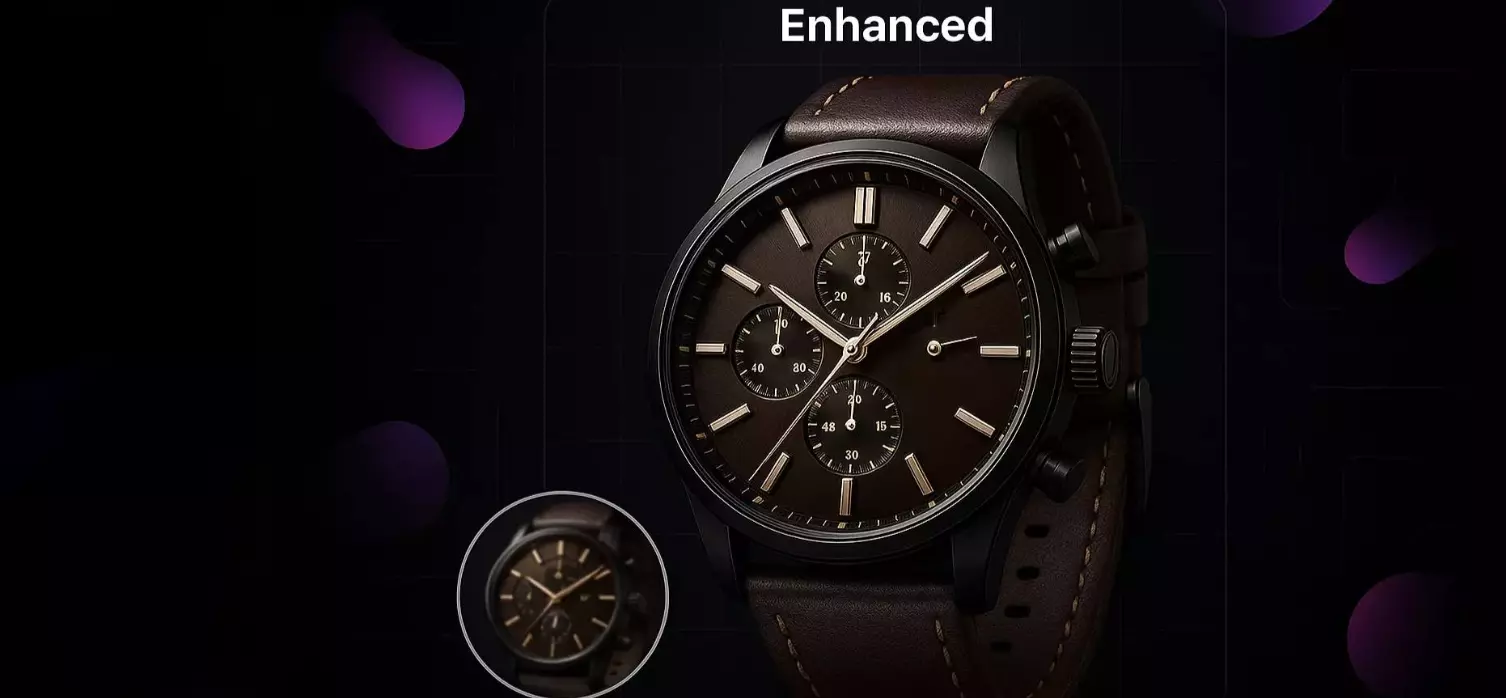
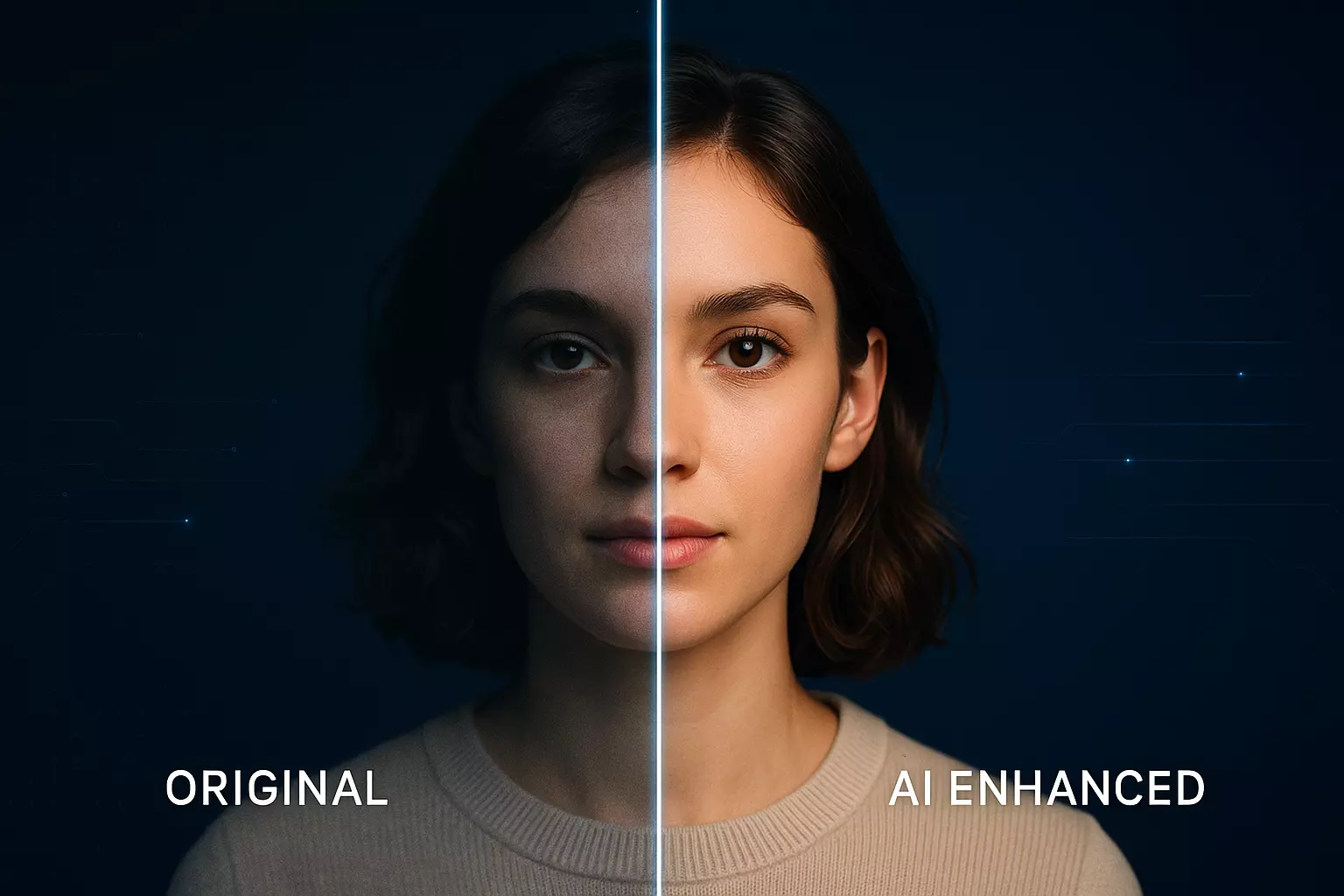
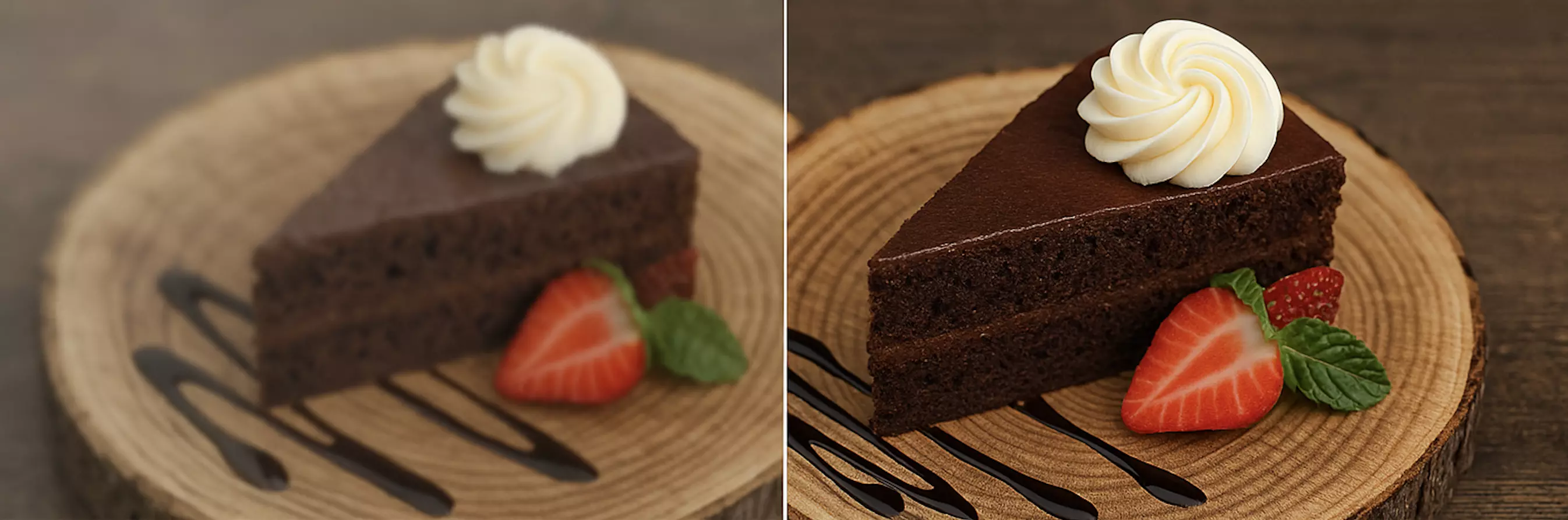
- Enhance photos to boost clarity, contrast, and detail so inpainted regions blend seamlessly.
- Remove extra objects in bulk to standardize large product sets fast.
Compliance reminder: Only edit images you own or have permission to use. Watermark removal must not be used to infringe copyrights or bypass platform rules.
AI online tools vs traditional methods
- Time to result
- AI browser tools: Seconds to minutes for common fixes.
- Desktop suites/outsourcing: Setup, revisions, and queue times can stretch to hours or days.
- Learning curve
- AI tools: Brush, lasso, and preview—easy to teach across teams.
- Traditional: Multiple tools, layers, and masks take longer to master.
- Batch consistency
- AI tools: Uniform cleanup settings help standardize a catalog quickly.
- Traditional: Manual steps vary by editor and session.
- Collaboration
- AI tools: Anyone on your team can open a browser and replicate steps without installations.
- Traditional: Requires licenses, installs, and more training.
For e‑commerce teams balancing speed and quality, the browser‑first approach delivers a pragmatic win—especially when listings need to go live the same day.
Quick checklist before you publish
- Is the removed area seamless at 100% zoom?
- Are shadows and reflections believable?
- Does the patch match the surrounding texture and noise?
- Is the export format and size correct for your marketplace?
- Are filenames standardized for your PIM or media library handoff?
Get hands‑on: Clean your next photo fast
You don’t need to reshoot or wade through complex software to fix a small problem. Open a tab, upload, select, refine, export—done. Try Pixflux.AI to remove unwanted objects in images and keep your product, travel, and lifestyle photos clean and conversion‑ready.
If you prefer a guided start, head to Pixflux.AI and use its streamlined three‑step flow—upload, let AI do the cleanup, download—to move from distraction to publishable in minutes. For a simple way to begin, explore its remove object from photo online free workflow now.
(Trend note: As marketplaces tighten image standards and catalogs grow, fast AI cleanup and batch consistency increasingly define modern seller workflows. Building this capability now pays off across your entire listing pipeline.)