Remove Text from Images in Seconds with AI: A Step-by-Step Guide
Need to erase unwanted text fast? Use AI inpainting to clean photos in seconds—plus a 3-step workflow, quality checks, and Pixflux.AI tips.
 Richard SullivanOctober 8, 2025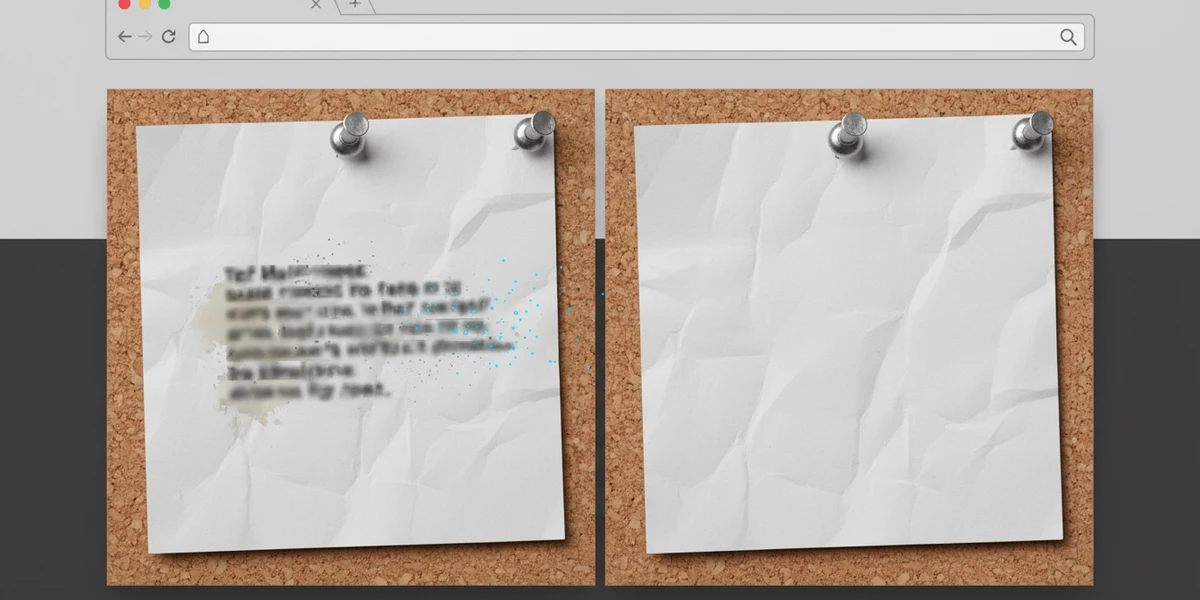
Remove Text from Images in Seconds with AI: A Step-by-Step Guide
If you’ve ever had to pull a logo off a product shot, hide a date stamp in a social post, or clean a watermark before reusing licensed assets, you know the drill: zoom, clone, heal, repeat. It’s slow, it’s fiddly, and the result often looks “patched.”
The good news: in 2025, removing text from images is no longer a specialist task. Modern AI inpainting can understand texture, lighting, and perspective so it can reconstruct what should be behind the text. If you’re looking for a practical way to quickly remove text from image without deep Photoshop skills, AI tools like Pixflux.AI make the process fast and predictable.
What “remove text from image” means today—and why it’s easier now
“Remove text” used to mean smudging pixels until the words disappeared. Today, diffusion-based inpainting models predict what belongs behind the text and generate those missing pixels with texture- and light-aware detail. That’s why wood grain stays aligned, gradients don’t break, and shadows remain coherent.
A few trends are driving adoption:
- Mobile-first creators expect one-tap text removal on high‑res photos—no heavy desktop software.
- Retail and marketplaces need batch cleanup for hundreds of SKUs; consistent, repeatable outputs matter.
- Ethical scrutiny around watermark removal has led to clearer guidelines and better disclosure practices.
How AI inpainting compares to manual clone and heal
- Context understanding: Clone/Heal copies nearby pixels; AI infers the surface underneath the text (boards, fabric weave, reflections) and recreates it.
- Edge handling: Manual tools often leave halos or seams around letters; AI models generate continuous edges aligned with perspective.
- Gradients and noise: Subtle sky gradients or sensor noise patterns can be hard to match by hand; AI reproduces transitions and grain more naturally.
- Speed and repeatability: Manual edits vary by operator and time; AI delivers consistent results, especially at scale.
(See image: side‑by‑side before/after on a wood-textured product photo where grain stays continuous after text removal.)
Quick How-To: remove text from image in seconds (3-step workflow)
If you just need a clean result fast, the workflow is straightforward:
- Upload your image to an AI text-removal tool.
- Let the AI process the selection—most tools auto-detect and inpaint over the text.
- Download your cleaned image and verify edges and texture.
Want to try it right now? Use this simple flow to remove text in image without learning complex editing tools.
Pixflux.AI walkthrough: fast text removal (upload → AI → download)
Pixflux.AI is a lightweight online editor built for quick, clean removals across product photos, social assets, and simple documents. Here’s the detailed 5-step process:
- Open the Pixflux.AI tool page.
- Upload your original image (high-resolution preferred for best texture synthesis).
- Choose the text removal tool and let the AI process the selection. For stubborn overlays, run a second pass or slightly expand the selection.
- Preview the result and tweak: zoom in on edges, check gradients, and use AI enhance to refine sharpness or contrast if needed.
- Download your edited image. Keep your original safe as a versioned backup.
That’s it—the same flow scales to multiple assets when you need to quickly clean a set of campaign images or product shots. (See image: Pixflux.AI interface showing the 3-step flow: upload → AI process → download.)
Choose the right approach for each background type
Different backgrounds benefit from slightly different handling. Here’s how to think about it:
- Flat colors (e.g., solid white, studio gray): AI will usually nail this in one pass. If you notice faint banding, apply a tiny amount of blur or run AI enhance to harmonize the patch.
- Gradients (e.g., sky, soft backdrops): Expand the selection a few pixels beyond the text to help the model blend the gradient. Check for subtle steps; a second pass typically smooths them out.
- Textures (e.g., wood, fabric, brushed metal): Zoom in and ensure wood grain or fabric weave lines up across the removal area. If lines drift, redraw the selection a touch larger so the AI can re-sample the surrounding pattern.
- Complex scenes (e.g., text over faces or edges): Use smaller selections and multiple passes. Prioritize restoring structural edges first (jawline, object borders), then blend nearby textures.
Troubleshooting: halos, seams, and warped textures
If your first pass isn’t perfect, these quick fixes usually solve it:
- Halo outlines around letters: Expand the selection by 2–4 px and re-run. Halos often come from tight selections that exclude letter edges.
- Visible seam or blur patch: Apply a second inpaint pass with a slightly irregular selection shape that follows natural contours—straight rectangles can create obvious borders.
- Warped patterns (wood grain, fabric, tiles): Break the job into two overlapping selections instead of one big block. This gives the model more local context to continue the pattern.
- Lighting mismatch: If the patch looks too bright or dark, use AI enhance to balance contrast and micro-contrast. A tiny global adjustment can hide minor inconsistencies.
(See image: close-up comparison showing halo artifacts before tuning vs. seamless texture after refinement.)
Quality checklist before you export
Run through this quick list to confirm a professional result:
- Texture continuity: Grain, weave, or noise pattern flows through the edited area without breaks.
- Edge integrity: Lines and borders (product edges, table lines) remain straight and unbent.
- Lighting and color: No sudden shifts in brightness, color cast, or shadow direction.
- Sharpness parity: The edited area matches surrounding detail—neither too soft nor oversharpened.
- Clean zoom test: At 200–300% zoom, you don’t see halos, repeating patterns, or checkerboarding.
Tip: Always export a copy and keep the original safe for compliance and future edits.
Use cases that benefit most
- Social posts and thumbnails: Strip out campaign text so you can localize or repurpose creatives without rebuilding assets.
- Product photos for marketplaces: Remove stickers, date stamps, or packaging copy that violates listing rules. If you also need clean backgrounds or distracting objects removed, Pixflux.AI can handle background removal and object cleanup in the same session to streamline workflow.
- Documents and screenshots: Redact personal data or outdated copy before sharing. For crisp results, process at the original resolution.
- Batch workloads for retail and catalogs: When you need consistent edits across dozens of SKUs, Pixflux.AI’s ability to quickly process multiple images helps teams keep pace with seasonal updates and promo cycles.
Ethics and copyright: where the line is
AI can remove watermarks and logos—but that doesn’t mean you should in every case. Only edit images you own or have explicit permission to modify. Do not use watermark removal to bypass licensing or platform policies. If you’re cleaning a licensed image where watermark removal is permitted, follow your brand’s disclosure practices and keep a record of rights.
Before–after examples and micro-benchmarks
- Text over wood texture: On a 3000 px product photo, AI removal maintains plank grain and varnish highlights in one pass, versus three to five manual passes that often bend the grain.
- Gradient backdrops: AI produces smooth sky transitions without “banding” when given a slightly expanded selection. Manual healing can create visible steps under compression.
- Small logos on fabric: Two compact passes align the weave and stitching with minimal artifacts. Manual cloning tends to repeat patterns that the eye catches instantly.
(See image: side-by-side before/after showing text removed from a wood-textured product photo with natural grain preserved.)
AI tools vs. traditional methods
When should you reach for an online AI tool like Pixflux.AI versus desktop software or outsourcing?
- Time-to-result: AI online tools deliver clean removals in seconds. Traditional edits can take minutes per asset, and outsourcing adds turnaround delays.
- Learning curve: No need to master clone/heal intricacies or advanced masks. The AI handles context; you verify quality.
- Batch efficiency: Cleaning dozens of images is practical with AI tools. Manual or outsourced workflows scale poorly without escalating cost and coordination.
- Consistency across teams: AI reduces stylistic variance between editors. You get predictable outcomes that are easy to review and approve.
- Total cost: Fewer revision loops and faster throughput lower the effective cost per asset—especially important for ecommerce and social teams on tight calendars.
Try it now: 3 steps with Pixflux.AI
If you prefer the shortest path possible, here’s the simplified flow again:
- Upload your image.
- Let Pixflux.AI remove the text.
- Download and publish.
Open the tool and start your first edit in under a minute: use it to remove text in image with reliable texture-aware results.
Pro tips for even cleaner outcomes
- Work at source resolution: Downscaling hides detail the model uses to reconstruct textures.
- Tackle hard edges first: Clear structural lines, then refine textures.
- Combine cleanup steps: After text removal, use background removal or object deletion to produce marketplace-ready images in one session.
- Keep revisions: Save both the original and AI result; mark approved versions for handoff to your content or merchandising team.
Conclusion and next steps
Removing text from images no longer needs to be a painstaking manual task. Diffusion-based inpainting brings texture continuity, lighting coherence, and speed that match the pace of modern content and retail workflows. Whether you’re prepping a product launch, localizing social assets, or refreshing documentation, Pixflux.AI gives you a predictable, fast path to clean visuals.
Ready to test it on your own asset? In a few clicks, you can erase text from photos and ship polished images today.








