Crowded Attraction Shots to Clean Hero Images A Batch Workflow for Travel Creators
Turn crowded landmark shots into clean, on-brand hero images with a fast, repeatable workflow—capture smart, batch edit, and restore textures that look real.
 Emily CremerMarch 5, 2026
From Crowded Attraction Shots to Clean Hero Images: A Batch Workflow for Travel Creators
You scouted the perfect angle, waited for soft light, and still your “hero” travel photo is full of strangers in neon raincoats and selfie sticks. For blogs, itineraries, and social covers, those crowds dilute storytelling and make your feature image look like a snapshot—not a destination hook.
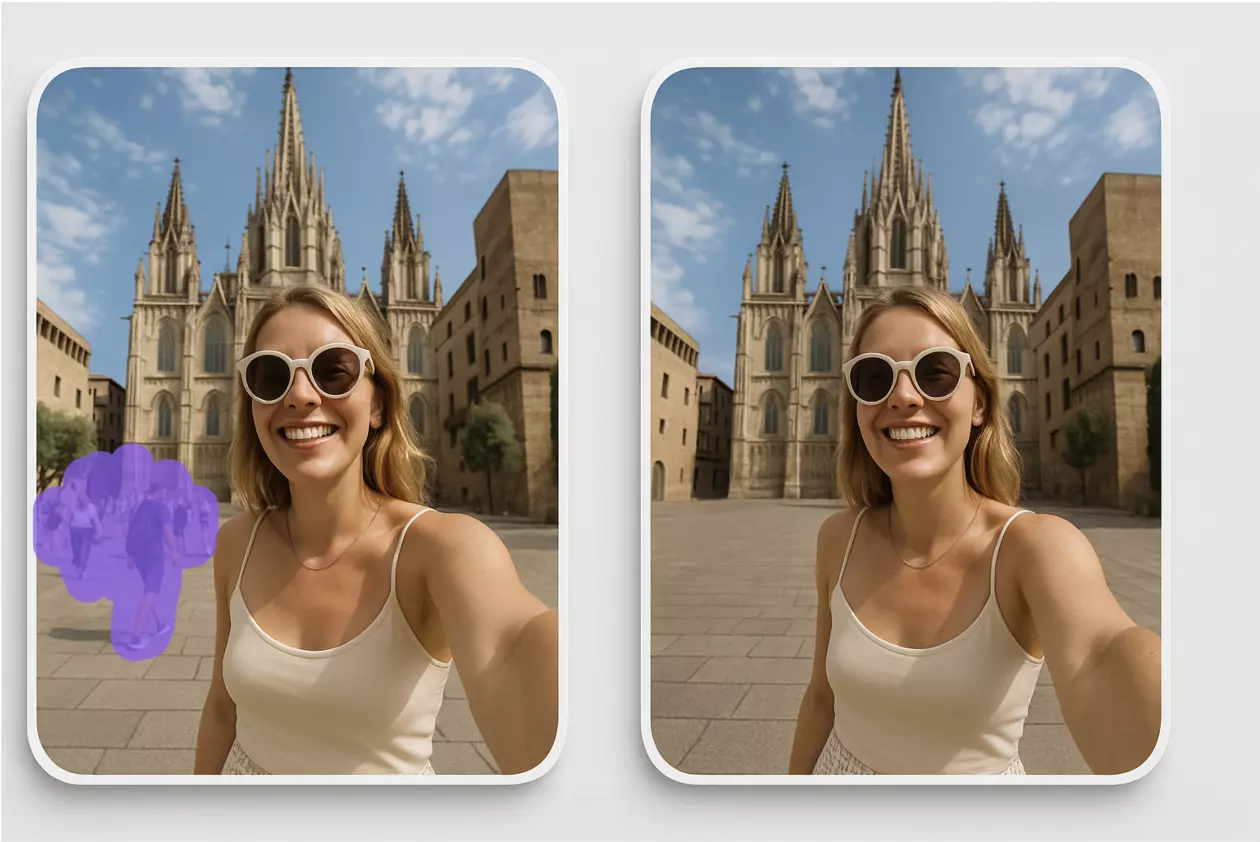
The good news: modern, browser-based AI editors now make it practical to transform a crowded capture into a clean, on-brand hero image—fast, and at scale. Instead of spending hours masking in pro software, you can remove unwanted person from photo in minutes while keeping textures, shadows, and color consistent across a whole set.
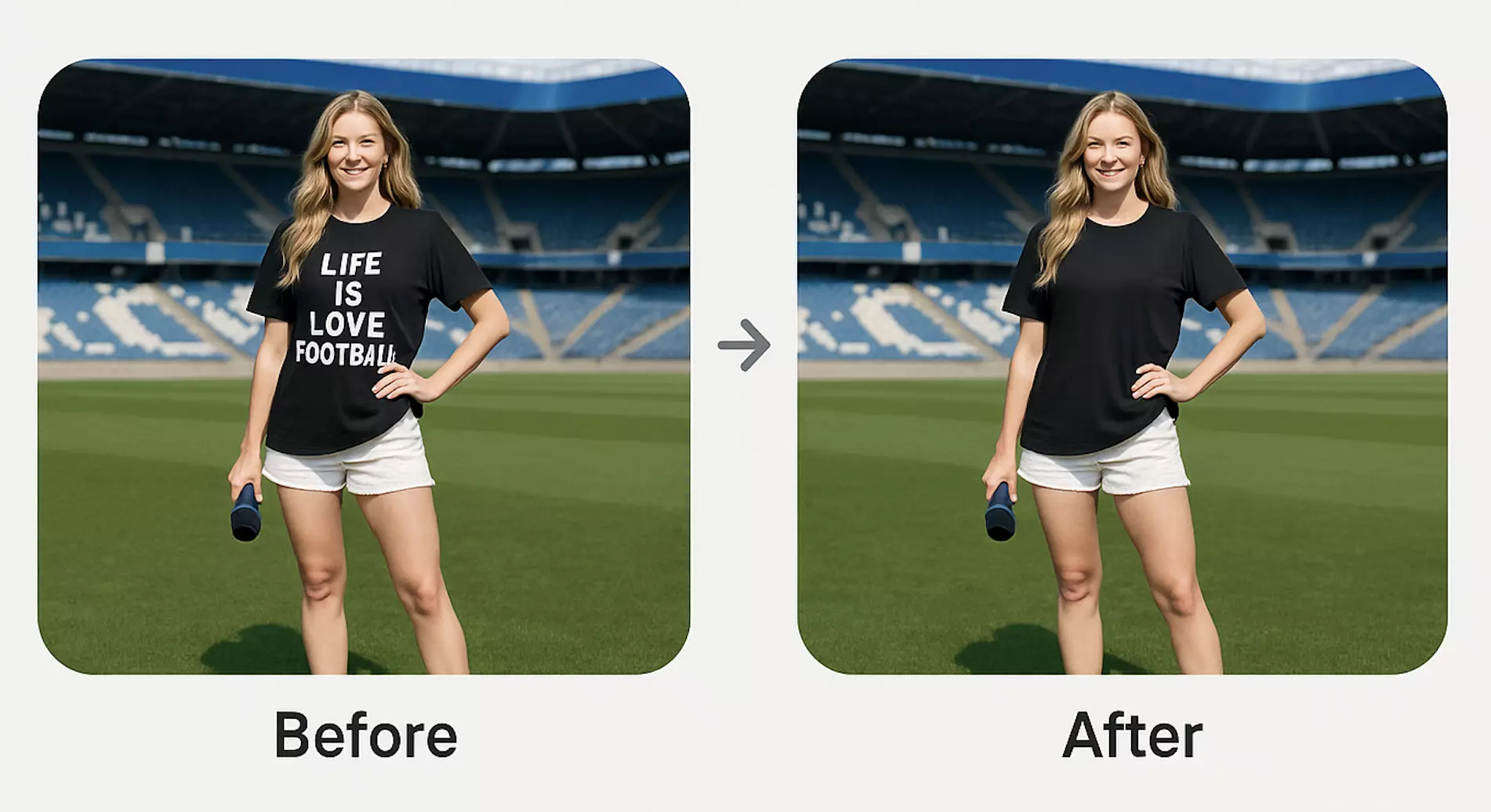
(See image: Before-and-after comparison—left shows a crowded plaza; right shows a clean hero image after object removal)
Why crowded attraction shots undermine hero images
- They shift focus away from your story. Faces, bright clothing, and unpredictable poses pull attention from your subject.
- They reduce perceived quality. Hero images should look intentional and styled; crowds read as “uncurated.”
- They complicate brand consistency. Mismatched clothing colors and messy overlaps push your palette off track.
Travel creators are increasingly judged on consistency across blog headers, Pinterest pins, and Instagram Reels covers. Publishers expect a cohesive look, and audiences scroll quickly. A clean hero is no longer “nice to have”—it’s the hook that sets session time and CTR for the rest of your content.
Core ways to remove people from photos
- Inpainting (AI object removal): You brush over a person or distraction; AI replaces it with plausible background. Great for single frames and irregular backgrounds like foliage or stone.
- Median blending (multi-frame): Shoot multiple frames from a tripod as people move. Blend them by median/stacking so transient subjects vanish. Best when you can lock the camera.
- Manual object removal (clone/heal/patch): Pixel-level control to fix tricky edges, reflections, or patterns. Slower, but reliable for final touch-ups.
Modern AI object removal is now far better at complex textures—think cobblestones, latticework, and foliage—so you can combine it with multi-frame stacks for the cleanest results.
Capture strategy on location
- Lock your framing. Use a tripod or brace your camera on a stable surface to enable median blending later.
- Shoot 8–20 frames. Give people time to move through. More variety increases the chance that each area of the scene is people-free in at least one frame.
- Cover the scene. If you can’t stay locked, capture overlapping tiles with similar exposure to help inpainting and manual cleanup later.
- Keep exposure consistent. Manual exposure prevents flicker-like changes that complicate blends.
- Note reflective surfaces. Water, glass, and polished stone may need dedicated cleanup for reflections and shadows in post.
Batch planning for travel creators
- File naming: Use a consistent pattern (Location_YYYYMMDD_SetA_01–20) so stacks and related angles group naturally.
- Selects process: Flag one hero per angle, then mark support images. Keep similar scenes together for color and grain sync.
- Consistency goals: Decide on contrast, warmth, and grain upfront so the batch holds together across blog and socials.
(See image: A grid of 8 travel photos after object removal, all sharing consistent color and grain)
How to remove unwanted person from photo online: a practical checklist
- Pick the strongest frame for composition and light.
- Try a quick AI object removal pass for the most obvious people and distractions.
- If you shot multiples, run a median blend (in your editor of choice) to reduce crowd density, then use AI to finish.
- Restore textures: check edges, shadows, and reflections, then add matching grain so the fill looks natural.
- Sync color/contrast across the set to maintain a consistent brand look.
Using Pixflux.AI to remove people and distractions in three steps
Pixflux.AI is a simple, travel-ready way to clear crowds, remove stray objects, and enhance detail without leaving your browser. Here’s the fast path:
1) Upload your photo Choose the frame you want to feature and upload it to Pixflux.AI.
2) Let the AI remove people and distractions Brush over unwanted people, photobombers, or background clutter. The AI fills gaps with context-aware detail and keeps textures believable.
3) Download the clean result Review the preview, make any small refinements, and export your hero image for your blog, itinerary, or social cover.
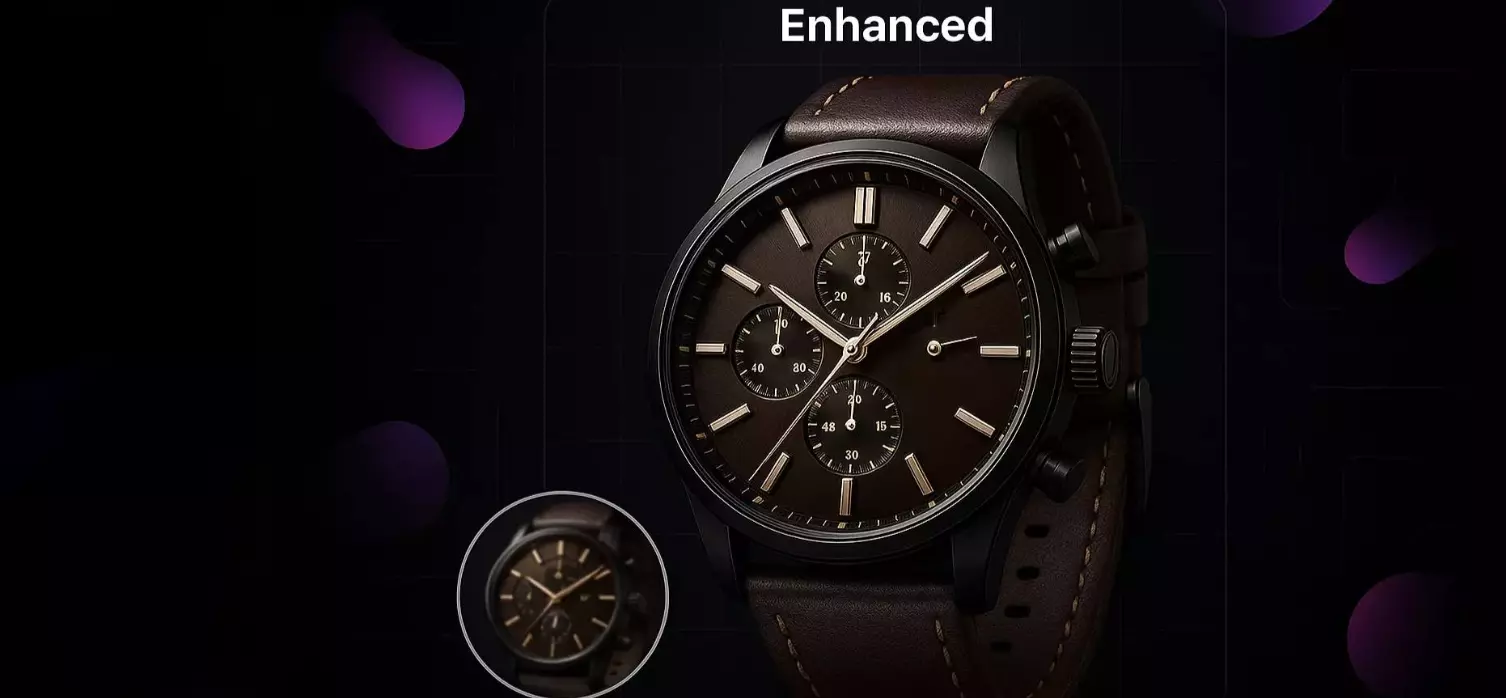
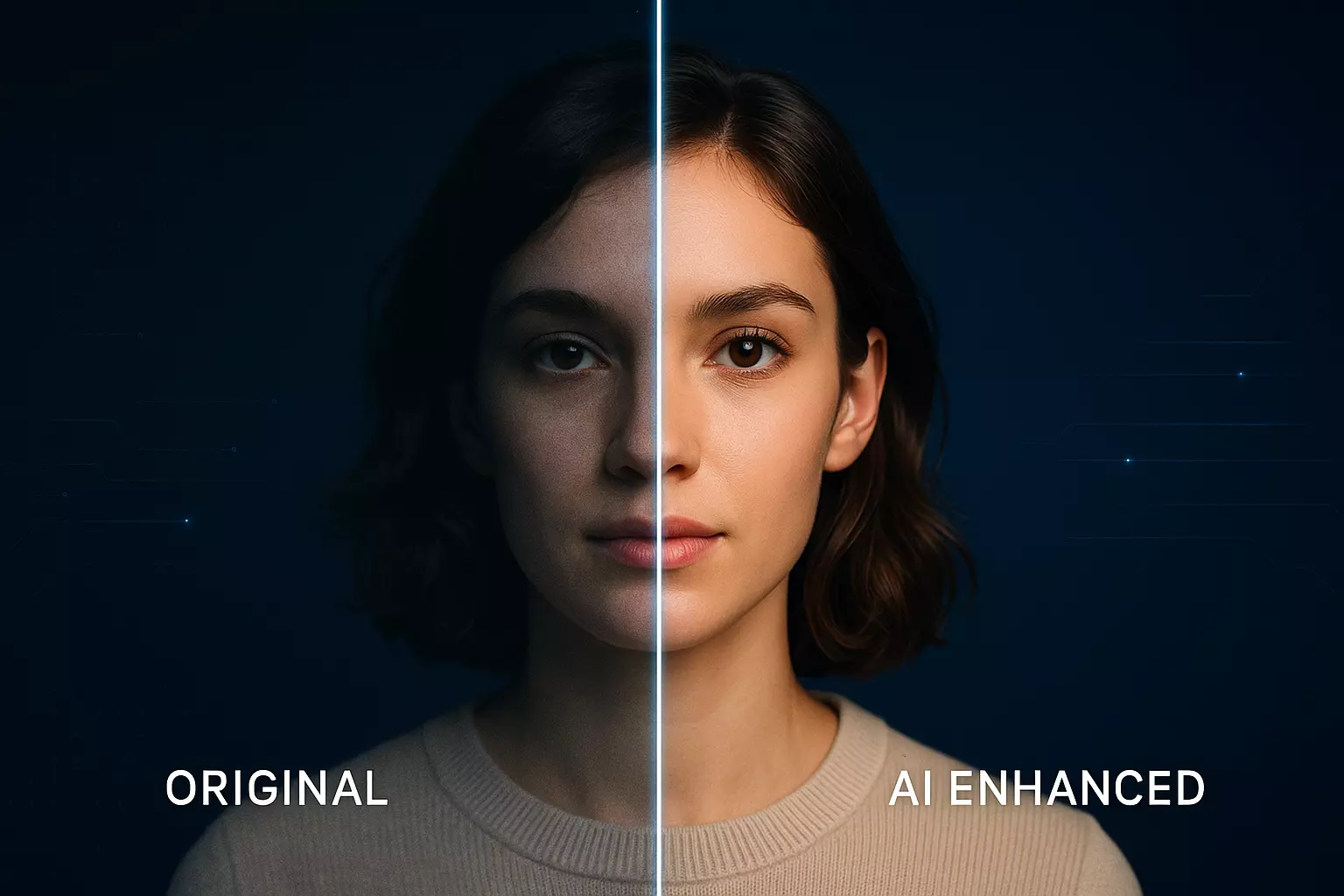
Tip: When working on a set, repeat this flow across your selects to remove people from photos online consistently. Pixflux.AI also helps with background cleanup, watermark removal for your own assets, and image enhancement to bring clarity and contrast into alignment across the batch.
(See image: Pixflux.AI interface with the three steps—Upload → AI processing → Download—on a travel photo)
Restoring textures after object removal
Convincing cleanup is less about the removal and more about the “re-anchoring” that follows. Run through this short checklist:
- Shadows and reflections: After removing a subject, reintroduce soft shadow gradients where appropriate so the ground doesn’t look unnaturally flat. Watch reflective surfaces like water, windows, and polished stone.
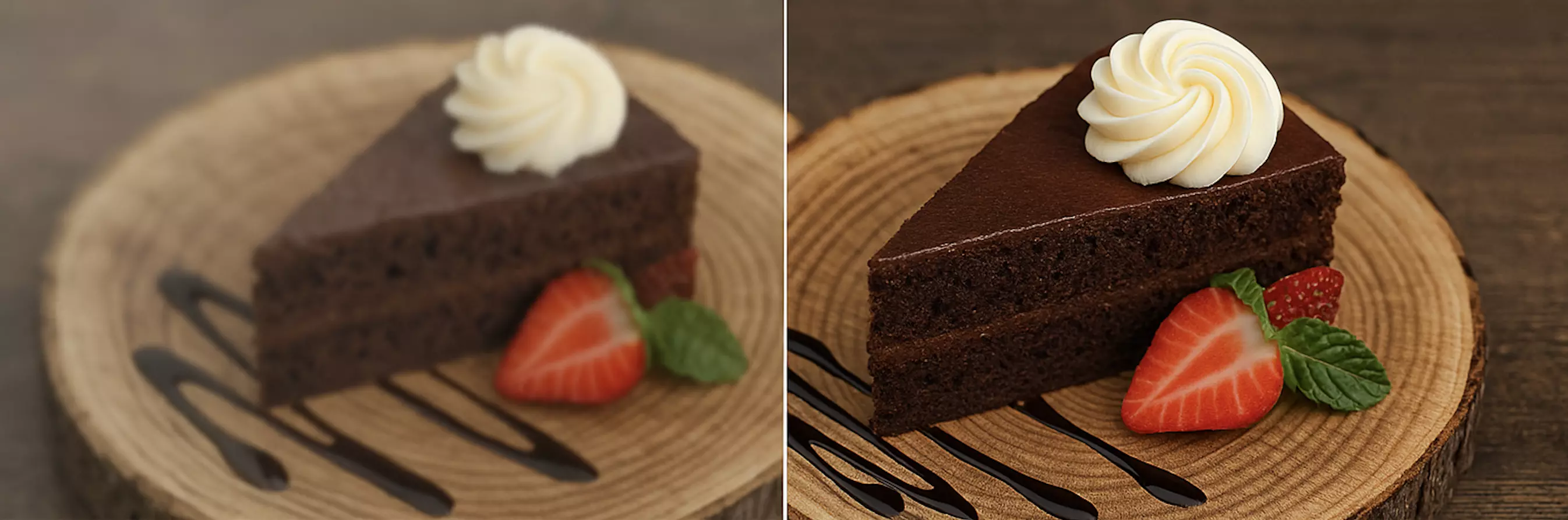
- Surface grain: Add subtle film grain or use noise match tools so the filled areas have the same texture as surrounding pixels. This reduces the “too smooth” look.
- Pattern continuity: Align lines in railings, tiles, bricks, and latticework. If AI generates a misaligned seam, nudge it with a small clone or heal pass at low opacity.
- Edge fidelity: Feather 1–3 px around complex edges (trees, hairline railings) so transitions look organic rather than cut-and-paste.
Keeping edits consistent across a batch
- Color profile: Choose one base look—e.g., warm neutrals with soft contrast—and apply globally before local fixes.
- White balance: Lock a Kelvin value across the set when lighting is similar; adjust mixed-light shots separately.
- Sharpness and clarity: Set uniform sharpening and micro-contrast to avoid some images feeling “crunchy” compared to others.
- Final pass: Scan the grid view for any outliers in tone or saturation. Nudge them into alignment.
Case study: from crowded landmark to clean hero set
At sunrise, you shoot a popular European square. Even early, there’s a slow trickle of tourists crossing the frame. You capture 15 frames from a tripod, then select the best composition. A quick median stack removes most of the moving people. In Pixflux.AI, you brush away the last two figures at frame edge, plus a stray sign and a trash bag by the curb. You restore faint cobblestone shadows and add subtle grain. After syncing a warm-neutral grade and consistent sharpening across six angles, you export a cohesive hero set for the blog’s destination guide and social covers.
Legal, ethical, and disclosure notes
- Edit ethically: It’s routine to remove transient passersby and clutter for clarity, but avoid altering scenes in ways that mislead about access, safety, or crowd levels when it matters to your audience.
- Rights and watermarks: Only edit photos you own or are authorized to modify. If you remove a watermark or logo from your own or licensed assets, ensure you comply with license terms. Do not use watermark removal to infringe on others’ rights or circumvent platform rules.
- Disclosure: If an edit materially changes how a place might be experienced (e.g., removing scaffolding on a closed area), consider disclosing the retouch.
Troubleshooting common artifacts
- Ghosting: If faint outlines remain after a blend, paint a precise removal pass over the ghost area, then reinforce local contrast so edges don’t haze.
- Smears on motion: AI can smear fast-moving subjects. Shrink your brush and remove in smaller sections; restore texture with a small clone and grain pass.
- Pattern mismatches: Tiles and bricks can repeat unnaturally. Use short, angled clone strokes to reflow the pattern, then gently blur and re-sharpen.
- Over-smooth ground: Rebuild soft shadow gradients and add minimal grain/noise to match the surrounding footpath.
- Halo edges: If a skyline halo appears, feather the transition and add a slight tone match along the seam.
AI tools vs. traditional methods
- Time cost: A browser-based editor like Pixflux.AI clears most distractions in minutes, whereas manual clone/heal can take 10–30 minutes per image.
- Learning curve: AI-guided removal needs basic brushing; advanced Photoshop workflows require layers, selections, and blend modes.
- Batch efficiency: When you’re editing sets for a destination guide, AI object removal plus consistent grading speeds up delivery dramatically.
- On-the-go workflow: Traveling with only a laptop? Pixflux.AI’s browser-based flow fits mobile and lightweight setups.
FAQ: remove unwanted person from photo and batch editing
What is the fastest way to remove people from photos for travel blogs?
Use AI object removal on your best frame, then finish with small manual touch-ups. Start with an AI pass to clear obvious subjects, which now preserves cobblestones, foliage, and sky gradients well. If you shot multiples, median stack first to reduce crowd density; then do targeted inpainting and quick texture re-anchoring.
Will removing people ruin textures like tiles, grass, or water?
No, not if you restore texture and patterns after the AI pass. Modern tools reconstruct plausible background; you then refine edges, reintroduce subtle grain, and realign repeating patterns. This two-step approach keeps surfaces believable.
Can I process a whole set and keep a consistent look?
Yes, plan the batch and sync your final look across the set. Group similar angles, apply a unified color profile, and repeat the same clarity and grain. Use a consistent order: global grade → object removal → texture restore → final sync.
Is it okay to remove bystanders ethically and legally?
Yes, if you own the photo and edits do not mislead your audience. Only edit your own or licensed images. Avoid removals that change safety, access, or crowd realities in a way that misinforms. If you remove watermarks or logos from your own assets, ensure your license allows it.
How do I handle reflections and shadows after removing someone?
Rebuild faint shadows and check reflective surfaces carefully. After removal, paint soft shadow gradients where needed, and inspect windows, glossy floors, or water for missing reflections. Small, low-opacity adjustments help the fill sit naturally.
Does this work for social platforms with strict specs?
Yes, but export to the platform’s recommended size and aspect. After cleanup, export platform-specific crops (e.g., 4:5 for Instagram feed, 16:9 for YouTube cover) and sharpen for output size. Keep the same color profile across placements for brand consistency.
Can I do this on a travel laptop without heavy software?
Yes, a browser-based tool is enough for most crowd removals. Pixflux.AI runs in the browser, so you can brush away distractions, refine, and download final images while traveling light.
Summary workflow: put it all together
1) Capture multiples on location with stable framing. 2) Pick your hero, optionally median blend to thin crowds. 3) Clean with AI object removal and small manual refinements. 4) Restore textures—shadows, reflections, grain, and pattern continuity. 5) Sync the grade and export consistent assets for your blog and socials.
Conclusion and next steps
Travel creators are prioritizing fast, batch-friendly retouching—because a clean hero image sets the tone for everything that follows. With today’s AI, you can clear people, fix distractions, and keep a consistent brand look across your entire set, all from a browser. If you’re ready to test a practical, on-the-go workflow, try Pixflux.AI to erase strangers from travel photos and ship your next guide with clean, compelling hero images.