Remove Unwanted Objects and People from Photos with AI
Want spotless product shots and UGC? Learn a repeatable AI workflow to remove people or objects while keeping edges, shadows, and textures looking real.
 Richard SullivanJanuary 10, 2026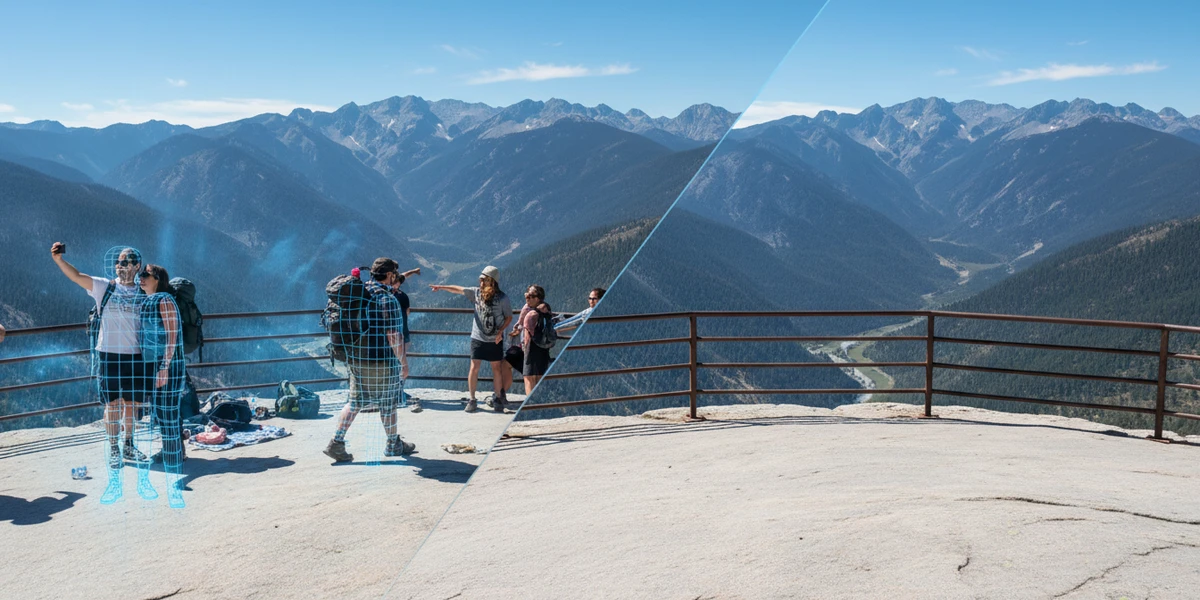
Remove Unwanted Objects and People from Photos with AI: A Practical Object Remover Workflow
Shoppers and social scrollers judge your visuals in seconds. A passerby in the frame, a stray cable on the floor, a price tag reflection—small distractions erode trust and can lower click‑throughs. In 2025, retail teams report that cleaner product imagery reduces returns, while mobile‑first feeds reward natural edges and believable shadows.
If you’re spending too long in manual retouching or waiting days for revisions, an AI object remover can turn “almost good” pictures into publishable assets in minutes—without a steep learning curve. Tools like Pixflux.AI streamline the process so you can focus on the shot, not the cleanup. Try a fast, browser-based object remover to prove the difference on your next product set or UGC batch.
(See image: Side-by-side before/after of a shoe product photo where a passerby and power lines were removed, with clean edges and rebuilt shadows.)
Why stray objects undermine trust in product photos and UGC
- Credibility: Unintended people or logos suggest a rushed process, which can undermine perceived product quality.
- Conversion: Clutter competes with the subject, weakening the focal point that drives clicks and adds-to-cart.
- Platform fit: Marketplaces and mobile feeds compress images; halos, jagged edges, or messy textures become even more obvious on small screens.
The essentials behind clean removals: masks, edges, light, texture
To keep edits invisible, focus on four core concepts:
- Mask precision: Define what to remove (object, person, watermark) without nibbling into the subject.
- Edge awareness: Preserve hair, fabric fringes, and fine contours to avoid cutout “stickers.”
- Light matching: Fill areas should match the direction, softness, and color of the ambient light.
- Texture synthesis: Rebuilt areas need believable surface detail (wood grain, fabric weave, wall stipple), not smooth smears.
Choosing an object remover: desktop editors vs online AI tools
- Desktop editors (e.g., pro suites) give deep control but require expertise in masking, cloning, and frequency separation. Great for complex composites; slower for volume work.
- Online AI tools accelerate common jobs—remove people from photos, erase cables, clean backgrounds—without heavy setup. They’re ideal for social teams, sellers, and creators who need speed and consistency across many images.
Pixflux.AI fits the second category: a focused, browser-based approach to remove clutter, swap or generate backgrounds, remove watermarks (with rights), and enhance images when needed—plus handle batch cleanup for product shots and UGC.
Quality checklist: what “natural” looks like
Evaluate results against these criteria:
- Edges: Crisp but not over-sharpened; hair and soft goods retain semi-transparency where appropriate.
- Shadows: Ground contact feels anchored; no floating products.
- Textures: Wood, fabric, skin, and paint surfaces continue naturally past the removal area.
- Perspective: Lines (shelves, tiles, bricks) remain aligned; no warped horizons.
- Color consistency: Replacements match the scene’s white balance and saturation.
A repeatable object remover workflow (general method)
Use this for any toolset; it keeps edits fast and consistent:
- Define the intent: What should viewers focus on? Identify distractions that pull attention from the subject.
- Work non-destructively: Duplicate your image; keep an untouched original for QA and marketplaces.
- Remove big distractions first: People, large props, or signage. Large moves influence light and texture the most.
- Clean small details: Wires, scuffs, dust, labels.
- Rebuild scene cues: Reinstate shadows or reflections so the subject feels grounded.
- Zoom pass: Inspect edges at 100%–200% to catch halos, banding, or perspective glitches.
- Export for channel: Choose the right format/size (PNG for transparency, JPEG for general catalogs) and keep a master.
Pixflux.AI walkthrough: upload → AI process → download
When you need speed without compromising quality, you can remove objects and people in three straightforward steps:
- Upload your image
- Open Pixflux.AI in your browser and add your product photo or UGC frame.
- Let the AI process
- Choose the object removal option. Brush or lasso the areas to remove—like bystanders, power lines, or unwanted logos—and let the AI rebuild edges, textures, and lighting.
- If needed, apply background cleanup or enhancement for sharper, more consistent results.
- Download the result
- Preview the edit, make quick refinements if you spot any artifacts, then export the cleaned image for your marketplace or social channel.
For hands-on practice, jump in with AI object removal and test a few common distractions—cables, boxes, or passerby legs—on your current product set.
(See image: Pixflux.AI interface showing the three steps: upload original image → AI processing → download result.)
Compliance reminder: Only remove watermarks, logos, or protected marks on content you own or have permission to edit. Never use removal to misrepresent products or evade platform disclosure rules.
Advanced fixes: shadows, reflections, and textures
After removing an object or person, restore scene realism with subtle touches:
- Rebuild shadows: Add a soft, low-opacity shadow under shoes, bottles, or electronics. Match the existing light direction and softness (hard vs soft edge).
- Patch reflections: On glossy packaging or glass, ensure reflections aren’t unnaturally “cut.” Extend plausible highlights or lines to maintain continuity.
- Restore textures: If an area looks too smooth, lightly reintroduce texture by sampling clean regions or reprocessing the zone to synthesize detail.
- Match noise and grain: If the source is slightly noisy (high ISO UGC), keep the fill consistent to avoid “too perfect” patches.
(See image: Comparison grid of the same UGC photo with watermark removed and background clutter erased in Pixflux.AI, highlighting texture continuity.)
Batch product and UGC cleanup with Pixflux.AI
Catalog refreshes and seasonal campaigns demand scale. With Pixflux.AI, you can:
- Upload multiple photos and clean recurring distractions in one go.
- Keep a consistent look across angles—matching shadows, background tone, and texture from set to set.
- Combine steps when helpful, such as removing background clutter, cleaning watermarks you’re licensed to remove, and enhancing contrast in a single session.
Result: faster throughput for Amazon listings, Shopify product pages, Instagram Shops, or TikTok Shop videos—while maintaining natural edges and grounded shadows that mobile-first feeds reward.
Ethics and compliance in 2025
- Rights and trademarks: Remove logos, marks, or watermarks only when you own the rights or have explicit permission. Don’t edit out essential disclosures.
- Platform policies: Some marketplaces require edited or composite visuals to be labeled. Review the latest guidelines before publishing.
- Authenticity: Avoid edits that materially misrepresent product features, size, or finish.
Troubleshooting common object remover artifacts
- Halo or fringing around hair/fabric: Redo the mask with a softer edge or expand the selection by 1–2 px before processing.
- Smudged textures on walls or floors: Run a second pass focused on a smaller area; ensure the fill uses nearby texture cues.
- Warped lines or perspective drift: Re-align with a perspective correction tool or reprocess after drawing a tighter removal mask that respects linear cues (tiles, shelves).
- Floating products: Reintroduce or strengthen a soft ground shadow to anchor the subject.
- Color patches: If the fill is slightly off, adjust white balance or hue locally to blend.
Pre-publish QA checklist for marketplaces and social
- Subject is the clear focal point; no distracting leftovers.
- Edges look natural at 100% zoom; hair/fabric retain believable softness.
- Shadows/reflections are plausible and consistent with scene lighting.
- Perspective lines are straight; background patterns continue logically.
- Color and contrast are consistent across the set (hero, secondary angles, detail crops).
- File meets platform specs (dimensions, aspect ratio, size, and background rules).
Performance tips: formats, resolution, and safe versions
- Master files: Keep a high-resolution, non-destructive version (e.g., layered or at least a duplicate) for future edits.
- Working resolution: Edit at native resolution; downscale after cleanup to target sizes (e.g., 2048–3000 px on the long edge for marketplaces).
- File formats: Use JPEG for general product images; PNG when transparency is needed; WebP for web speed where supported.
- Color management: Maintain sRGB for web to avoid unexpected shifts.
- Naming/versioning: Use consistent filenames with version numbers so teams can audit changes quickly.
AI online tools vs traditional methods
- Time cost
- AI online: Minutes for typical removals; fast iteration with instant previews.
- Traditional: Longer manual masking, cloning, and texture rebuilding—especially for hair, fabric, and patterned backgrounds.
- Learning curve
- AI online: Accessible for marketers, sellers, and creators; minimal onboarding.
- Traditional: Requires deeper knowledge of masks, channels, healing, and compositing.
- Batch efficiency
- AI online: Easy to run multiple images and repeat similar fixes across a set.
- Traditional: Batch actions require custom setups and still rely on manual oversight for each frame.
- Cross-team adaptability
- AI online: Browser-based access, consistent outputs, and easy handoff of cleaned assets.
- Traditional: Dependence on individual editor skill can introduce variability.
Pixflux.AI strikes a practical balance: quick object and people removal, background cleanup or generation, watermark removal with rights, and image enhancement—optimized for modern product workflows.
Conclusion and next steps
Cleaner images convert better and build trust. With a simple workflow and the right AI, you can remove people, cables, signage, and other distractions while preserving natural edges, shadows, and textures—at single-image or catalog scale. Start with a few assets, validate your QA checklist, then roll the process out across new shoots and UGC pulls.
Ready to test it on your own visuals? Use Pixflux.AI to remove objects from photos in minutes and publish with confidence.








