Image Background Remover 101: A Practical Guide for Non-Designers
Skip Photoshop. Use an image background remover to clean photos in three clicks, swap backgrounds, and batch product shots—no design skills needed.
 Richard SullivanDecember 1, 2025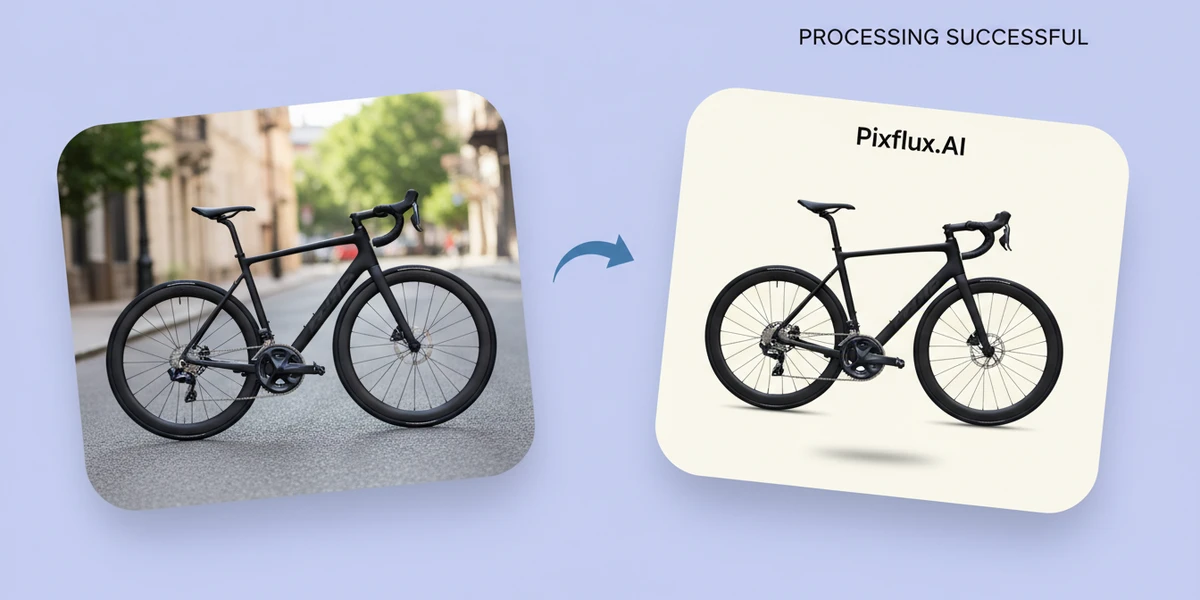
Image Background Remover 101: A Practical Guide for Non-Designers
If you’ve ever tried to clean up a product photo or a headshot in a hurry, you know the pain: busy backgrounds, distracting objects, and “floating” edges that don’t look natural. For many small businesses, creators, and marketplace sellers, the real blocker isn’t creativity—it’s time and the complexity of traditional software.
The good news is that modern AI tools can handle background removal in seconds, right in your browser. Instead of wrestling with selection brushes and layers, you can use an image background remover to get a clean, on-brand result with a few clicks. In this guide, you’ll learn what background removal is, when to use it, how it works behind the scenes, and how to execute a fast, reliable workflow using Pixflux.AI—without being a designer.
Non-designers increasingly lean on one-click editors, while retailers and marketplaces continue to standardize imagery. At the same time, generative backgrounds make it possible to create on-brand visuals without reshooting. Let’s put those trends to work for you.
What is an image background remover? Core concepts and benefits
An image background remover isolates your subject—product, person, document—from its surroundings. The output is usually a transparent PNG or a clean background (white, brand color, or a styled scene).
Why it matters:
- Consistency: Standardized images look professional across e-commerce listings, ads, and social feeds.
- Focus: Cleaner visuals draw attention to the subject and improve conversion.
- Speed: AI finishes in seconds, enabling quick iterations and faster go-to-market.
Common results you can produce:
- Transparent backgrounds for catalogs and marketplace uploads
- White or light-gray backgrounds for Amazon, eBay, or Walmart listings
- On-brand color backdrops for DTC sites and ads
- Styled, generated scenes for social posts and editorial banners
When to use background removal: ecommerce, portraits, social, and documents
- Ecommerce product photos: Remove distracting studio clutter, replace with white or brand color, and keep shadows for realism. Many marketplaces prefer neutral or white backgrounds for a consistent buyer experience.
- Portraits and profile photos: Clean up busy office or outdoor scenes for LinkedIn headshots, team pages, or speaker bios.
- Social and content marketing: Swap in seasonal or campaign-specific backgrounds without reshooting. Ideal for Instagram, TikTok, and email banners.
- Document and presentation assets: Cut out logos, device mockups, or screenshots for pitch decks and landing pages.
How background removal works: selection, masking, and AI segmentation
Traditional background removal relied on manual selection and masking—painful for hair, fur, or complex edges. AI segmentation automates this by:
- Detecting the subject: A model identifies likely foreground areas based on shape and contrast.
- Refining edges: It learns fine details like hair strands or jewelry, minimizing halos and jagged lines.
- Outputting a mask: The mask separates foreground from background so you can keep, replace, or edit behind the subject.
You still get control: adjust edges, restore lost areas, or add a shadow for realism. But the heavy lifting happens automatically.
Choosing a tool: online vs desktop vs mobile for non-designers
- Online editors: Best for speed and accessibility. You just open a browser, upload, and let AI do the rest. Pixflux.AI fits here—no installs, no steep learning curve.
- Desktop software: Powerful and customizable, but requires training and more time per image. Great for advanced compositing; overkill for fast background cleanup.
- Mobile apps: Handy for social posts and quick edits on the go; limited for detailed quality checks and larger batches.
If you’re a non-designer aiming to produce clean visuals quickly, browser-based AI tools are the sweet spot—fast to start, accurate enough for everyday use, and easy to repeat at scale.
Quick start: a 3-step image background remover workflow
Whether you’re prepping product images or updating headshots, the fastest path is a simple loop you can repeat dozens of times per hour.
- Upload: Drop your image into a reliable background remover online.
- Let AI process: The tool detects the subject, cleans the edges, and removes the background automatically.
- Download: Export as a transparent PNG or a JPG with a white or brand-color background.
(Tip for visual placement: see image—“A three-step Pixflux.AI interface sequence showing Upload → AI processing → Download for a product photo.”)
Use Pixflux.AI: remove, change, or generate backgrounds in minutes
Pixflux.AI is a lightweight, browser-based editor designed for non-designers who need professional-looking results fast. It covers the essentials—background removal, background replacement or generation, watermark cleanup, object removal, and enhancement—without overwhelming menus.
Follow this practical 5-step flow:
- Open Pixflux.AI in your browser.
- Upload your original photo—product, portrait, or document.
- Choose the background tool and let AI process the image. Remove the background, or switch to a solid brand color or a generated scene.
- Preview and fine-tune. Restore any missed edges, soften hair transitions, add or adjust natural shadows, and correct color spill if needed.
- Download your final image. Use PNG with transparency for design flexibility or JPG for compressed, web-ready files.
Use cases in minutes:
- Ecommerce: Batch clean product photos for a consistent catalog look and faster listing approvals.
- Social: Generate seasonal or on-trend scenes without a new photoshoot.
- Branding: Swap default white backgrounds for your brand’s palette across ads and landing pages.
(See image: “Before-and-after comparison of the same item in Pixflux.AI with background removal and watermark removal applied.”)
Beyond removal: watermark remover, object cleanup, and photo enhancement
Great product and profile photos aren’t only about backgrounds. Pixflux.AI helps you:
- Remove watermarks and logos that you’re legally allowed to clear, such as your own branding when repurposing images.
- Clean up stray objects—cables, reflections, or passerby—to reduce distractions.
- Enhance clarity and contrast so details pop on mobile and desktop.
Important note on rights: Only remove watermarks or protected marks from images you own or are explicitly licensed to edit. Do not use watermark removal to infringe on copyrights or bypass platform rules.
Quality checklist: edges, hair, shadows, color spill, and export settings
Before you publish, run through this quick audit:
- Edges: Zoom to 200–300% and check for jagged or soft edges, especially around corners and curves.
- Hair and fine details: Ensure wisps look natural and not blocky. Re-run refinement if needed.
- Shadows: Add a soft, realistic shadow to avoid a “cutout sticker” look. Subtlety is key.
- Color spill: Neutralize the original background’s color cast on reflective surfaces (e.g., metallic products).
- Consistent angles: Align products and headshots to similar crop and horizon lines for a uniform catalog.
- Export format:
- PNG with transparency for flexible layouts and layered designs
- JPG on a white or brand-color background for compressed, marketplace-ready images
- Resolution: For ecommerce, aim for at least 1500–2000 px on the shortest side. Check platform requirements.
Troubleshooting background removal: halos, stray pixels, and transparent artifacts
- Halos around hair or edges: Increase feathering slightly, add a subtle shadow, and ensure the replacement background contrasts enough with the subject.
- Stray pixels left behind: Use a cleanup brush to remove leftovers; zoom in on corners and gaps between limbs/handles.
- Missing details (over-masking): Restore areas with the refine/restore brush, especially around jewelry, straps, or thin objects.
- Transparent artifacts: If semi-transparent parts look odd (e.g., glass), tweak opacity or add a light gradient background to reintroduce context.
Case study mindset: batching consistent product photos with minimal effort
Imagine you’re listing 60 SKUs on Amazon and your in-house photos vary: different table surfaces, uneven lighting, mixed shadows. Manually editing each photo would take hours, and outsourcing might delay your launch.
A practical approach:
- Batch process: Upload your product set and let AI remove backgrounds consistently. In Pixflux.AI, you can process multiple images in one go for a uniform look across the collection.
- Standardize settings: Use the same brand color background and shadow parameters for every SKU. Your grid pages will look cohesive and more premium.
- Iterate quickly: If a particular category needs a stylized backdrop for ads, generate a few options, compare on mobile and desktop, and finalize the best-performing scene.
(See image: “A grid of the same product with swapped or AI-generated backgrounds for consistent catalog looks.”)
Result: Faster listing prep, consistent imagery, and fewer edits later when you expand into seasonal campaigns.
AI online tools vs traditional methods
- Time cost:
- Online AI tools: Seconds per image; batches in minutes.
- Traditional software: 5–15 minutes per image (longer for hair or complex edges).
- Outsourcing: 24–72 hours turnaround per batch.
- Skill and learning curve:
- Online AI tools: No design training required; intuitive sliders and toggles.
- Traditional software: Requires layer masks, pen tools, feathering, and non-destructive edits.
- Batch efficiency:
- Online AI tools: Upload many images, keep consistent settings, and export in one pass.
- Traditional software: Repetitive manual steps make scaling tedious.
- Cross-team readiness:
- Online AI tools: Works in any browser; simple enough for marketing, operations, or support teams to use immediately.
For creators and small teams, the trade-off is obvious: you get 80–90% of pro-grade results in a fraction of the time, with a fraction of the training.
Ethics and rights: when watermark removal is acceptable—and when it is not
Ethical editing is non-negotiable:
- Only remove watermarks or marks from images you own or have rights to modify.
- Respect license terms for stock imagery and UGC.
- Follow marketplace policies on image manipulation; maintain truthful representation of products.
Pixflux.AI supports responsible editing. The watermark remover exists to help you clean your own assets and maintain brand consistency—not to circumvent copyrights or platform guidelines.
Putting it all together with Pixflux.AI
Here’s a repeatable, non-designer workflow you can run daily:
- Collect your raw images (phone or studio shots).
- Use Pixflux.AI to remove backgrounds in batches—switch to white, brand color, or a generated scene as needed.
- Clean up distractions (wires, reflections), and enhance clarity for mobile screens.
- QA with the checklist above, export in the correct format and resolution.
- Publish confidently across Amazon, Shopify, social ads, and email campaigns.
If you’re ready to try it now, start with an image background remover and run three to five images through the loop to see instant gains.
Conclusion and next step
Whether you manage a storefront, run paid social, or build decks for clients, clean, consistent imagery is a multiplier on trust and conversions. The combination of AI segmentation and generative backgrounds means you can maintain brand standards, scale catalogs, and ship campaigns faster—without turning into a full-time designer.
Cut your editing time from hours to minutes and give your visuals a consistent, professional finish. Open Pixflux.AI in your browser, upload your first image, and let the AI handle the heavy lifting. If you’re new to this, here’s a simple entry point: try a trusted AI background removal tool and see how far three clicks can take your next campaign.








