Remove object from photo online free: A Practical AI Workflow for Freelance Designers
A quick, AI-powered workflow to remove objects online for free—upload, brush or lasso, quality-check, then export clean product, travel, or lifestyle shots.
 Sierra CappelenDecember 3, 2025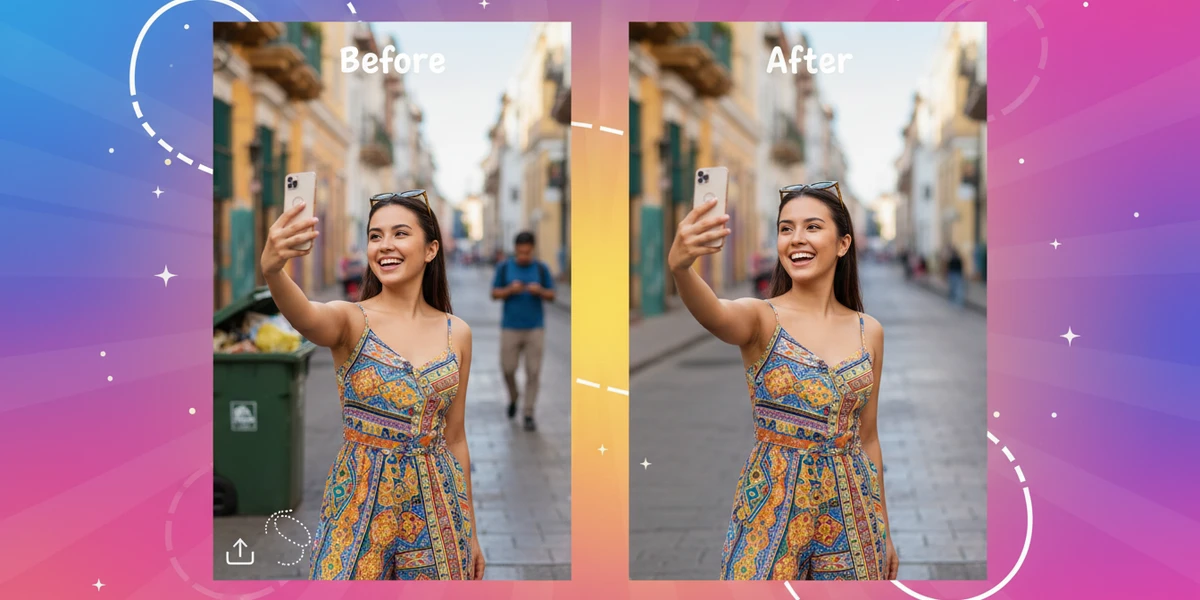
Remove object from photo online free: A Practical AI Workflow for Freelance Designers
Freelance designers live on turnaround time and texture accuracy. One hour it’s a product refresh for an Amazon listing, the next it’s clearing a tourist from a travel brand’s hero shot, or cleaning cables from a lifestyle flat lay. You don’t always have access to a heavy desktop editor, and hiring a retoucher for every quick fix isn’t realistic.
The good news: browser-based AI editors are now strong enough to do clean, texture-consistent removals in minutes. If you’ve been looking to remove object from photo online free without opening Photoshop, this guide walks you through a practical, repeatable workflow using Pixflux.AI and a few pro checks to keep results client-ready.
Freelance clients increasingly expect faster turnarounds and consistent quality across large sets. In 2025, batch workflows are mainstream for catalogs and social content, and ethical editing practices are part of the brief. Let’s build a process that fits those expectations.
Why freelancers need a simple way to remove objects online for free
- Speed determines your margin. The faster you can remove distractions, the more jobs you can accept without compromising quality.
- Not every image warrants a full retouch in Photoshop. For routine fixes—stray cables, dust spots, passersby, exit signs—an online AI editor is more than enough.
- Cross-device flexibility matters. Being able to work from a browser on any machine helps you keep moving between shoots, calls, and deliveries.
Browser-based AI editors have matured. For many “remove object” tasks, they now equal or surpass clone and patch results in less time, especially on natural textures like grass, fabric, sand, and skin.
How AI object removal works vs. clone and patch methods
Traditional tools like Clone Stamp or Patch require you to sample nearby pixels and manually blend them into the target area. They’re powerful, but they demand time, steady hands, and deep familiarity with texture direction, lighting, and perspective.
AI object removal uses inpainting: a model predicts what should exist behind the object by looking at surrounding context (edges, patterns, gradients) and synthesizing plausible pixels. The benefits:
- Faster first pass: you select the object, the model fills it.
- Texture awareness: modern models often maintain grain, depth, and soft gradients better than quick manual cloning.
- Fewer repetitions: AI can avoid telltale repeating patterns that give away clone jobs.
When is manual still better? Extremely technical edits where brand elements, micro-patterns, or product geometry must be pixel-perfect. For most freelance scenarios, an AI first pass plus a quick check is optimal.
Choosing a tool for “remove object from photo online free”: criteria and trade‑offs
Before you commit, evaluate against these criteria:
- Edge quality: Does the tool preserve fine edges (hair, wires) and adjacent texture?
- Selection controls: Brush, lasso, feathering, and mask refinement are essential for precision.
- Speed and stability: Preview and re-run speeds matter under deadlines.
- Batch capability: Can you upload and process multiple images to keep a consistent look across a set?
- Export control: Support for JPG/PNG, quality settings, and sRGB color profile for web delivery.
- Free tier boundaries: Understand limits (image count, resolution) to plan your day.
- Privacy and compliance: Use only assets you own or are licensed to edit, especially with watermarks and logos.
Quick start: remove an object online in minutes
Here’s a general flow you can apply across modern AI editors:
- Upload the photo
- Use the highest available resolution to preserve detail during inpainting.
- Select the object with brush or lasso
- Slightly overlap the object’s boundary to include soft edges and tiny halos.
- Run the AI removal
- Preview the result. If edges look too sharp or smeared, adjust feather by 1–3 px and re-run.
- Inspect texture and light
- Check shadows, reflections, repeating patterns, and perspective lines. Re-run with a tighter or looser selection if needed.
- Export for delivery
- Choose JPG for social/web, PNG if you need transparency or minimal compression. Confirm sRGB for online use.
(See image: In-editor view showing Upload → selection with brush → AI result preview → Export panel.)
Using Pixflux.AI to remove unwanted objects: upload → AI process → download
Pixflux.AI gives you a straight-line path from distraction to clean result. Here’s the simplest approach:
- Upload your image
- Drag and drop your file into Pixflux.AI. Start with the largest version you have for best texture synthesis.
- Let the AI process your selection
- Highlight the unwanted object with the brush or lasso. Pixflux.AI analyzes surrounding context to rebuild the background with convincing texture and lighting.
- Download your cleaned image
- If needed, fine-tune the selection and re-run. Then export in your preferred format for delivery.
Tip: If you need a quick link to jump in, try this free online object remover starting point.
Compliance note: Remove logos or watermarks only on images you own or are licensed to edit. Do not use object or watermark removal to bypass ownership or platform rules.
(See image: Pixflux.AI interface showing the three-step Upload → AI processing → Download flow.)
(See image: Before-and-after of a product photo removing a stray cable and dust spots.)
Selection techniques that improve AI results
Good selections lead to great fills. Use these techniques:
- Brush size discipline: Start larger than the object’s widest point to include edge glow or halos. Reduce size for tight areas.
- Edge refinement: Expand selection by 1–2 px on high-contrast edges to help the model blend gradients cleanly.
- Feathering: Feather 1–3 px to avoid harsh transitions. Increase slightly for soft materials (fabric, hair).
- Over-select the base of shadows: If an object casts a shadow, include the base and soft falloff so the AI reconstructs light realistically.
- Mask and re-run: If a first pass smears textures, undo and re-run with a cleaner, segmented mask (e.g., handle the object in two parts).
Quality checks: shadows, reflections, textures, perspective consistency
Before you export, make these quick checks:
- Shadows: Does the filled area include a believable soft shadow if the scene requires it? If a removed object had a shadow, ensure the area now matches the environment.
- Reflections: On glass, metal, or water, watch for streaks or ghosting. Re-run with a tighter selection around highlight edges.
- Textures: Look for repeating patterns or blur. Sand, fabric, and brick should keep grain direction and scale.
- Perspective lines: Walls, floors, and tabletops should maintain line continuity after removal.
- Skin and hair: On portraits, zoom to 100% to confirm pores, fine hair, and color transitions don’t look airbrushed.
Export settings that preserve detail
- Format: JPG (quality 80–90) for web and social; PNG when you need transparency or lossless edges around fine detail.
- Color profile: sRGB for consistent online display; convert before delivery if your source is in Adobe RGB.
- Compression: Avoid aggressive compression on gradients (skies, product shadows) to prevent banding.
- Dimensions: Deliver platform-ready sizes (e.g., 2048 px longest side for Instagram posts, marketplace-specific specs for ecommerce).
- File naming: Include versioning (client_project_scene_v2.jpg) to track revisions efficiently.
Case studies: product, travel, and lifestyle photo cleanups without Photoshop
- Product: A DTC brand sends 40 catalog shots with stray sensor dust and one visible USB cable on a turntable. With Pixflux.AI, a single pass removes each distraction. Batch upload keeps the pace, and consistent feather settings preserve the soft shadow gradient across the set.
- Travel: A tourism board needs a clean sunrise pier shot; two tourists are overlapping railings. Deliberate selection around railing edges and a 2 px feather maintains linear perspective, while AI fills wood grain and water reflections convincingly. A quick re-run with a tighter selection removes a light halo. (See image: Travel scene with a tourist removed while keeping shadows and textures intact.)
- Lifestyle: For a flat lay, a brand requests the removal of a wrinkled tag and a distracting seam. Selecting a slightly larger area around the seam and re-running yields a smooth textile texture that matches the weave pattern.
None of these required opening Photoshop—just careful selections, quick previews, and consistent quality checks.
Ethics and rights: when removing logos or watermarks is (and isn’t) appropriate
- Only edit images you own or have explicit permission to modify.
- Removing third-party logos or watermarks from images you don’t own is not permitted and may violate platform policies and copyright law.
- If your client requests watermark removal, ask for proof of rights or request the original assets.
Troubleshooting object removal: halos, smearing, repeating patterns, re-runs
- Halos along edges: Expand the selection by 1–2 px or increase feather slightly and re-run.
- Smearing or blur on uniform surfaces: Try a smaller brush, break the selection into segments, or nudge the selection edge to include more “clean” reference pixels.
- Repeating patterns (clone look): Re-run with a different selection size; include more of the surrounding context so the model can synthesize a new texture.
- Mismatched lighting: If the filled area looks too bright/dark, re-run after including adjacent shadow or highlight zones to inform the model.
- Complex overlaps (rails, branches, hair): Tackle in passes. Remove the main subject first, then refine around the delicate overlaps with smaller selections.
Scaling up: batch processing for consistent edits across image sets with Pixflux.AI
When you’re editing a catalog, consistency matters as much as single-image quality. Pixflux.AI supports batch processing so you can:
- Upload multiple images at once and apply similar selection approaches across the set.
- Keep a repeatable feather and brush size baseline, ensuring uniform softness in shadow fills.
- Accelerate delivery for campaigns that need a cohesive look across dozens of assets.
This helps you meet the 2025 standard: fast, consistent, and repeatable edits at scale, ready for marketplaces and social channels.
AI online tools vs traditional methods
- Time cost: AI tools like Pixflux.AI generate a strong first pass in seconds. Manual clone/patch work can take several minutes per object, longer for complex textures.
- Learning curve: Online AI requires minimal training. Pro-grade desktop tools reward expertise but add onboarding time for collaborators or junior designers.
- Batch efficiency: Browser-based AI can process multiple images and repeat your approach consistently. Manual edits scale poorly without significant time investment.
- Flexibility: Work from any machine with a browser; no heavy installs or license juggling.
- Consistency under pressure: AI keeps your look coherent across a set, while manual methods may vary between editors.
Wrap-up and next steps
“Remove object from photo online free” doesn’t have to mean compromising quality. With AI inpainting, thoughtful selections, and a short list of quality checks, you can deliver clean, texture-faithful edits at speed. Pixflux.AI fits naturally into a freelance workflow—quick to start, precise when you need it, and scalable when your client sends the next batch.
Ready to try it on your next project? Jump into Pixflux.AI and remove unwanted objects from photos free.








